
Visitor Flow
Decide whether visitors build full multi-part quotes, what contact details you collect, and which example parts they can price in one click.
On this page
The Visitor Flow tab controls what a customer goes through on your website: whether they build a full quote or just see a price, what you ask them before they upload, and which example parts they can try. Open it from Widget, Visitor Flow. Each embed key has its own settings (see Widget Keys).
Quote Workspace#
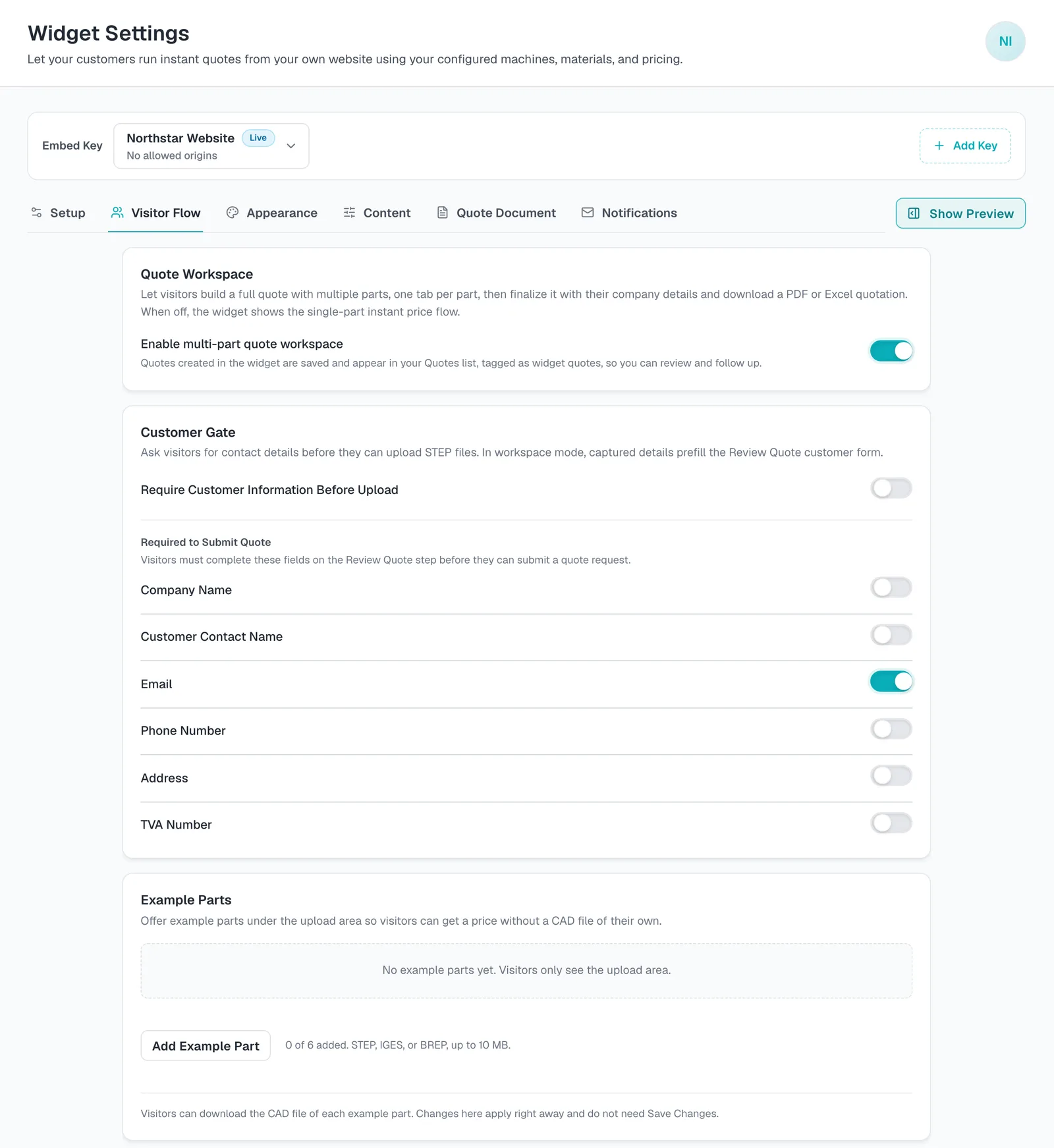
Let visitors build a full quote with multiple parts, one tab per part, then finalize it with their company details and download a PDF or Excel quotation. When this is off, the Widget shows the single-part instant price flow.
Enable Multi-Part Quote Workspace#
Where: Widget, Visitor Flow, Quote Workspace.
Quotes created in the Widget are saved and appear in your Quotes list, tagged as Widget quotes, so you can review and follow up.
When on, visitors get:
- Multi-part tabs, one per part.
- A Review Quote step with contact details and optional shipping.
- A Submit Quote Request button.
- PDF and Excel quotation downloads.
- Saved quotes. The Temporary Quote Retention setting applies (see Widget Keys).
A submitted request counts as a billable Widget quote.
When off, visitors get one part and an instant price on screen. There is no quote request, nothing is added to your Quotes list, and only the Widget Analysis history and email alerts record the visit.
Change it when: turn it on if you want leads to become quotes you can work in your Quotes list and want customers to formally request. Turn it off for a simple "get a ballpark price" tool on a marketing page, or if you do not want to deal with quote requests.
Watch out: check the toggle on each key. Do not assume a new key matches your other keys.
Customer Gate#
Ask visitors for contact details before they can upload STEP files. In workspace mode, captured details prefill the Review Quote customer form.
Require Customer Information Before Upload#
Default: Off. Where: Widget, Visitor Flow, Customer Gate.
When on, visitors see a contact form first. Quote refuses uploads from visitors who skipped it. Email addresses are checked for a valid format. The details are saved with each analysis run in Widget Analysis history and prefill the Review Quote form. The stored contact expires after the same period as draft uploads (48 hours by default).
Change it when: you want to capture leads before they see a price.
Watch out: gating captures leads but reduces how many visitors try the tool. Ask only what you will use. Email alone is a common choice. Collecting personal data may need a privacy notice on your site.
Warning: If you turn the gate on but leave every field off, Quote turns the gate off automatically.
Fields to Collect Before Upload#
Shown when the gate is on. Each is a toggle.
| Field | Default |
|---|---|
| Company Name | On |
| Customer Contact Name | On |
| On | |
| Phone Number | On |
| Address | Off |
| TVA Number | Off |
Required to Submit Quote#
Always visible, and independent of the gate. Visitors must complete these fields on the Review Quote step before they can submit a quote request. Quote enforces them when the visitor finalizes or submits, and checks the email format. It applies in workspace mode.
| Field | Default |
|---|---|
| Company Name | Off |
| Customer Contact Name | Off |
| On | |
| Phone Number | Off |
| Address | Off |
| TVA Number | Off |
Change it when: keep Email required so you can reply. Requiring Phone or Company Name filters out casual visitors but you lose some real requests.
Example Parts#
Offer example parts under the upload area so visitors can get a price without a CAD file of their own. With none added, visitors see "No example parts yet. Visitors only see the upload area."
Where: Widget, Visitor Flow, Example Parts. Click Add Example Part.
Limits: up to 6 parts ("N of 6 added"). File types STEP, IGES or BREP, up to 10 MB. Quote builds the preview picture from the file ("Preparing Preview").
| Field | Rule |
|---|---|
| Part Name | Required, up to 60 characters |
| Description | Optional, up to 80 characters. Example: "3-Axis Milling" |
| Consent checkbox | Required: "I own this design and allow visitors to download this file." |
Use Add Part to save, Move Up and Move Down to order the parts, and Remove to delete one.
Example Parts save right away. They do not need Save Changes.
Change it when: add parts that show off your machine types so visitors see a price in one click.
Watch out: visitors can download the CAD file of every example part. Only add designs you own and are happy to give away. Quote shows an error if you hit the limit, use a wrong file type or an oversized file, skip the consent box, use a name of the wrong length, or the preview cannot be created or saved.
Related Pages#
Last updated