
Measure Documentation
From a drawing to a signed-off first article report: build a template, inspect parts, record photos, and download the reports your customers ask for.
Getting Started
Measure works in three steps. You turn a drawing into a template, you run an inspection from that template, and you download the report. A template is made once per drawing revision. An inspection is made once per part, or once per lot sample.
1. Create Your Account
Select Start Free and register with your work email and company name. Confirm the email address and Measure opens. The Free plan needs no card and includes 10 drawing reads a month for one user. Companies on Trace Pro or any Quote plan already have Measure and can open it from the product switcher.
2. Look Around the Workspace
Home shows your recent inspections and templates, so you can pick up where you left off. The sidebar leads to Templates, Inspections, Standards, Equipment, and Report Branding. The Account section holds Users and Billing.

3. Make Your First Template
Go to Templates and select New Template. Upload a drawing, check the result, and save. The Templates section walks through it.
Tip. Start with a real print from the shop floor. A single drawing takes one drawing read, so the Free plan is enough to try Measure end to end.
TemplatesTurn a drawing into a list of ballooned characteristics.
A template holds the drawing, its title block details, and every characteristic to be inspected with its nominal value, tolerance, and balloon number. Inspections copy their requirements from a template, so the template is where you make the print right once.
Create a Template From a Drawing
- Open Templates and select New Template.
- Select a file, or drag it onto the dialog. PDF, JPG, and PNG drawings are accepted, up to 12 MB. Multi-page prints are supported.
- Select Start Analysis. Measure reads the title block, then finds symbols and frames, then reads the dimensions. The progress label tells you which stage it is on.
- The template editor opens with every characteristic ballooned on the drawing.

Measure reads linear, diameter, radius, chamfer, and angle dimensions, thread callouts, and geometric tolerance frames such as position, profile, flatness, and runout, along with their datums. It also reads the general tolerance table and the notes block.
Scanned and Photocopied Drawings
A drawing without selectable text is read from its image. Measure asks you to confirm first, because each reading from a scan has to be checked against the print before it is relied on. Reading a scan can take a minute or more. Choose Upload And Read It to continue, or Choose Another File to go back.

A scan counts as one drawing read, like any other drawing. If a scan is too low resolution to read, Measure tells you so, and a failed read is refunded. Export a vector PDF from your CAD system, or re-scan at 300 dpi, and upload it again.
Checking Readings From a Scan
Every characteristic read from a scan carries a From Scan marker and a Check Reading flag. A banner at the top counts how many still need a check. Compare each one with the drawing, then select Mark Checked. Editing a row clears its marker too. Inspections and reports note any readings that were never checked, so an unchecked reading cannot slip through unseen.

The Template Editor
The drawing is on the left with a balloon on every characteristic. The panel on the right holds the template details, general tolerances, drawing notes, and the dimensions list. Scroll to zoom the drawing and drag to pan it. Select a balloon, or its row, to see it in both places. Changes save automatically, and the header shows whether everything is saved. Undo and redo work as you would expect.

Template Details
Give the template a name, part name, part number, latest revision, and project. The technical specs hold material, finish, weight, scale, projection, and units. If the title block was read correctly these fill in on their own. If a field was missed, choose Edit metadata sections and draw a box around the right text on the drawing.

Units
Set the template to millimetres or inches. Changing units asks whether to Change Label Only, which keeps the printed numbers, or Convert Values, which converts them. Choose the label when the drawing is simply printed in the other unit. Your default for new templates is under Settings, then Measure. A unit declared on the drawing always wins.
Adding, Editing, and Removing Characteristics
Select Add Measurement to add a characteristic that was missed, then place its balloon on the drawing. Select a row to correct its nominal value, tolerance, or type. Delete a row to drop it. A characteristic can be one of these types:
- Dia, Rad, Chamfer, Angle: sized features with a nominal value and a tolerance.
- GD&T: a geometric tolerance frame with its datums, such as Position or Profile of a Surface.
- Visual: checked by eye and recorded as pass or fail, with no limits.
- Other: anything else the print requires, such as a finish or weld procedure. You write the requirement, and the inspector records pass or fail.
Two more settings sit on each characteristic. Count is how many readings it needs, for example 2 for a 2X callout, and it keeps a single balloon. Default tool pre-selects the instrument the inspector should use. You can also leave an Inspector note that shows up in the runner.

Geometric Tolerances
Position, profile, flatness, straightness, circularity, cylindricity, perpendicularity, parallelism, angularity, and runout frames are read with their datums and judged in the runner against the tolerance zone. A control Measure cannot evaluate is kept on the template and flagged rather than silently judged.

General Tolerances and Drawing Notes
The General Tolerances panel shows the table read from the drawing next to the tolerance standard that applies, so you can see where they agree. When the table is missing or unclear you can choose a standard, and the extracted values are overridden by it. Characteristics with no tolerance of their own take their limit from here, and the runner names the row it used. The Drawing Notes panel keeps the notes from the drawing. The inspector sees these notes under Before You Start when the inspection opens.

Multi-Page Drawings
A drawing with several sheets shows a page control under the drawing. Each balloon belongs to the sheet it sits on, and numbers continue across sheets.

Draft and In Use
A template is Draft until its first inspection starts. While it is a draft, balloons renumber automatically when you delete a dimension, so numbers always run 1, 2, 3 in order. Once an inspection has used it the template is In Use and its balloon numbers are locked, so existing reports stay traceable. You can still correct values, tolerances, and tools. When you delete a balloon on an In Use template, choose Delete and Keep Numbers to leave that number unused, or Delete and Renumber Anyway to close the gap. Existing inspections and their reports keep the numbers they had. Renumber Balloons resequences a template on demand.
New revision? Upload the new drawing as a new template. Older inspections keep the revision they were run against, and the part's history stays in order.
The Template Library
All templates are listed under Templates, searchable by name, part, or description. Select a row to open it, or select several to delete them together. People without the Edit Templates permission can open a template to look at it and its drawing, but see it as View Only.

InspectionsRecord every reading on the print and lock the result.
An inspection records measured values against a template. It belongs to one part, or to a lot sample made up of several pieces from one lot.
Start an Inspection
Select Start Inspection from Home or the Inspections page. Choose a template, using the search to find it by name, part, or revision, then confirm the part details.
- Part Number and an optional Description.
- Traceability: serial, lot, purchase order, and job number. All are optional and are stored with the inspection record and printed on reports.
- Inspection Type: One Piece or Lot Sample.
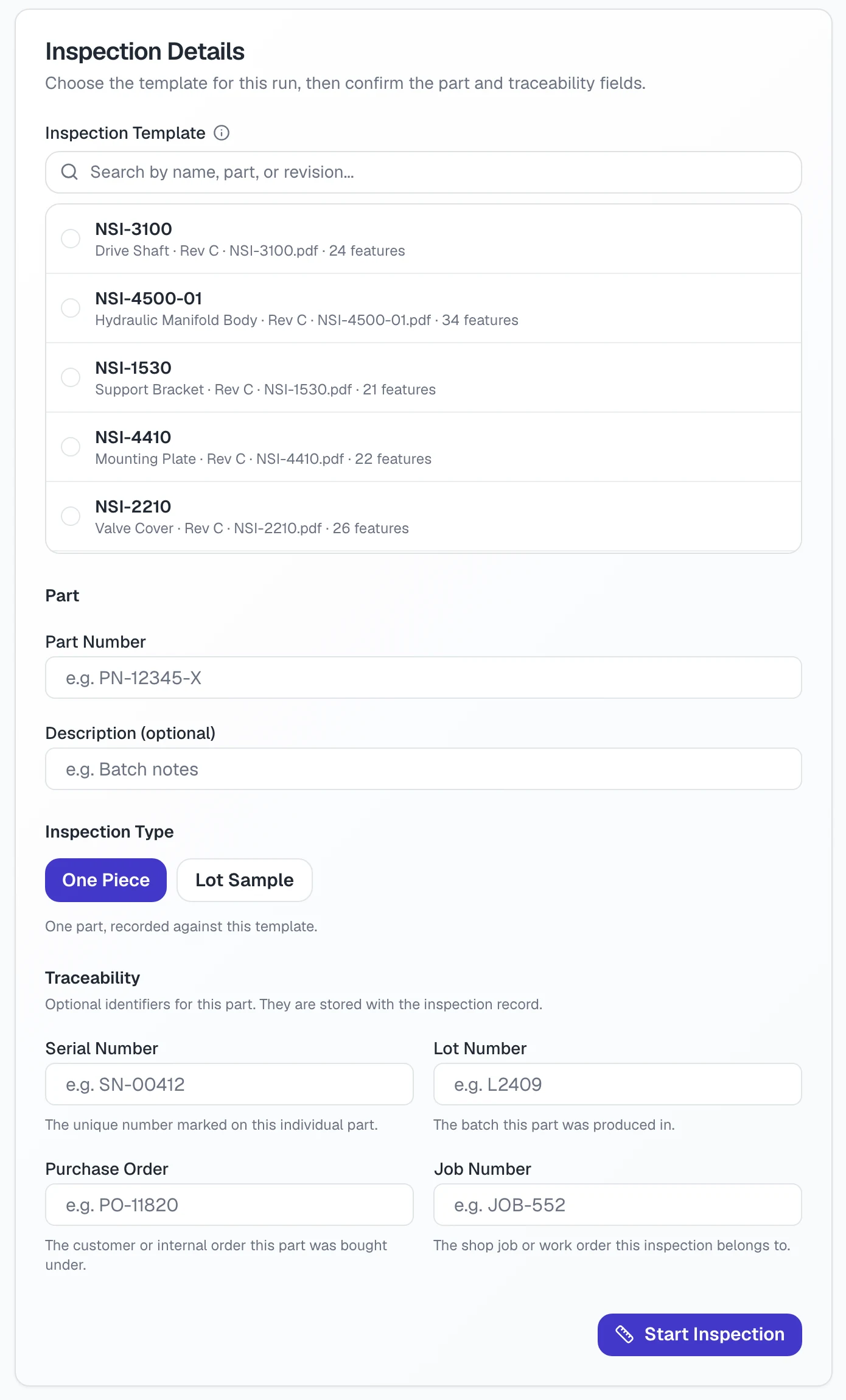
One Piece or Lot Sample
Choose One Piece to record a single part against the template. Choose Lot Sample to record several pieces from one lot on the same template and print them as one report. A lot sample asks for:
- Lot Size and Sample Size, the number of pieces to inspect, from 1 to 50. The lot size cannot be smaller than the sample size.
- Piece Labels, optional, one serial per line. Leave it blank to number the pieces 1, 2, 3.
- An optional Sampling Standard, for example MIL-STD-1916, with an Accept Number and Reject Number. The lot passes when the failed pieces are at or below the accept number.
The Inspection Runner
The runner puts the drawing and the current characteristic side by side. The balloon you are on is highlighted on the drawing, and Follow Balloon keeps the drawing centred on it as you move through the list. The header shows the part, revision, lot, job, and purchase order, and a counter shows Balloon 5 of 24 with how many remain.

Recording a Reading
- Type the measured value, or use the on-screen number pad, which includes a backspace key for tablets.
- Measure shows the nominal value and tolerance, and judges the reading as Pass or Fail against that tolerance, with the deviation from nominal.
- Select Save / Next to record it and move on. Previous and Next move without saving.
Select Mark as not applicable when a characteristic does not apply to this part. It then counts as done, and Clear N/A brings it back. The readings you record show who recorded them and when.


Special Cases
- No tolerance on the print. Measure asks you to record a pass or fail judgment instead.
- A reading far outside the tolerance. Measure suggests checking the entry against the drawing before you record it, which catches a misplaced decimal point.
- Geometric tolerances. The runner shows the tolerance zone, such as Zone 0 to 0.1 mm, and judges your reading against it.
- Counts. A characteristic with a count of 2 asks for two readings, Reading 1 and Reading 2, under one balloon.
- Visual and Other. Record pass or fail. For Other, the requirement from the template is shown above the buttons.
- Inch drawings. Values and limits are shown in the unit the template uses.


Lot Samples
In a lot sample each characteristic has a reading for every piece. Move between pieces with the piece tabs, Piece 1 to Piece 5 for example, and the counter shows how many readings are done. Every piece must have a value or N/A before the lot can be finished.

Choosing the Tool
Each reading can record which instrument was used. The Tool menu lists the registered instruments that suit the type of characteristic first, marked Suggested, then everything else on your register. You can also pick No Specific Instrument, or Other and type a name. A tool past its calibration date is marked Calibration Overdue, and one that is nearly due is marked Calibration Due Soon. See Gages for how to register them and how to block overdue tools.
Photos
Attach a photo to any measurement. Select Add Photo to choose a file from this device, or scan the QR code with a phone. The phone opens a capture page, with no sign-in or app, that shows the balloon you are recording. Each photo you take is added to that measurement right away and appears on the screen as it is saved, so one person can measure while another takes the pictures. The link works for 30 minutes and stops working when the inspection is finished.

Drawing Info and Review Banners
The Drawing Info panel shows the drawing number, revision, material, finish, projection, scale, and general tolerances from the template. If the drawing has notes, a Before You Start prompt shows them once, and Notes reopens them. When an inspection still has readings from a scan that were never checked, a banner such as 2 Readings Need a Check lets you jump to the first one, and reports note any left unchecked.
Finish and Lock
When every characteristic has a value or N/A, select Finish Inspection. Measure asks you to confirm, because finishing locks the results. The name of the person who completed it is recorded. After that the inspection can be viewed and its reports downloaded, but its readings cannot be changed. If a result turns out to be wrong, start a new inspection from the same template.
Tablets and Shop-Floor Use
The runner works on a tablet at the machine. In Settings, then Preferences, you can enlarge touch targets, increase the text size, and change the spacing, so buttons and the number pad are easy to hit with gloves.

The Inspections List
Under Inspections, search by part, serial, or inspector. Each row shows the template, inspector, status, and date. Open Inspection continues one that is not finished, Overview opens a read-only summary with each characteristic, its result, and its photos, and the options menu downloads the reports or deletes the inspection. Filter the overview by All, Pass, Fail, or Not Applicable to find the readings that matter.

Deleting an open inspection and deleting a completed one are separate permissions, so completed records can be kept safe from accidental deletion. See Team and Access.
ReportsDownload what your customer or auditor asks for.
Every inspection can produce the reports below from the Download menu in the runner and the options menu in the list. They are generated from the saved results, so they always match what was recorded.

| Report | Format | What It Contains | Plan |
|---|---|---|---|
| First Article Report | A header with the part and traceability details and the overall result, then a table of every characteristic with its requirement, measured result, pass or fail status, method (the instrument used), and notes. | All plans | |
| Ballooned Drawing | The drawing with a numbered balloon on every characteristic, ready to send with the report. | All plans | |
| Inspection Log | CSV or PDF | One row for every reading of every completed inspection, for audits. See below. | All plans |
| Excel Workbook | XLSX | The first article results as a workbook, so they can be sorted, filtered, and shared. | Pro and Team |
| AS9102 Form 3 | A characteristic sheet laid out for AS9102 Form 3, with requirements and results. Form 3-compatible, not the SAE-published form. | Team |
First Article Report

AS9102 Form 3
The Team plan adds an inspection sheet laid out for the characteristic accountability section of AS9102 Form 3. It is Form 3-compatible and is not the form published by SAE. Forms 1 and 2 are not included.

Ballooned Drawing
The drawing exported as a PDF with a balloon on every characteristic, numbered to match the report. Balloons are placed beside the dimension, not on top of it, so values stay readable.

Excel Workbook
On Pro and Team, download the same first article results as a workbook with one row per characteristic. It is the fastest way to move results into your own spreadsheet or customer template.

Inspection Log
The log is the audit record. It has one row for every reading of every completed inspection. Rows are added when an inspection is completed and are never changed afterwards. Select Export Log on the Inspections page, pick a date range with the quick ranges (Today, Last 7 Days, This Month, All Time, and more), and download it as a CSV or a PDF. Leave the dates empty to export everything. The same log can be downloaded from a finished inspection in the runner.


Report Branding
Open Report Branding in the sidebar to make reports look like yours. Only company administrators can change it, and it applies to every report from then on.
- Report Header Name and Report Title, shown in place of the defaults.
- Logo: upload a PNG or JPEG up to 1 MB, or choose Use Company Logo to use the picture from your company profile.
- Footer Text, printed on every page of the First Article Report, the Form 3 sheet, and the inspection log.
- Report Color for the header, table headers, and balloons. Pass and fail colors never change.
- Show Sign-Off Block prints signature and date lines at the end. Show Report Number prints it in the footer.
A live preview on the right updates as you type. Your own logo, title, and footer start on the Pro plan. Reports on the Free plan carry the Asytra Measure footer.

GagesRegister your instruments and know what was used.
The Equipment register lists the instruments in your shop. Inspectors choose one for each reading, and reports print the asset number and name beside the result.

Add Instruments
Select Add Common Instruments to pick from the usual shop instruments, such as calipers, micrometers, gauges, and indicators. You can rename each and add the details later. To add one by hand, select Add Instrument and fill in:
- Name, Asset Number, Type, and Status (Active, Out of Service, or Retired).
- Manufacturer, Model, Serial Number, Precision, and Range.
- Used For: the kinds of characteristic the instrument suits, such as Linear, Diameter, or Position. It is filled in from the type, and inspectors see the instrument first for those callouts.
- An optional photo, so inspectors recognize the instrument.
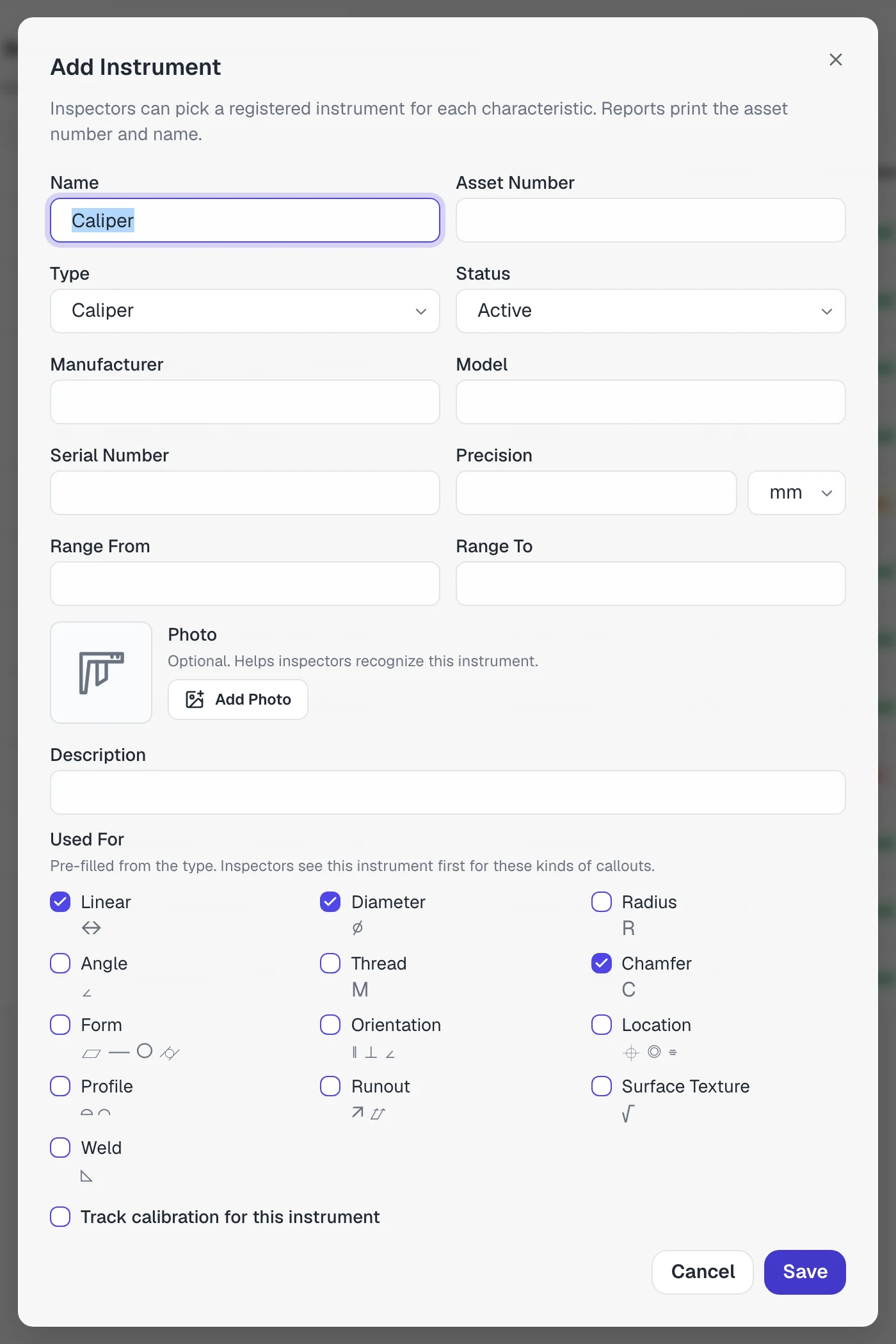
Calibration
Turn on Track calibration for this instrument and enter the last calibrated date, the due date, the certificate reference, and the provider. The register shows each instrument as Calibrated, Due Soon, or Overdue. You can also block completion when a tool is past its calibration date. When that setting is off, inspectors see a warning but can still finish the inspection. If no active instrument is registered for the kinds of callout on a template, the runner points that out and offers to add one.
Tolerance StandardsThe general tolerances your templates fall back on.
A tolerance standard sets the tolerance allowed for each range of feature sizes, for example ISO 2768-m for linear dimensions. Templates use a standard when the drawing calls out a general tolerance and a characteristic has none of its own. The ISO 2768 linear standards (fine, medium, coarse, and very coarse) are included, and you can add your own for shop-specific rules.

Create a Standard
- Select New Standard and give it a name, such as Shop Floor Medium, and an optional description.
- Choose Millimetres or Inches. Changing the unit later does not convert the numbers you entered.
- Add one row for each range: a size From, a size To, and the Tolerance allowed. Both ends of a range are included, and a size on the edge between two ranges uses the narrower tolerance.
- Select Create.

While you type, a chart draws every range on a log scale. Gaps with no tolerance are hatched, and overlapping ranges are striped and must be fixed before you can save. Use Duplicate to start a new standard from an existing one. Each standard shows how many templates use it, and deleting one that is in use leaves those templates without a standard.
Team and AccessChoose who can do what.
Open Users under Account to see your team, add people, and give each a role for Measure. Company owners and administrators can always open Measure. Everyone else needs access to the product, which you grant on their user settings.

Add a Teammate
Select Add User. Search for a colleague who is already in your company and add them to Measure with a role, or create a new person with a username, email, and password. If your plan has a user limit, the page shows how many seats are used.
Roles
| Role | What It Is For |
|---|---|
| Measure Admin | Full access, including deleting completed inspections. |
| Measure Quality Manager | Manage templates, inspections, equipment, standards, and report settings. |
| Measure Engineer | Build templates from drawings. Cannot complete inspections. |
| Measure Inspector | Start, record, and complete inspections, and download reports. |
| Measure Operator | Record readings on inspections that others set up. Cannot complete them. |
| Measure Viewer | Read-only access to Measure, reports, and the inspection log. |
Roles are made of permissions, such as Create Templates, Edit Templates, Record Measurements, Complete Inspections, Delete Completed Inspections, Download Reports, Export Inspection Log, Manage Equipment, Manage Tolerance Standards, and Manage Measure Settings. Select Manage Roles to copy a built-in role and change it, or to make a new one, and grant a single extra permission to a person without changing their role. Built-in roles cannot be edited.
Language and Preferences
Each person sets their own interface language, default unit, text size, spacing, and touch target size under Settings. These preferences apply across Asytra products on the same account.
Plans and ReadsWhat counts, and what does not.
Measure charges for one thing: drawing reads. A drawing read is one uploaded drawing turned into a template, scan or not. Inspections, reports, photos, and template edits are unlimited on every plan.
| Free | Pro | Team | |
|---|---|---|---|
| Price | $0 | $29 a month | $99 a month |
| Drawing reads a month | 10 | 50 | 250 |
| Users | 1 | 3 | Unlimited |
| Excel workbook | No | Yes | Yes |
| Own logo and footer | No | Yes | Yes |
| Form 3-compatible sheet | No | No | Yes |
Your remaining reads for the month are shown when you create a template. When they run out, new uploads pause until the next month. Pro and Team can add a pack of 25 reads for $10 at any time, and packs do not expire. Everything you already have stays available the whole time. Measure is included with Trace Pro and every Quote plan. Full details are on the pricing page, and billing is managed at billing.asytra.com.
LimitsWhat to expect, and what Measure is not.
| Item | Limit |
|---|---|
| Drawing file | PDF, JPG, or PNG, up to 12 MB |
| Measurement photo | Up to 12 MB |
| Report logo | PNG or JPEG, up to 1 MB |
| Lot sample size | 1 to 50 pieces |
| Phone photo link | Works for 30 minutes |
- Measure reads what is on the print. Always check the balloons against the drawing, and check scanned readings one by one.
- Measure does not program or control a CMM. Results are entered in the runner.
- It is not a full quality system. Corrective actions, training, and document control stay outside the product.
- The Form 3 sheet is Form 3-compatible. Forms 1 and 2 are not produced.
- Measure records the print. Recording the build of each serial number is the job of Trace.
FAQ
PDF, JPG, or PNG, up to 12 MB per file. A vector PDF exported from your CAD system reads best. Scanned and photocopied prints are read too, and every reading from a scan is marked so you can check it against the print before it goes into a report.
A scan has no selectable text, so Measure reads the characteristics from the image. That can take a minute or more. A very low resolution scan may not be readable at all. Re-scan at 300 dpi or export a vector PDF and upload it again.
Yes, one read per uploaded drawing, whether it is a vector PDF or a scan. Editing a template, running inspections, and downloading reports never use reads, and a failed read is refunded.
No. Every characteristic needs a measured value or an explicit N/A before the inspection can be finished. The runner shows how many are still remaining.
Yes, but its balloon numbers lock so that existing reports stay traceable. You can still correct values, tolerances, and tools. If you delete a balloon you choose whether the other numbers stay as they are or close the gap. A new drawing revision is best handled as a new template.
In the runner, choose Add Photo. A QR code appears. Scan it with the phone, take the photo, and it is added to that measurement straight away. No app or sign-in is needed on the phone. The link works for 30 minutes.
No. Measure records the readings you enter against the print. Programming the machine stays with your CMM software.
No. Measure is the print: balloons, results, photos, and the first article report. Corrective actions, training, and document control stay outside the product. Recording the build of each serial number is what Trace is for.
No. The sheet is laid out for AS9102 Form 3 and is Form 3-compatible. It is not the form published by SAE.
Balloon Your First Drawing
Start on the Free plan with 10 drawing reads a month, no card needed.