
Widget Quote Document
Choose the company identity, terms, payment and bank details printed on the quotations visitors download from this Widget key.
On this page
The Quote Document tab controls the company identity, terms, payment and bank details printed on the quotations that visitors export from this Widget. Different keys can present different details, for example a "distributor site" key with different terms from your "direct" key. Open it from Widget, Quote Document. The tab title on screen is "Quoting Document".
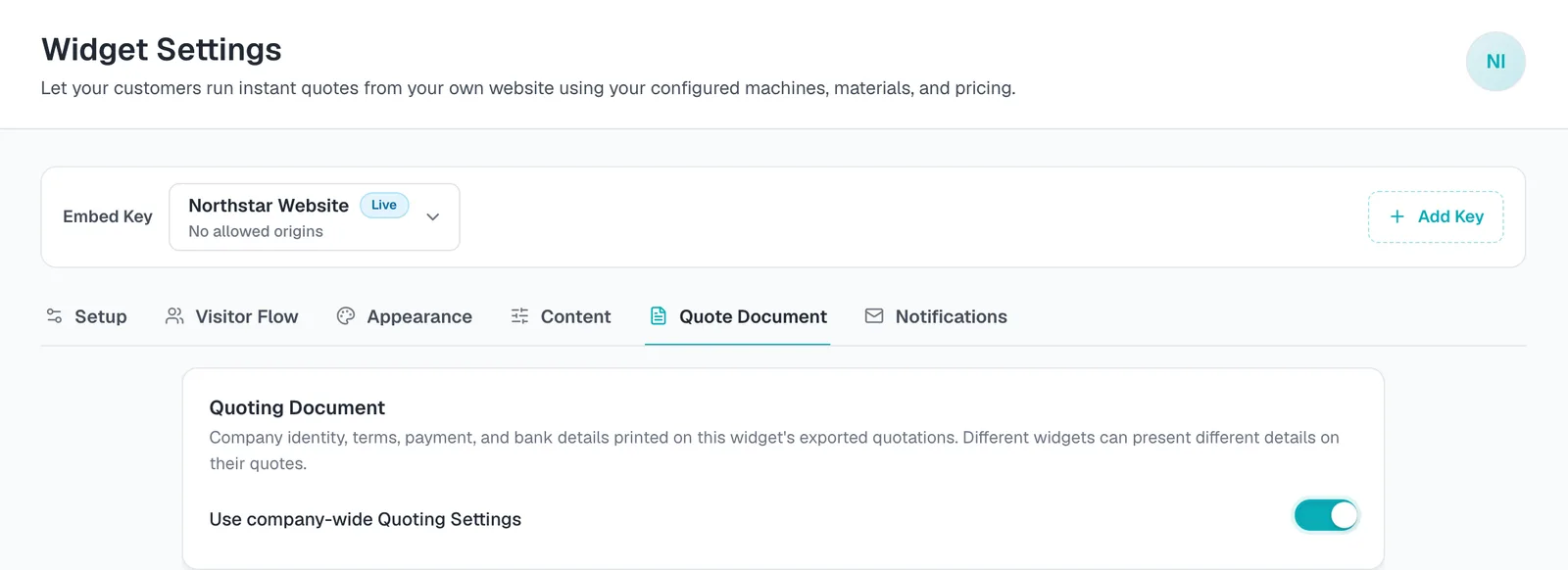
Use Company-Wide Quoting Settings#
Default: On. Where: Widget, Quote Document.
When on, the Widget uses your company-wide quotation settings (see Quotation Documents). When off, the cards below appear. Prefill From Company copies the company-wide values into this Widget so you only edit what differs (you will see "Filled this widget from the company-wide Quoting Settings"). The accent color and logo on the Appearance tab also follow these overrides.
The details appear on the PDF and Excel quotations a visitor downloads in the workspace, and on emails and branding for this Widget.
Change it when: a particular site needs a different legal entity, terms or bank details. Otherwise leave it on.
Watch out: bank details print on documents that any visitor can download, so include only what you are comfortable publishing. Also check your terms, because Widget estimates are not binding until you confirm.
Company Identity#
Fields: Display Company Name, Legal Company Name, Address Line 1, Address Line 2, City, Region, Postal Code, Country and Website URL.
Terms and Payment#
Terms and Conditions#
Multi-line. Enter one item per line. Blank lines are ignored.
Payment Terms#
Multi-line. Enter one item per line, blank lines ignored. Use "Name: details" when a term has a label, for example "Deposit: 30 percent with order".
Bank Details#
Fields: Beneficiary, Account Number, Bank Name and SWIFT Code.
Authorization#
Fields: Authorized Signatory and Signature City.
Related Pages#
Last updated