
Widget Content
Set the defaults visitors start from, lock fields, and choose which cards the Widget shows, with advice on what to hide to protect your costs.
The Content tab decides what a visitor can pick and what they get to see. It has two cards: Default Analysis Settings (what the Widget starts with and what is locked) and Visible Components (which cards appear). Open it from Widget, Content. Changes use Save Changes and belong to the selected embed key.
What To Hide From Visitors#
Hidden cards are removed on the server, not just hidden on screen. When you turn a card off, the data behind it is not sent to the visitor's browser at all, so it cannot be found by inspecting the page.
Some things are always removed for visitors, whatever you choose: per-line costs, your margin factor, and the raw cost breakdown. The Run Analysis button is always on and cannot be turned off.
Two components can still reveal how your price is built:
- Price Composition shows how the unit price splits into material, machining and so on. Percentages show your cost structure (for example how much of the price is material), even though margin stays hidden. Dollar amounts reveal more.
- Time Breakdown shows cycle time by phase. Beside the Pricing Table, a visitor who knows typical machine rates can estimate your production cost from cycle time. When both are visible, Quote shows a warning: "Pricing Table and Time Breakdown are both visible. Visitors who know typical machine rates may estimate production cost from cycle time. Consider hiding Time Breakdown if you want to keep cost structure private."
Tip: If you do not want customers negotiating line by line, leave Price Composition Off and hide Time Breakdown.
Recommended Starter Setup#
| Component | Cautious shop | Transparent shop |
|---|---|---|
| Price Composition | Off (sell price only) | Percentages |
| Pricing Table | On | On |
| Custom Quantity | On | On |
| Time Breakdown | Off | On |
| Process Route | Off | On |
| Tools Used | Off | On |
| Part Info | Off | On |
| Warnings | On | On |
| Manufacturability (DFM) | Off | On (needs the DFM add-on) |
| Auto-Highlight Issues In 3D | Off | Off |
| Machine (in Analysis Settings) | Off | Off |
A "price only" lead tool keeps Pricing Table, Custom Quantity and Warnings, and hides Time Breakdown, Tools Used, Process Route and Part Info. A technical audience such as OEM engineers may value more detail.
Default Analysis Settings#
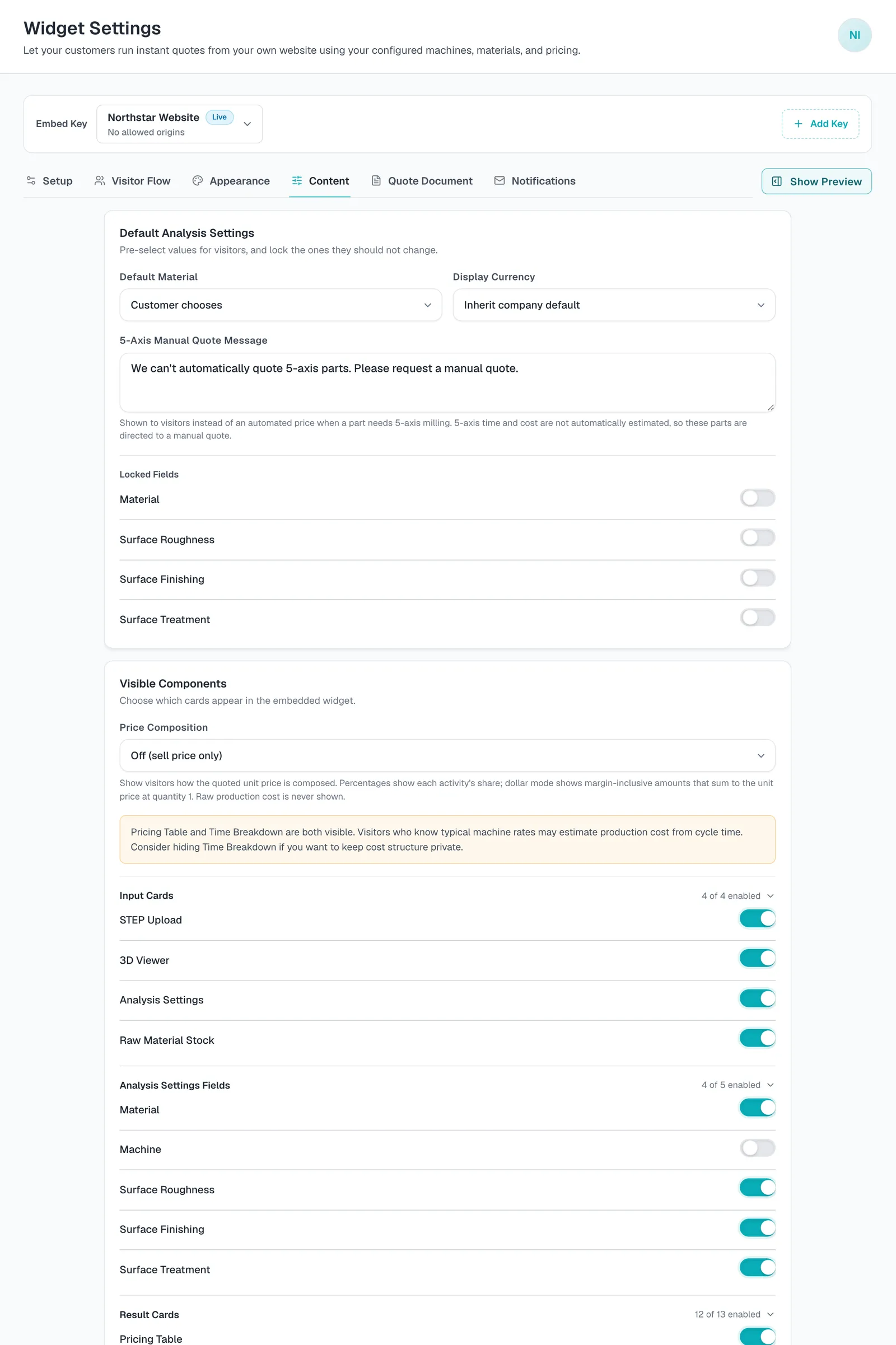
Pre-select values for visitors, and lock the ones they should not change.
Default Material#
Default: Customer chooses. Where: Widget, Content, Default Analysis Settings.
A dropdown with "Customer chooses" plus every material in your catalog. This is the visitor's starting selection. With "Customer chooses", the Widget starts from your shop's default material (6061-T6 when present), and the visitor can change it if the Material field is visible and not locked.
Change it when: you quote mostly one material, or want a sensible starting point.
Display Currency#
Default: Inherit company default. Where: Default Analysis Settings.
A dropdown of "CODE - Name" currencies. Quote converts prices from your company currency using an exchange rate and shows the rate date. This changes only what visitors see. Your own quotes are not changed.
Change it when: your customers think in a different currency from yours.
Watch out: rates are estimates, and your final quote governs.
5-Axis Manual Quote Message#
Starting value: "We can't automatically quote 5-axis parts. Please request a manual quote." Where: Default Analysis Settings.
Shown to visitors instead of a price when a part needs 5-axis milling. Quote does not estimate 5-axis time and cost automatically, so these parts are directed to a manual quote. For these parts the price, custom quantity and Run button are suppressed and this message appears, even when Process Route is hidden. Leaving it blank on save resets it to the starting text.
Change it when: reword it to tell leads how to reach you, for example "Send us this part and we will quote it within one business day".
Locked Fields#
Default: all Off. Where: Default Analysis Settings. Toggles: Material, Surface Roughness, Surface Finishing, Surface Treatment.
A locked field appears greyed out, and Quote ignores any attempt to change it. Machine cannot be locked, on purpose, because pinning the machine can break automatic machine selection.
Warning: A locked field stays at its starting value, and only Default Material can be set on this page. If you lock Surface Finishing or Surface Treatment, visitors are stuck with "None". If you lock Surface Roughness, they get your shop's default roughness. Set Default Material before you lock Material.
Change it when: you want something standardised, for example you only quote one material. To keep visitors from seeing a field at all, hide it under Visible Components instead.
Visible Components#
Choose which cards appear in the embedded Widget. Each group header shows "N of N enabled" and can be collapsed.
Price Composition#
Default: Off (sell price only). Where: Widget, Content, Visible Components.
Shows visitors how the quoted unit price is composed. Options: Off (sell price only), Percentages, Dollar amounts. Percentages show each activity's share. Dollar mode shows margin-inclusive amounts that add up to the unit price at quantity 1. Raw production cost is never shown.
The card covers material, machining, startup, surface finish, treatment, annotation, tapping, deburr, inspection, handling, packaging, yield, other and order minimum. Quote rescales the cost lines so they add up to the price the visitor sees, so your margin is not exposed. Lines under 1 percent are merged into "other". The calculation is done at quantity 1.
Watch out: older keys that had the raw cost breakdown on were converted to Percentages, and the raw card can never be shown again.
Input Cards#
All default to On.
STEP Upload#
The file drop area. Turning it off removes the upload entry point. Use that only in custom layouts or together with Example Parts.
3D Viewer#
Shows the model.
Analysis Settings#
The card of selects. When off, the five field toggles below do nothing and the Widget uses defaults.
Raw Material Stock#
Shows the stock size picked for the part and lets the visitor override stock shape and size, which changes the price. Turn it off if you do not want visitors steering your stock choice.
Analysis Settings Fields#
These sit inside the Analysis Settings card, and the group only opens if that card is on.
| Field | Default |
|---|---|
| Material | On |
| Machine | Off (automatic routing chooses) |
| Surface Roughness | On |
| Surface Finishing | On |
| Surface Treatment | On |
Only show finishes and treatments you actually offer. Showing Machine invites visitors to pick an unsuitable machine, so keep it off unless you have a reason. If all five are off, the select block disappears.
Result Cards#
All default to On except Auto-Highlight Issues In 3D.
Pricing Table#
Unit and total price at each quantity break. Off removes the quantity breaks, and the visitor sees no price table.
Custom Quantity#
The visitor types any quantity and gets a price. It is not shown for oversized packaging or 5-axis parts.
Packaging Plan#
The box allocation. Hidden when the part is oversized or the plan is empty.
Time Breakdown#
Cycle time by phase. See What To Hide From Visitors. Hiding it is a common choice.
Process Route#
The machining route and selected machines. Turning it off also removes the machine list from what the visitor receives.
Planner Insights#
Notes from the planner, such as combined lathe and mill operations. Separate from general Warnings.
Manufacturability (DFM)#
Design-for-manufacturing findings. It needs the DFM add-on on your plan. Without it nothing appears even if this is on. It shows customers issues with their design, which can start helpful conversations or trigger disputes.
Auto-Highlight Issues In 3D#
Default: Off.
Automatically tints problem areas on the 3D part when there is a blocker or warning. It is off by default because on a customer's own part the tint reads like a verdict before you have reviewed it. Visitors can still switch highlighting on by hand. It only does something if DFM is on.
Warnings#
General analysis warnings.
Part Info#
Technical detail about the part and how it will be machined. When off, only basic size, volume and material information remains.
Clamping Orientations#
The setups and orientations card. It appears only when setups exist.
Tools Used#
The tool list.
Turning Details#
Lathe details.
Quote Feedback Prompt#
A thumbs up or down card asking whether the price is reasonable, with an optional comment, expected price and time, and contact email. It is hidden in the preview.
Related Pages#
Last updated