
Quotation Documents
Set the company identity, legal terms, bank details and branding that print on exported Excel and PDF quotations, and see what blocks an export until you fill it.
On this page
The Company & Quotation page controls how your quotations look and read when you export them to Excel or PDF, and what customers see on the public quote page. Open it when you set up Quote for the first time, when your bank details or terms change, or when an export stops with a message about missing settings.
Changes save automatically about 0.4 seconds after you stop typing, and again when you leave the page. There is no Save button. A live preview of an A4 quotation ("Export Preview") sits next to the form. Scroll to zoom, drag to pan, double-click to reset. It redraws as you edit.
Note: If you can view shop settings but not edit them, the fields are shown but locked, and a banner says so.
Header Buttons#
Prefill From Company#
Visible to editors only. It fills only the empty fields from your company profile: Display Company Name, Legal Company Name, Website URL (the first link on the profile), Authorized Signatory (the name of the signed-in user) and Beneficiary (the company name). It never overwrites anything you already typed. A message confirms "Filled empty fields from company profile".
Change it when: you are setting up a new shop and want a quick starting point. Check each field afterwards.
Edit Company Profile#
Opens the Company Profile page. See Company Profile.
Company Identity Tab#
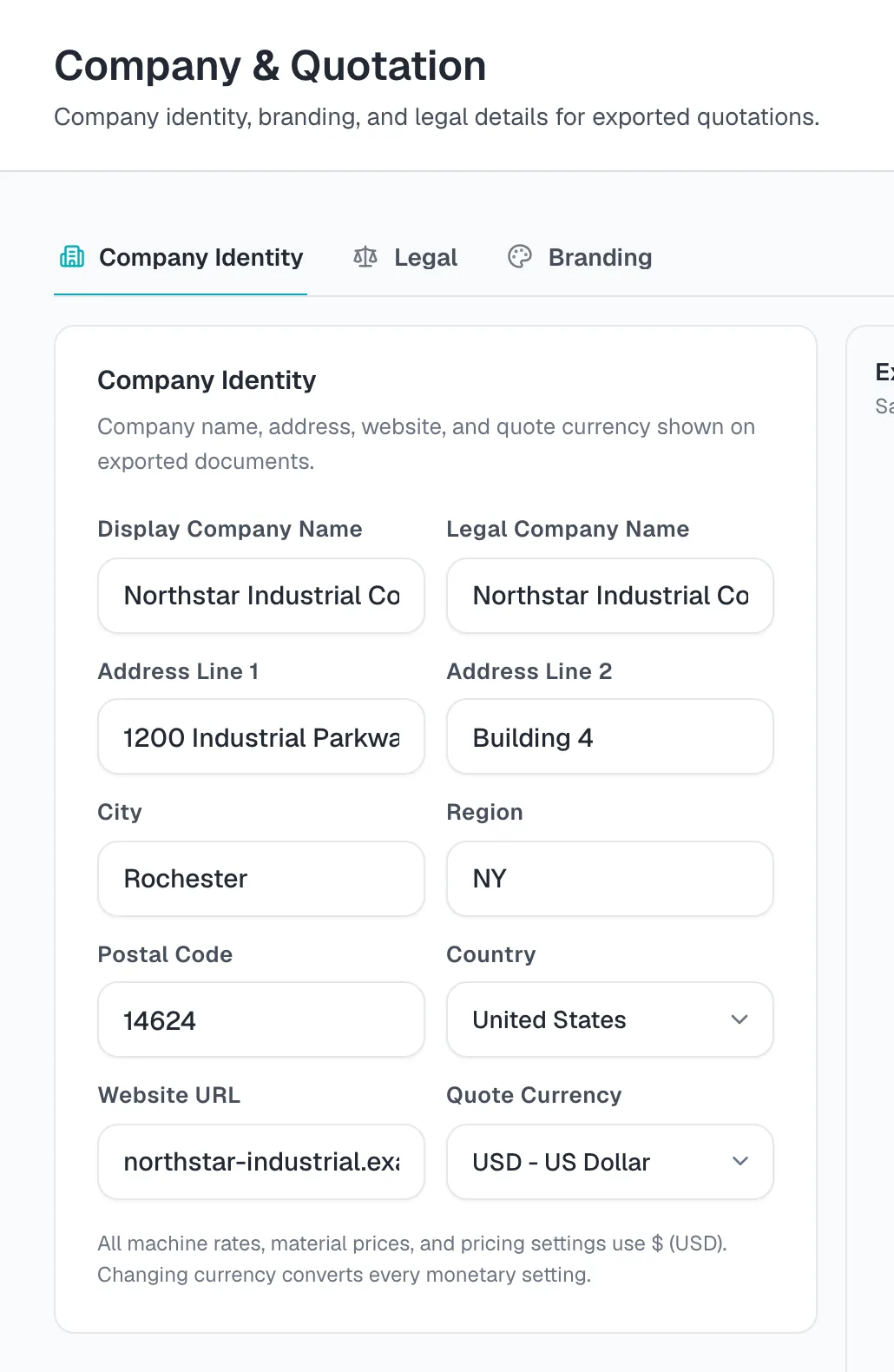
Company name, address, website and quote currency shown on exported documents.
Display Company Name#
The header name on exports, the customer quote page and notification emails (display name, otherwise legal name). Use the trading name customers know. Required before you can export.
Legal Company Name#
The first line of the footer address on exports. Falls back to the display name. Also used as the bank beneficiary if Beneficiary is blank. Use the registered name that matches your invoices.
Address Line 1 and Address Line 2#
The footer address block. At least one address line is required to export.
City, Region and Postal Code#
Printed in the footer as "City, Region, Postal Code". City is also the fallback for Signature City.
Country#
A searchable list ("Search countries"). Printed as the last part of the footer address. Your country and postal code are also your ship-from origin for shipping. See Shipping Overview.
Website URL#
Shown at the right of the footer on exports and as a link on the public quote page.
Quote Currency#
Default: USD for a new company.
The currency every machine rate, material price and pricing setting is in. Changing it converts every monetary setting. Read Company Currency before you change it.
Legal Tab#

Terms, payment details, bank information and signatory fields on exported quotations.
Warning: Treat this tab as public. Anyone with a finalized quote link sees your terms, payment terms and bank details. Do not enter anything you would not print on an invoice.
Terms and Conditions#
Where: multi-line text. Enter one item per line. Blank lines are ignored.
Each non-blank line becomes a numbered item in the terms section of the Excel and PDF export and on the public quote page. Required to export.
Change it when: you set up Quote or change your delivery, tolerance or liability terms. Keep one short clause per line. Typical clauses: validity period, delivery terms (EXW or DDP), tolerances, liability, tax.
Watch out: Quote has no separate setting for how many days a quote stays valid. If you want "valid for 30 days" on the quotation, write it into Terms and Conditions yourself.
Payment Terms#
Where: multi-line text. Enter one item per line. Blank lines are ignored. Use "Name: details" when a term has a label.
Each line becomes a row in the "Payment Terms & Bank Details" table. The left cell is the name and the right cell the details. Text before the first colon is the name. A line without a colon is a details-only row.
Example: "Deposit: 30% on order" then "Balance: Net 30 from delivery".
Watch out: do not put a colon inside a plain sentence unless you want the first part treated as a label.
Beneficiary#
The bank account holder printed on the export. If blank, Quote uses your legal name, then your display name.
Account Number#
Printed as "Account No." Required to export. There is no separate IBAN field, so enter your IBAN here if you use one.
Bank Name#
Printed as "Bank". Required to export.
SWIFT Code#
Printed as "SWIFT Code". Not required, but needed for international customers.
Authorized Signatory#
Printed under "AUTHORIZED BY" in the signature block, next to a blank "ACCEPTED BY (CUSTOMER)" block with "Signature & Date". Use the person with authority to commit the shop.
Signature City#
Printed under the signatory. If blank, the company City is used.
Branding Tab#

Logo, brand colors and customer email sender settings for quote notifications, the public quote page and exported quotations.
Use Company Brand Logo#
Default: On.
On uses the profile picture from the Company Profile page (preview labeled "From company profile"). If none exists you see "No company logo found. Add one in your company profile". Off lets you upload an image or paste a link in "Or Paste External URL". The link must start with http or https. A logo fetched from a link is limited to 5 MB when exporting.
Change it when: the quotation needs a different logo from your profile picture, for example a horizontal version.
Show Logo on Exported Quotations#
Default: On.
When off, the logo is hidden on Excel and PDF exports even if one is configured.
Show Company Name on Exported Quotations#
Default: On.
When off, the company name is hidden in the export header. You can show the logo only, the name only, or both.
Change it when: your logo already contains your name and you do not want it twice.
Show Asytra Attribution on Exported Quotations#
Default: On.
When off, the "Generated by Asytra" line is left out of the Excel and PDF footers.
Brand Color#
Default: #0f172a (dark navy).
The primary color on the customer quote page, notification emails and exports: top bars, table headers, totals and bold prices. A light tint of it is used for alternating rows.
Change it when: you want your own color. Choose a dark one so white text on table headers stays readable.
Accent Color#
Default: #09adb7.
The secondary color on customer pages and exports: company name, document title and primary action buttons.
Customer Email Sender#
Controls how quote notification emails appear to customers. "From" is a read-only preview. It is either your company ID followed by "quotes@asytra.com" or plain "quotes@asytra.com".
Reply-To#
Where: email address, optional. Example: sales@yourcompany.com.
Customer replies go here, not to the sender address. When unset, Quote falls back to your Widget notification email or company contact.
Change it when: always fill it in, or customer replies can land in a mailbox nobody reads.
Use Company Prefix in Sender Address#
Default: On.
Switches the From address between the two forms above. It is disabled when your company ID cannot be used as a prefix, in which case the platform default is used. Leave it on so customers can tell the email is from you.
Note: Logo, colors and company name are copied onto a quote when it is created. Changing them later does not restyle quotes you already sent.
What Prints on the Export#
| Item | Where it prints |
|---|---|
| Logo and company name | Header (each can be switched off) |
| Legal name, address lines, City, Region, Postal Code, Country | Footer address block |
| Website URL | Right side of the footer |
| Terms and Conditions | Terms section, one numbered item per line |
| Payment Terms | "Payment Terms & Bank Details" table |
| Beneficiary, Account No., Bank, SWIFT Code | Same table |
| Authorized Signatory and Signature City | Signature block, with a blank "ACCEPTED BY (CUSTOMER)" block |
| "Generated by Asytra" | Footer (can be switched off) |
What Blocks an Export#
You cannot export a quotation to Excel or PDF until these are filled:
- Display Company Name.
- Legal Company Name (the display name counts).
- At least one address line.
- Terms and Conditions.
- Beneficiary (the legal or display name counts).
- Account Number.
- Bank Name.
If something is missing, the export stops with "Complete Quoting Settings before exporting." and lists what is missing, for example "bank account number".
Related Pages#
Last updated