
Materials
Set up each material's density, price, stock shapes and cutting multipliers so Quote can cost and time parts correctly.
On this page
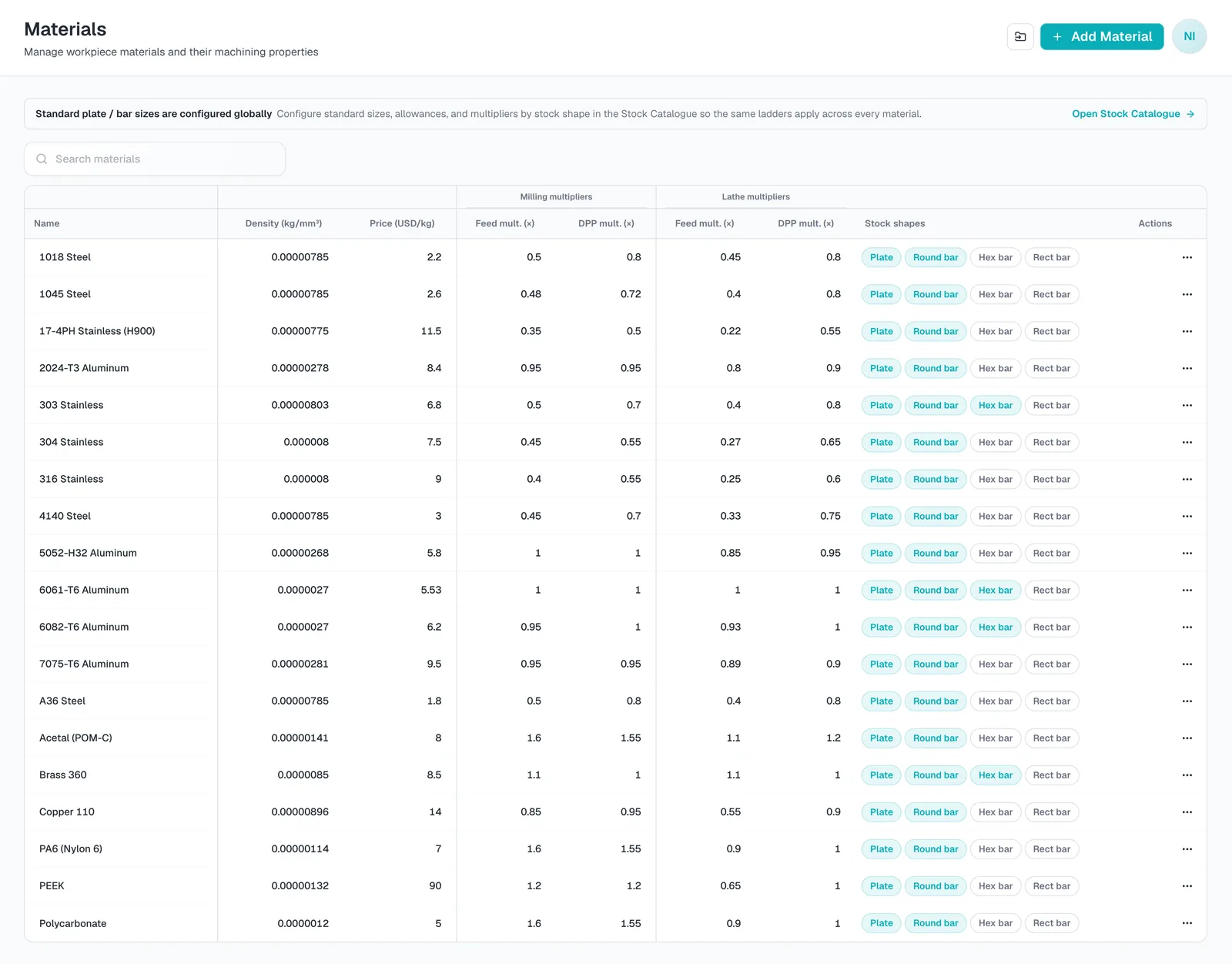
The Materials screen is your list of everything you cut. Each row says what the material weighs, what you pay for it, which stock forms you can buy, and how much harder or easier it is to cut than 6061 aluminum. Quote uses these rows to price raw material and to slow down or speed up milling and turning.
Materials work together with two other screens. The Stock Catalogue says which sizes you can buy. The Milling Tools and Turning Tools screens say what you cut with. A quote needs all three: Quote picks a stock size, prices it using the material, then picks tools and times the cuts using the material's multipliers.
How The Screen Behaves#
Every field saves when you click or tab out of it. There is no Save button. The search box filters rows by name. Export and import use a JSON file.
Warning: Import replaces all of your materials. It does not merge with what you have. Export first if you want a backup.
A duplicate material name is refused. A material with no density or no price cannot be quoted: Quote reports that the material cannot be costed and tells you to fill it in under Materials.
The screen links to the Stock Catalogue ("Standard plate / bar sizes are configured globally") because stock sizes are shared by all materials, not set per material.
Material Fields#
Name#
Unit: text, must be unique. Where: Materials, every row.
The name shown on quotes. Quote also uses it to look the material up. The name has a second job: it decides which cutting-speed class Quote assumes for the material (see How The Material Name Sets Speed Limits).
Change it when: you add a material or rename one. Keep names conventional, for example "6061-T6", "304", "Brass 360" or "PEEK". Names containing familiar words (aluminum, 6061, stainless, 304, steel, 4140, brass, titanium, acetal, nylon, peek and similar) get sensible cutting-speed limits.
Watch out: a name with none of those words falls into an "unknown material" class with conservative limits, which can make roughing look slower than it should.
Density (kg/mm³)#
Unit: kilograms per cubic millimetre. Starting value: see the table below. Where: Materials, every row.
How heavy the material is per volume. Quote uses it to estimate part weight and how much stock you need to buy. Stock weight (kg) = stock volume (mm³) x density. Part weight uses the part volume the same way. Weight feeds material cost, and also shipping and packaging mass and any surface treatment priced per kg. The field can be empty, but then the material cannot be quoted. There is no range check.
Warning: The unit is tiny. Steel is 7.85e-6, not 7850. If you type the usual 7850 kg/m³ figure, quotes come out a billion times too heavy.
To convert from the density you know: g/cm³ x 1e-6 = kg/mm³. For kg/m³, divide by 1,000,000,000.
| Material | g/cm³ | kg/m³ | Enter in Quote (kg/mm³) |
|---|---|---|---|
| Mild and alloy steel (1018, 1045, A36, 4140) | 7.85 | 7850 | 7.85e-6 |
| 17-4PH | 7.75 | 7750 | 7.75e-6 |
| 303 stainless | 8.03 | 8030 | 8.03e-6 |
| 304 and 316 stainless | 8.0 | 8000 | 8.0e-6 |
| 6061-T6 and 6082-T6 aluminum | 2.7 | 2700 | 2.7e-6 |
| 7075-T6 aluminum | 2.81 | 2810 | 2.81e-6 |
| 2024-T3 aluminum | 2.78 | 2780 | 2.78e-6 |
| 5052-H32 aluminum | 2.68 | 2680 | 2.68e-6 |
| Brass 360 | 8.5 | 8500 | 8.5e-6 |
| Copper 110 | 8.96 | 8960 | 8.96e-6 |
| Acetal | 1.41 | 1410 | 1.41e-6 |
| PA6 | 1.14 | 1140 | 1.14e-6 |
| PEEK | 1.32 | 1320 | 1.32e-6 |
| Polycarbonate | 1.2 | 1200 | 1.2e-6 |
Change it when: you add a material or your supplier quotes a different alloy.
Price#
Unit: your company currency per kg. The column header shows your company currency. Starting value: see the table below. Where: Materials, every row.
What you pay per kilogram of raw material before any stock-shape markup. The field can be empty, but then the material cannot be quoted.
Material cost comes from the stock the part needs, your price per kg, the stock-shape price multiplier from the Stock Catalogue, and an allowance for scrap. The scrap allowance is larger on very small orders and shrinks as the quantity grows. It is not editable.
Change it when: your mill or distributor prices change. This is the single biggest lever on material cost. Enter your actual delivered price per kg for plain, uncut stock.
Watch out: do not add bar or hex markups here. Those belong in the Stock Catalogue price multipliers, otherwise you count them twice.
Seeded starting prices per kg (starting points, not your prices):
| Material | Starting value |
|---|---|
| 1018 | 2.2 |
| 1045 | 2.6 |
| A36 | 1.8 |
| 4140 | 3.0 |
| 17-4PH | 11.5 |
| 303 | 6.8 |
| 304 | 7.5 |
| 316 | 9.0 |
| 2024-T3 | 8.4 |
| 5052-H32 | 5.8 |
| 6061-T6 | 5.53 |
| 6082-T6 | 6.2 |
| 7075-T6 | 9.5 |
| Acetal | 8 |
| Brass 360 | 8.5 |
| Copper 110 | 14 |
| PA6 | 7 |
| PEEK | 90 |
| Polycarbonate | 5 |
Stock Shapes#
Default: Plate only for a new material. Where: Materials, every row (toggle chips: Plate, Round bar, Hex bar, Rect bar).
Which stock forms you can buy for this material: plate, round bar, hex bar or rectangular bar. Quote chooses the stock that suits each part from the forms you enable, and an estimator can override the choice. A part too large for your biggest bar moves to a larger form.
Change it when: you really stock or can buy that form. Plastics and exotic alloys are often plate and round only. Turn on Hex bar only for materials where you buy hex. If you switch off Round bar for a material, milled round parts are priced from plate instead of bar, which means more material and more machining time.
Watch out: the chips are strong for hex and for milled round parts, but weaker for turning and rect bar.
- Round bar and hex bar are only used for milled parts when the material has that chip on.
- A turned part on a material without Round bar still gets round bar stock, with a warning that the material is not flagged as round bar.
- Rectangular bar can be selected even when the material lacks the Rect bar chip, again with a warning.
Seeded: all 19 starting materials have Plate and Round bar. Hex bar is also on for 303, 6061-T6, 6082-T6 and Brass 360. No starting material has Rect bar on.
Milling Multipliers#
These two fields scale how hard Quote pushes the mill on this material. A value of 1.0 means the tool settings are used as written. Set the tool settings for 6061 aluminum, then let these multipliers handle harder materials.
Feed Multiplier (Milling)#
Unit: multiplier (x). Default: 1.0. Where: Materials, Milling multipliers group (label: Feed mult.).
Slows down or speeds up feeds for this material. 1.0 uses the tool as set; lower is for harder material. Values below 0.1 are treated as 0.1 on mills.
The tool's feed rate is multiplied by this value. Taps are not scaled, because their feed is set by the thread. The result is still limited by the machine's maximum feed rate if one is set. This field also scales the lathe feed per revolution.
Change it when: the material cuts differently from 6061 aluminum. 1.0 for 6061 is the reference. The starting values use about 0.5 for mild steel, 0.4 to 0.45 for stainless, 0.35 for 17-4PH, and above 1 for plastics (starting value 1.6).
Watch out: if you only want to correct cutting speed on the lathe, use the lathe multiplier instead, because this one also slows lathe feeds. Beyond a point, changing feed no longer changes the quoted time.
DPP Multiplier (Milling)#
Unit: multiplier (x). Default: 1.0. Where: Materials, Milling multipliers group (label: DPP mult.).
How deep the mill cuts per pass on this material. 1.0 uses the tool setting; lower means lighter axial cuts. Milling only. Values below 0.1 are treated as 0.1.
The tool's Depth/pass is multiplied by this value. Lower values mean more layers and more time. It does not apply to drills, reamers or taps.
Change it when: soft metals and plastics 1.0 to 1.5. Steels 0.7 to 0.8. Stainless and hard alloys 0.5 to 0.6. If quotes on a hard material are too cheap, lower this and the feed multiplier together.
Lathe Multipliers#
Feed Multiplier (Lathe)#
Unit: multiplier (x). Default: 1.0. Where: Materials, Lathe multipliers group (label: Feed mult.).
Note: The label says Feed, but this field is a cutting speed multiplier.
Slows down or speeds up lathe cutting speed for this material. 1.0 uses the insert as set; lower is for harder material such as steel.
The insert's baseline cutting speed is multiplied by this value, and spindle speed is limited by the machine's maximum RPM. Lathe feed per revolution is not changed by this field. It comes from the milling Feed mult. above.
Change it when: use roughly 1.0 for aluminum, 0.3 to 0.45 for carbon steels, 0.2 to 0.3 for stainless, and 1.1 for brass and free-cutting plastics. For turned parts, surface speed is usually the main driver of cycle time.
DPP Multiplier (Lathe)#
Unit: multiplier (x). Default: 1.0. Where: Materials, Lathe multipliers group (label: DPP mult.).
How deep the lathe can cut per pass on this material. 1.0 uses the insert setting; lower means lighter cuts on tough materials.
The insert's Max DOC is multiplied by this value. Quote also keeps cuts within safe limits for long, slender parts. Boring uses the same multiplier.
Change it when: 0.5 to 0.8 for tough materials, 1.0 for aluminum, about 1.2 for plastics.
Warning: If both lathe multipliers are exactly 1.0 and 1.0, Quote may fill in suggested values for well-known material names and save them. To deliberately keep a material at 1 and 1, set one slightly off, for example 1.0 and 1.001.
Seeded Starting Multipliers#
New shops are seeded with these values. Vc is the lathe Feed mult. (a speed multiplier) and DOC is the lathe DPP mult.
| Material | Mill Feed | Mill DPP | Lathe Vc | Lathe DOC |
|---|---|---|---|---|
| 1018 | 0.5 | 0.8 | 0.45 | 0.8 |
| 1045 | 0.48 | 0.72 | 0.4 | 0.8 |
| 17-4PH | 0.35 | 0.5 | 0.22 | 0.55 |
| 2024-T3 | 0.95 | 0.95 | 0.8 | 0.9 |
| 303 | 0.5 | 0.7 | 0.4 | 0.8 |
| 304 | 0.45 | 0.55 | 0.27 | 0.65 |
| 316 | 0.4 | 0.55 | 0.25 | 0.6 |
| 4140 | 0.45 | 0.7 | 0.33 | 0.75 |
| 5052-H32 | 1.0 | 1.0 | 0.85 | 0.95 |
| 6061-T6 | 1.0 | 1.0 | 1.0 | 1.0 |
| 6082-T6 | 0.95 | 1.0 | 0.93 | 1.0 |
| 7075-T6 | 0.95 | 0.95 | 0.89 | 0.9 |
| A36 | 0.5 | 0.8 | 0.4 | 0.8 |
| Acetal | 1.6 | 1.55 | 1.1 | 1.2 |
| Brass 360 | 1.1 | 1.0 | 1.1 | 1.0 |
| Copper 110 | 0.85 | 0.95 | 0.55 | 0.9 |
| PA6 | 1.6 | 1.55 | 0.9 | 1.0 |
| PEEK | 1.2 | 1.2 | 0.65 | 1.0 |
| Polycarbonate | 1.6 | 1.55 | 0.9 | 1.0 |
How The Material Name Sets Speed Limits#
This is not an editable field, but it affects every quote. Quote reads the material name and assigns a class:
| If the name contains | Class |
|---|---|
| brass, copper, bronze, zinc | Brass |
| aluminum, 6061, 7075, 2024, 5052, 6082, magnesium | Aluminum |
| stainless, 304, 316, 17-4 | Stainless |
| inconel and similar nickel alloys, titanium | Titanium |
| steel, 1018, 4140, 1045, A36, iron | Steel |
| acetal, POM, nylon, PA6, PEEK, polycarbonate and similar | Plastic |
| anything else | Unknown |
Each class has a typical and a floor material removal rate. Roughing time is held between volume / typical rate (the fastest Quote allows) and volume / floor rate (the slowest it allows), with an additional ceiling for confined cavities. The Unknown class uses a conservative floor of 500 mm³/min.
In practice, tool feed and depth edits change roughing time only inside that band. If a quote does not move when you change a feed, you have likely hit the edge of the band.
How To Add A New Material#
- Click Add Material. Quote creates a row named
new-material-followed by a number, with Plate as the only stock shape, all four multipliers at 1.0, and density and price empty. - Rename it. Use a conventional name that includes a familiar word (for example "Aluminum 6063-T5") so the speed class is right. Names must be unique.
- Enter the density in kg/mm³. Convert from g/cm³ by multiplying by 1e-6.
- Enter your price per kg for plain, uncut stock.
- Switch on every stock shape you can buy. Leave the rest off.
- Set the four multipliers. Copy the values of the closest seeded material from the table above, then adjust from quote results. Keep in mind that exactly 1.0 and 1.0 on both lathe multipliers may be replaced by built-in values for names Quote knows.
- Check the new material in a test quote. If Quote says it cannot be costed, density or price is still empty.
Related Pages#
Last updated