
Setup and Minimum
Choose how Quote charges setup and programming, set the smallest order you will quote, and control how clamping time is billed.
On this page
Use this tab to set what setup costs on each order and the smallest order you will quote. Setup is charged once per order and then divided by the quantity, so it matters most on small runs. You touch this page when you first set up your shop, and again when small orders quote too high or too low.
Open it from the Pricing page, first tab, Setup and Minimum. Edits save automatically about half a second after you stop typing.
Setup Pricing Mode#
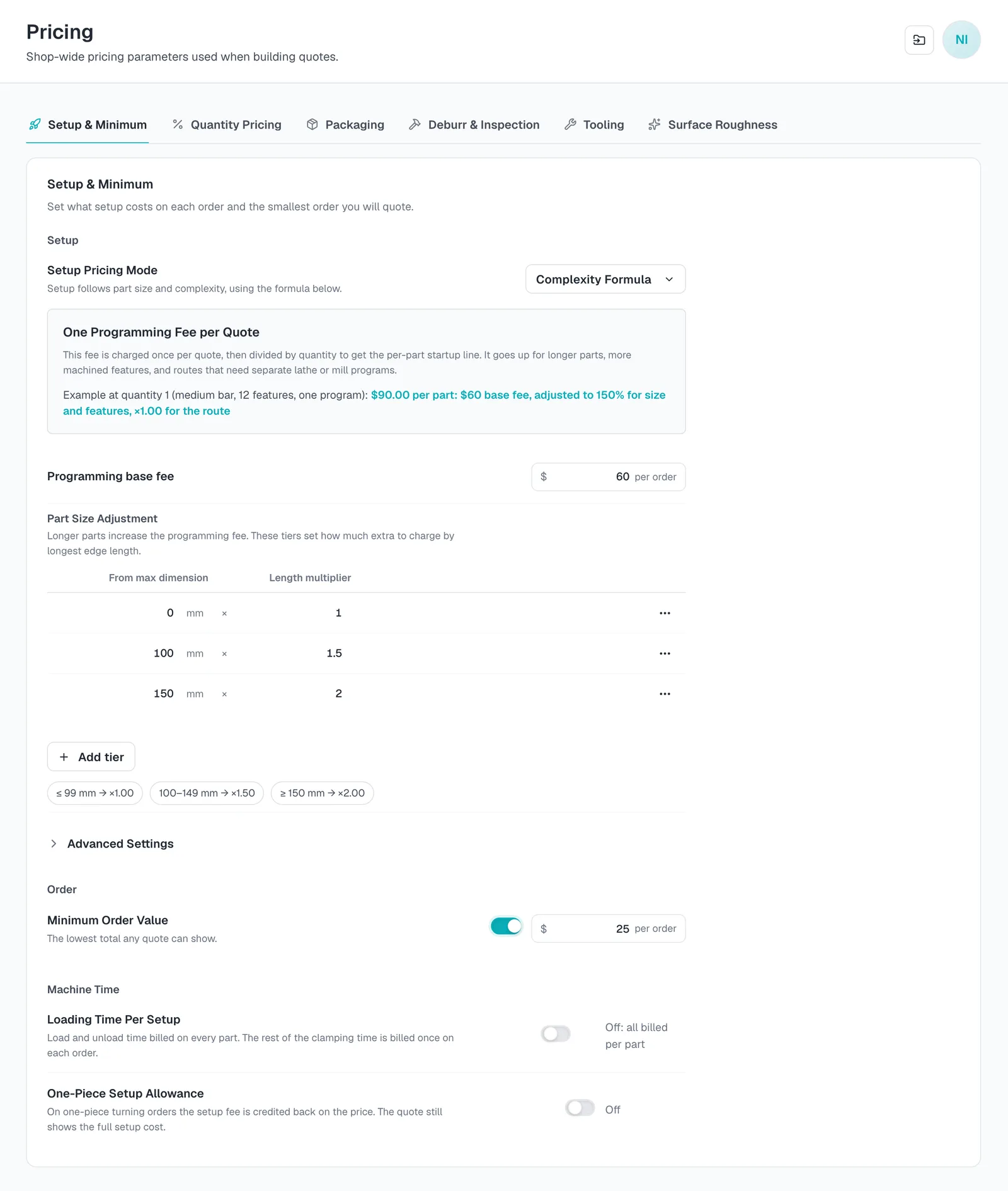
Where: Pricing, Setup and Minimum. Starting value: Complexity Formula.
Choose one of three modes. Only the controls for the active mode show. In every mode the order-level setup is divided by the quantity to get the per-part figure.
| Mode | What it does | Use it when |
|---|---|---|
| Complexity Formula | Setup follows part size and complexity, using the formula below. | A big or feature-heavy part really costs more to program. |
| Flat Fee | Every order pays one flat fee, shared across the quantity. | You charge the same programming fee on everything. It is the simplest mode. |
| Cycle-Time Bands | Setup follows how long one part runs, using the bands below. | You think of setup as short jobs costing less to set up than long ones. |
Flat Setup Fee#
Unit: per order, 0 or more. Starting value: 0. Where: Pricing, Setup and Minimum, Flat Fee mode.
Charged once on each order and shared across the quantity. Setup per part = fee / quantity.
Example: a fee of 60 and a quantity of 20 gives 3.00 per part. At quantity 1 the customer pays the full 60.
Watch out: the starting value is 0, so Flat Fee mode charges nothing for setup until you enter a fee.
Cycle-Time Bands#
Unit: minutes and currency per order. Starting value: 0 min = 60, 30 min = 90, 60 min = 120, for both Milling and Turning. Where: Pricing, Setup and Minimum, Cycle-Time Bands mode.
There are two tables, Milling and Turning. Each row is a "from minutes" value and an amount. The fee is the band that the billed minutes of one part fall in: the highest band at or below those minutes. The order setup is the sum of the milling band fee and the turning band fee for the phases the part uses. The Copy From Milling button copies the milling table to turning. A Worked Example box lets you type minutes and see the fee.
Example with the starting bands: a part with 12 milling minutes pays 60. A part with 45 milling minutes pays 90. A part with 12 milling minutes and 45 turning minutes pays 60 + 90 = 150 for the order.
In this mode the Combo Routes program charge is not used. If a table is empty, Quote falls back to the base fee from the Complexity Formula settings.
Watch out: keep the first row at 0 minutes, or short parts get no fee.
Band Blend Window#
Unit: minutes. Starting value: 0 (shown as "Off: hard steps"). Where: Pricing, Setup and Minimum, Cycle-Time Bands mode.
With 0, the fee jumps from one band to the next. With a window, the fee ramps linearly across a window of this width, centred on each band threshold. The toggle suggests 10 when you switch it on.
Example: with a threshold at 30 minutes and a window of 10, the fee moves gradually between 25 and 35 minutes instead of jumping at 30.
Change it when: a part at 29.9 minutes and one at 30.1 minutes quote with a visible jump you do not want. Leave it off if you want predictable steps.
Complexity Formula#
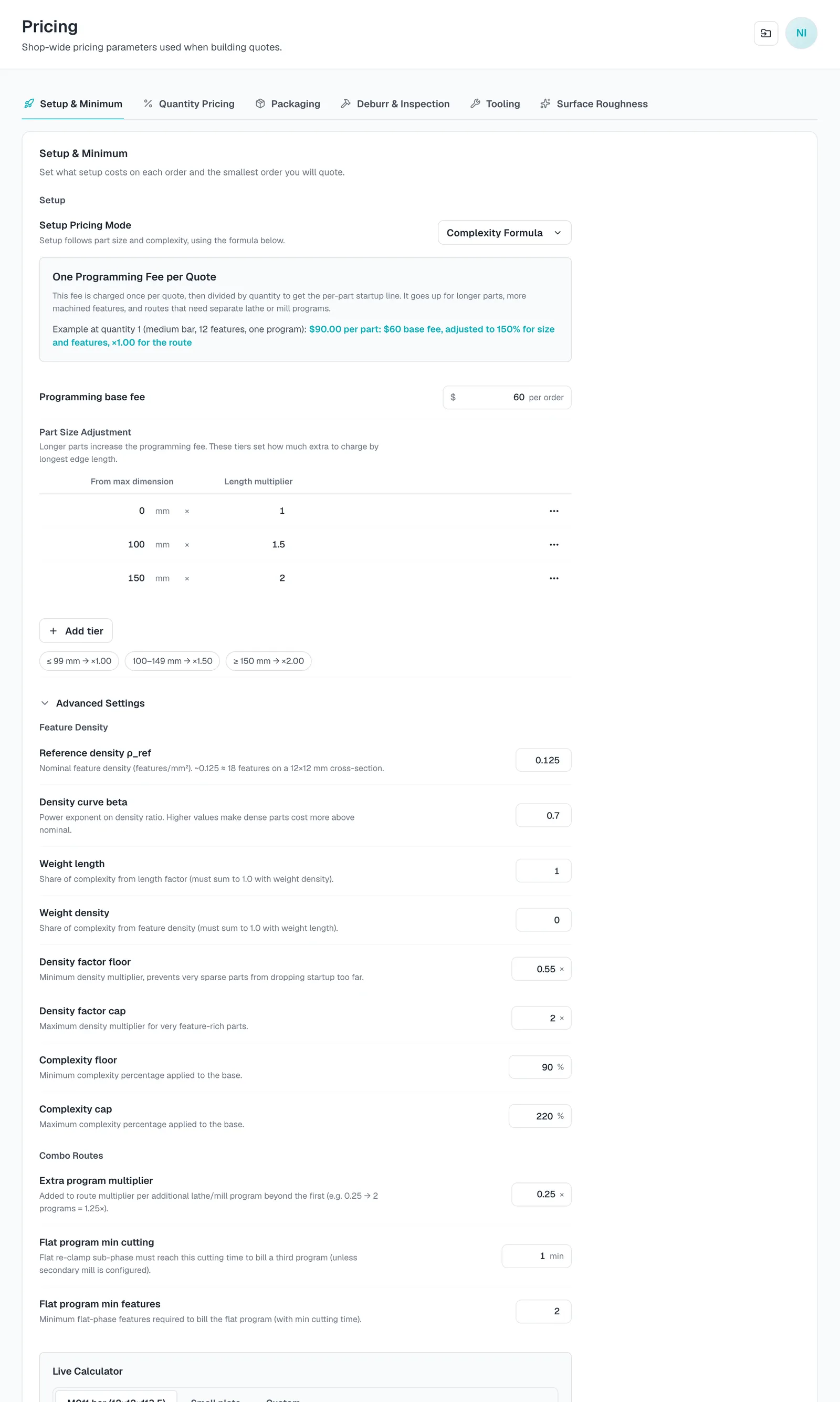
Where: Pricing, Setup and Minimum, Complexity Formula mode. The panel is titled "One Programming Fee per Quote".
The setup fee starts from your base fee and rises for bigger parts, parts with many features, and parts that need more than one program. The order setup is then divided by the quantity to get the per-part figure.
Change the base fee first. Only touch Advanced Settings if you can show that small dense parts and big simple parts are mispriced.
Base Fee#
Unit: per order. Starting value: 60. Where: Pricing, Setup and Minimum, Complexity Formula.
The flat setup fee that everything else scales. It is the one number to adjust first.
Part Size Adjustment#
Unit: largest dimension in mm, and a multiplier. Starting value: 0 mm = 1.0, 100 mm = 1.5, 150 mm = 2.0. Where: Pricing, Setup and Minimum, Complexity Formula.
Tiers that raise the setup for bigger parts. Each part uses the tier that matches its largest dimension. Add Tier suggests the next step up.
Example: a 120 mm part falls in the 100 mm tier, so its size multiplier is 1.5.
Advanced Settings#
Where: Pricing, Setup and Minimum, Advanced Settings.
These controls let setup also follow how many features a part has, not only its size.
- Length Weight and Density Weight. Decide how much size and feature count each count. They always add up to 1. At the starting values only part size matters.
- Reference Density and Density Exponent. Set what counts as an average part and how strongly feature-heavy parts are penalized. A lower exponent softens the effect.
- Complexity Min % and Max %. Keep the combined effect within a range. Starting values are 90 and 220.
Tip: Setting both Complexity Min % and Max % to 100 turns the complexity effect off.
Combo Routes#
Where: Pricing, Setup and Minimum, Combo Routes.
- Extra Program Multiplier (starting value 0.25) adds to the setup for each extra program a part needs, for example a separate lathe and mill.
- Flat Mill Minimum Cutting Minutes and Minimum Features (starting values 1.0 minute and 2 features) stop a trivial flat mill operation from adding a program charge.
Live Calculator#
Where: Pricing, Setup and Minimum, Complexity Formula.
Enter a part's size, features and programs to test your settings before relying on them.
Example#
With a base fee of 60 and a part that scales up to 150% for size and features, with two programs, the order setup comes to 112.50. At quantity 10 that is 11.25 per part, and at quantity 1 it is the full 112.50.
Minimum Order Value#
Unit: per order. Starting value: 25. Where: Pricing, Setup and Minimum.
The lowest total any quote can show. When off it shows "No minimum", and the toggle suggests 50 when you switch it on.
per-part floor = minimum / quantity. The unit price is the larger of the computed price and the floor.
Example: with a minimum of 50 and a quantity of 10, the floor is 5.00 per part. A part computed at 3.20 per part is raised to 5.00. At quantity 1 a part computed at 30.00 is raised to 50.00.
Change it when: set it to the smallest order you are willing to run.
Watch out: it is a floor on the part total, so it does not stack with other charges. Shipping is outside it.
Loading Time Per Setup#
Unit: minutes per setup. Starting value: off (0). Where: Pricing, Setup and Minimum.
Load and unload time billed on every part. The rest of the clamping time is billed once on each order. When off it shows "Off: all billed per part", and the toggle suggests 2.
With this on, only the loading time repeats on every part. The remaining clamping time is charged once per order inside the setup line, so machine cost per part drops. It does nothing for parts that have no clamping time.
Example: a part has 6 minutes of clamping across 2 setups, and you set 2. Four minutes are billed on every part, and the remaining 2 minutes are charged once per order.
Change it when: you clamp once and then run many parts (fixtures, vises), where only loading repeats per part. Typical values are 1 to 3 minutes. Leave it off if each part is fully re-clamped.
Watch out: setting it higher than your real load time pushes cost back onto every part.
One-Piece Setup Allowance#
Default: Off. Where: Pricing, Setup and Minimum.
On one-piece turning orders the setup fee is credited back on the price. The quote still shows the full setup cost.
It applies only at quantity 1 on turned parts. Other quantities are unaffected.
Change it when: you want to stay competitive on single turned prototypes.
Related Pages#
Last updated