Storage and Backup
Browse the files attached to your quotes, and export, import or reset all your shop settings in one file, including what each action includes and what it does not.
On this page
The Storage page has two tabs: Files and Settings Backup. Use Files to find a STEP file or drawing behind a quote. Use Settings Backup before any big change, such as a reset, a currency change, an import or a bulk rate edit. The tab you are on is remembered in the web address. The old Company Data page now simply opens Settings Backup.
Files Tab#
Browse STEP files, drawings and other quote attachments for your company. You need storage view permission, otherwise you see "You do not have permission to view quote file storage."
Storage Usage#
A card showing the file count, with View Breakdown and Hide Breakdown to split company files from Widget files.
Sources#
A left menu with All Files, Company and Widget.
File List#
The list shows "{n} files". Row actions are View, Download and Open Quote. A preview shows the type, size and the quote the file belongs to. A badge marks a file that is recorded but cannot be found.
When the list is empty you see: "No quote files found. STEP files and widget drawings appear here after quotes are created."
Settings Backup Tab#
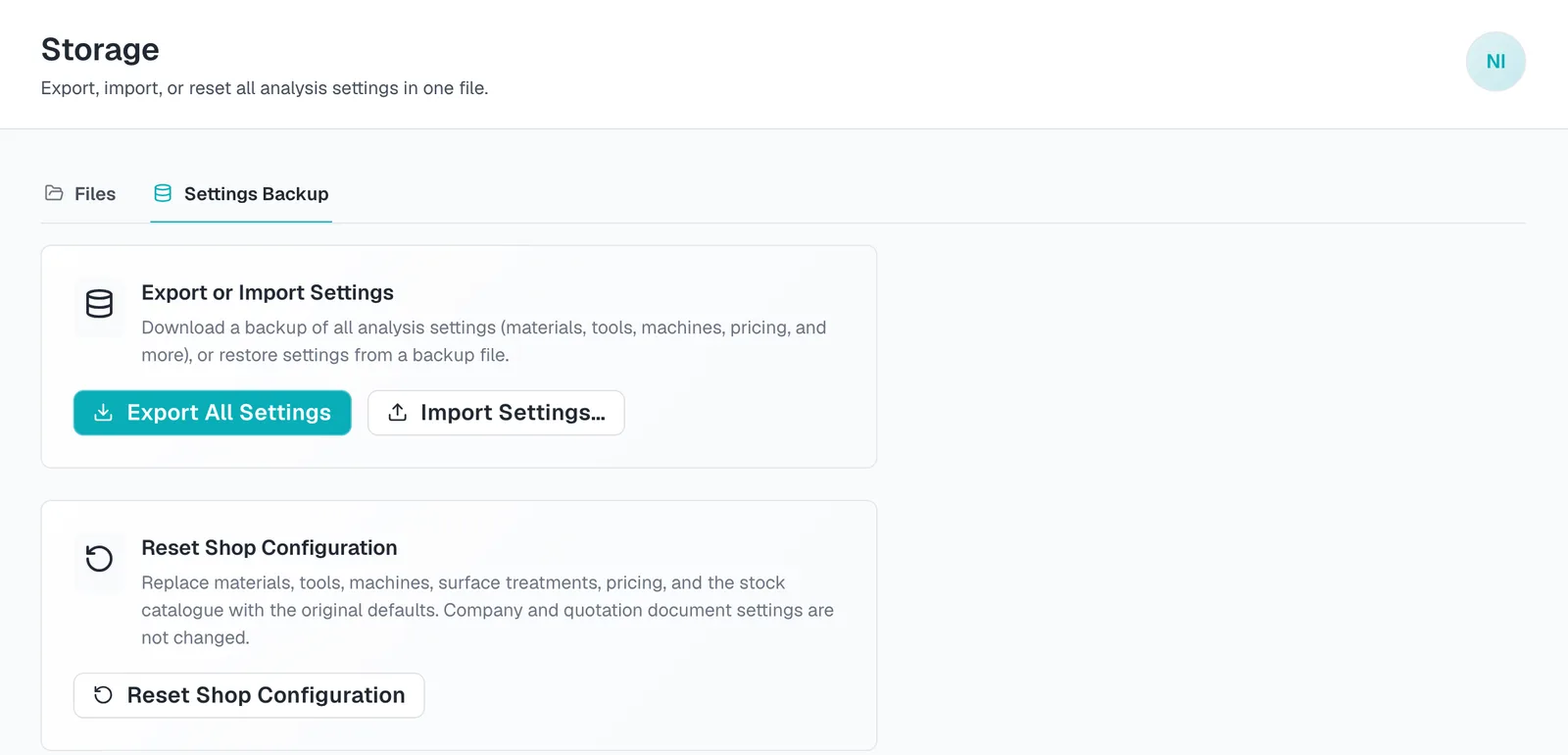
Export, import or reset all analysis settings in one file. The buttons are hidden from people without shop edit permission.
Export All Settings#
Downloads a backup of all analysis settings in one file named company-settings plus the date. A message confirms "Export successful".
The file includes:
- Machines.
- Materials.
- Milling tools and lathe tools.
- Surface treatments.
- Pricing configuration.
- Company quotation settings: identity, branding, legal, bank details and currency.
- The stock catalogue.
Change it when: before every reset, import, currency change or large edit. Add the date and the currency to the file name yourself, since Quote only adds the date.
Import Settings#
Opens a file picker, then a confirmation titled "Import Analysis Settings": "Are you sure you want to import this data? This will overwrite your existing materials, tools, machines, pricing, and stock catalogue. This action cannot be undone." Confirm with "Import and Overwrite". Afterwards you see "Analysis settings have been updated." or "Import failed".
How import behaves:
- Each section in the file replaces the current section entirely. A section missing from the file is left alone.
- Sections are applied one by one with no rollback. If a later section is invalid, earlier sections are already replaced, and the page reports "Import failed".
- The company quotation settings, including bank details and currency, are also replaced when the file contains them, even though the confirmation text does not mention it.
Watch out: import does not convert prices. A backup exported in EUR and imported into a company set to USD sets your company currency back to EUR with the numbers unchanged. Treat a backup as tied to its currency. See Company Currency.
Reset Shop Configuration#
Replaces materials, tools, machines, lathe tools, surface treatments, pricing, DFM thresholds and the stock catalogue with the original defaults. Company and quotation document settings are not changed. The button shows "Resetting...". The confirmation says "This cannot be undone." and afterwards you see "Shop configuration has been restored to the original defaults."
What a reset leaves alone: your Company & Quotation settings (identity, branding, legal and currency).
Change it when: you want to start your shop setup again from scratch.
Watch out: export a backup first. A reset cannot be undone.
Backup Habits#
- Export a backup before a reset, a currency change, an import or a bulk rate edit.
- Keep exports with the date and the currency in the file name.
- Only restore a backup into a company with the same currency.
Related Pages#
Last updated