
MCP Settings
Connect your own AI assistants and scripts to price STEP files with your shop's rates, manage the keys, and understand the limits agents hit.
On this page
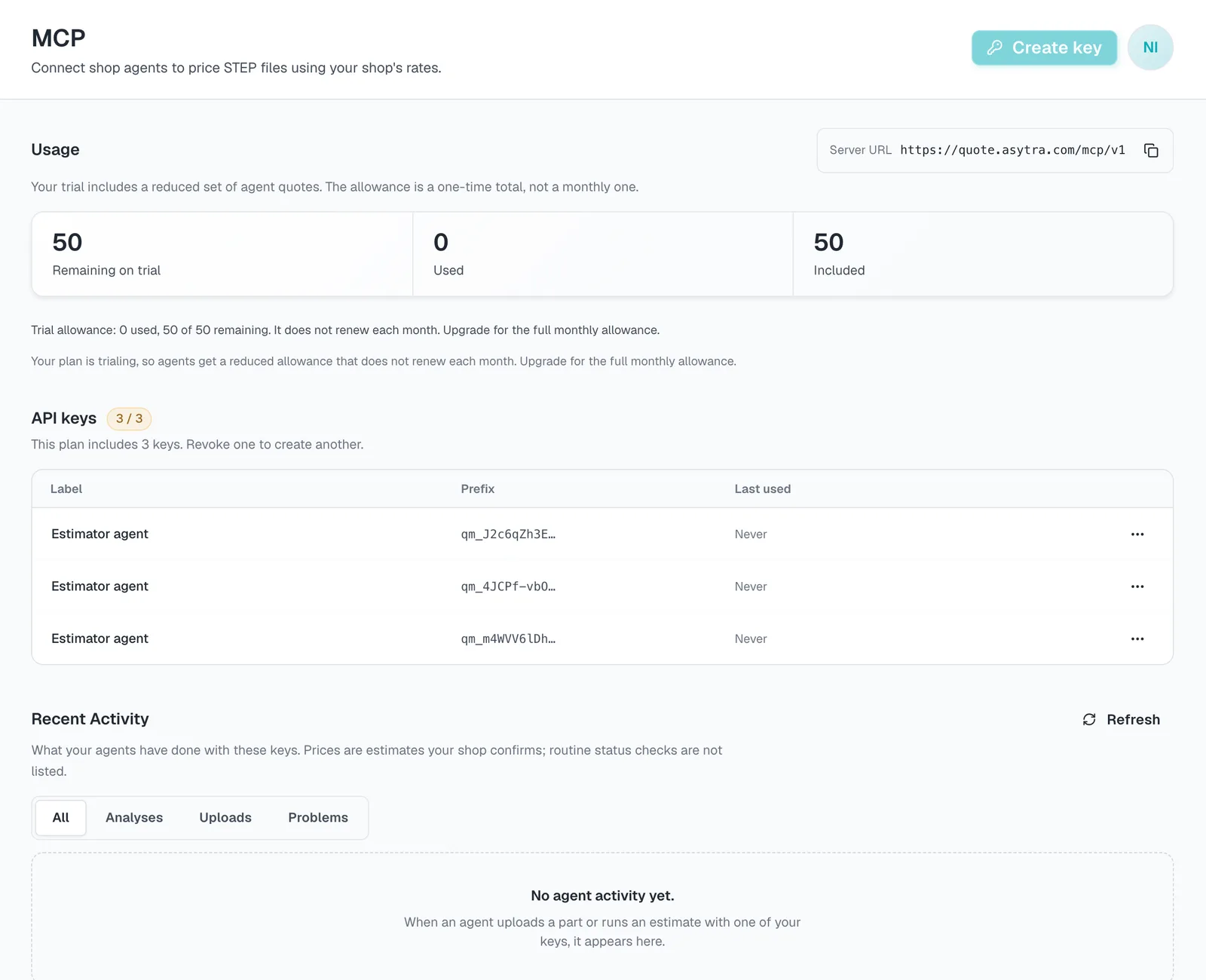
MCP lets your own AI assistants and scripts (Cursor, Claude, ChatGPT or Codex, Hermes, or any agent that supports MCP) price a STEP file using your shop's configured rates. Open it from the Quote sidebar, section Advanced, item MCP. The page subtitle reads "Connect shop agents to price STEP files using your shop's rates."
Prices from MCP are estimates, not binding quotes. Each result is marked as an estimate that is not binding.
What It Is#
The Server URL (with Copy URL) is your Quote address followed by /mcp/v1. Agents sign in with a secret key that starts with qm_.
Keys are for your company's own users and agents only, such as estimators, internal copilots and RFQ scripts. They are not website Widget keys and must never be handed to customers or third parties. The page says: "MCP keys are secret and company-scoped. Use them only in your own shop agents and scripts. They are not website widget keys."
Page States#
| State | What you see |
|---|---|
| No plan | "Subscribe to Quote Dashboard or Quote Widget to create MCP keys for this company's agents." You cannot create keys. |
| Trial plan | "Your plan is trialing, so agents get a reduced allowance that does not renew each month. Upgrade for the full monthly allowance." |
| Plan not active | "Your plan is not active, so agents cannot start new estimates. Parts already running can still be checked." |
Keys#
The API keys section shows a counter such as "1 / 3". You can have up to 3 keys per company. At the limit the button is disabled with "This plan includes 3 keys. Revoke one to create another."
The table shows Label, Prefix, Last used ("Never" if unused) and an Actions menu with Revoke.
Create Key#
Where: MCP, API keys, Create key.
Enter a Label (required, example "Estimator agent"). There is one kind of key, with no environment or type to choose. The secret is shown once.
Change it when: create one key per agent or person, named after them, so Recent Activity shows who did what and you can revoke just one.
Copy Your MCP Key Now#
After creation a panel says "This secret is shown only once. Paste it into your agent config, then close this panel." It shows the Secret with Copy and Done. If you lose it, revoke the key and create a new one.
Below it, Quick Setup has tabs with the secret already filled in: Any agent (a prompt to paste into chat), Cursor, Claude (Desktop and Claude Code share the same config), ChatGPT / Codex (ChatGPT desktop and Codex share it) and Hermes.
Revoke#
Asks "Revoke this key? Agents using it will stop working immediately." and confirms with "Key revoked". Revoking cannot be undone.
Watch out: treat a key like a password. Keep it out of chat messages, public repositories and shared screenshots. Revoke at once if it is exposed or when a person leaves.
Usage#
The Usage section shows billable MCP agent quotes in the current billing period. It has a strip with Remaining this month (on a trial, Remaining on trial), Used and Included, and an Overage figure when the included allowance is used up.
Only starting an estimate counts. Uploading a file, checking status and viewing results are free. If Quote classifies a failure as its own fault, the call is refunded to your count.
Which allowance applies depends on your plan:
| Your plan | Allowance |
|---|---|
| Quote Dashboard (alone or with Widget) | A separate monthly MCP allowance. Quotes you run in the Dashboard are unlimited and do not count here. The Widget keeps its own customer-quote pool. |
| Widget only | No separate MCP allowance. MCP quotes share the same customer-quote pool as your website embed. |
| Trial | A reduced, one-time total that does not renew. Upgrade for the full monthly allowance. |
The monthly allowance resets on your plan's billing period, for monthly and annual plans alike.
Note: Check the Usage section of your own page for your current allowance and any charges that apply after it. Allowances are subject to change.
Recent Activity#
Shows what your agents have done with these keys. Prices are estimates your shop confirms, and routine status checks are not listed.
- Filters: All, Analyses, Uploads, Problems, plus a Refresh button and a count of events.
- Columns: When, Action (Upload, Estimate, Result), Part (file name, or "Uploaded part"), Result, and Key (the label, or "Removed key" if revoked). Results include Completed, Failed, Canceled, Error, Analysis started, Uploaded, Already queued, Expired and Unknown. Completed estimates show the price per unit and the quantity.
- Time span: the last 90 days by default.
Problems are explained in plain language: too many requests, analysis did not finish, analysis timed out, invalid request, uploaded part no longer available, estimate not found or expired, plan cannot start estimates, unsupported file format, file too large, monthly allowance reached, and the same request reused with different details.
The feed does not show internet addresses or internal identifiers. Older rows keep the fact that a call happened but may lose the file name or price once the file (24 hours), job (7 days) or quote data expires.
Limits an Agent Hits#
These limits are not editable.
| Limit | Value |
|---|---|
| Uploads | STEP or STP files only, up to 50 MB, 10 per minute per key |
| How long uploaded files are kept | 24 hours |
| Start estimate | 10 per minute per key |
| Status checks | 60 per minute per key (poll about every 5 seconds) |
| Company-wide backstop | Twice the per-key limit |
| How long estimate jobs are kept | 7 days |
| Customer reference | Up to 128 characters |
An agent can pass a quantity, material, machine, a customer reference and an idempotency key. Repeating the same idempotency key avoids being charged twice. If an agent leaves out material and machine, your shop defaults are used (6061-T6 and a 3-axis machine when present). Unlike the website Widget, an MCP agent can choose the machine. Agents should not start the same job twice while it is queued or running.
Guidance#
- Start with one key for one agent, check Recent Activity, then add more.
- On a trial or a low allowance, let agents run a few parts, not bulk loops. A runaway script can use up an allowance quickly even though each call only takes seconds.
- Name each key after its agent or person so activity is easy to read.
Related Pages#
Last updated