
Surface Treatments
Price finishes, treatments and lathe drawing callouts per part, with the four pricing modes, material multipliers, the minimum charge and a sample cost check.
On this page
The Surface Finishes & Treatments page sets what Quote charges for finishing and coating a part, and what each drawing callout adds to a turned part. Open it when you add a process such as anodizing, change a supplier price, or find that a finish quotes too high or too low. Changes save automatically, and a save indicator shows the state.
A finish is a mechanical or abrasive process such as brushing or blasting. A treatment is a chemical or coating process such as anodizing or plating. The page has four tabs: Finishes, Treatments, Price Rules and Lathe Annotations. The Sample Part Cost Check panel sits under every tab except Lathe Annotations.
At the top right, an Export / Import menu covers the whole surface catalog. Importing asks you to confirm replacing your current treatments with the imported ones. Afterwards a banner reads "Import applied. You can restore the previous catalog for a short time." with an Undo Import button. The undo window is 30 seconds.
Note: If you can view shop settings but not edit them, the editing controls are hidden.
How a Surface Cost Is Calculated#
Costs are per part, in your company currency.
- By Area (the default): part surface area (mm2) x the process price per mm2 x the material multiplier. Quote measures the surface area from the part's 3D model.
- The material multiplier applies only to Finishes, never to Treatments.
- After the mode is worked out, the Minimum Charge is applied last: if the result is above zero but below the minimum, the part is billed the minimum.
- A process set to No Charge (the built-in "No Finish" and "No Treatment" rows) costs zero.
- If a quote has a Treatment that includes a Finish (see Includes Finishes), the Finish line is billed at zero so you do not charge the same pass twice.
- If the selected material is not in a process's Applies To list, Quote still prices the process but raises a blocking warning, "X does not apply to material Y", with the supported materials. The operator must fix the combination before sending.
In short, for a finish by area: cost = surface area x price per mm2 x material multiplier, then raised to the minimum charge if lower.
Finishes Tab#
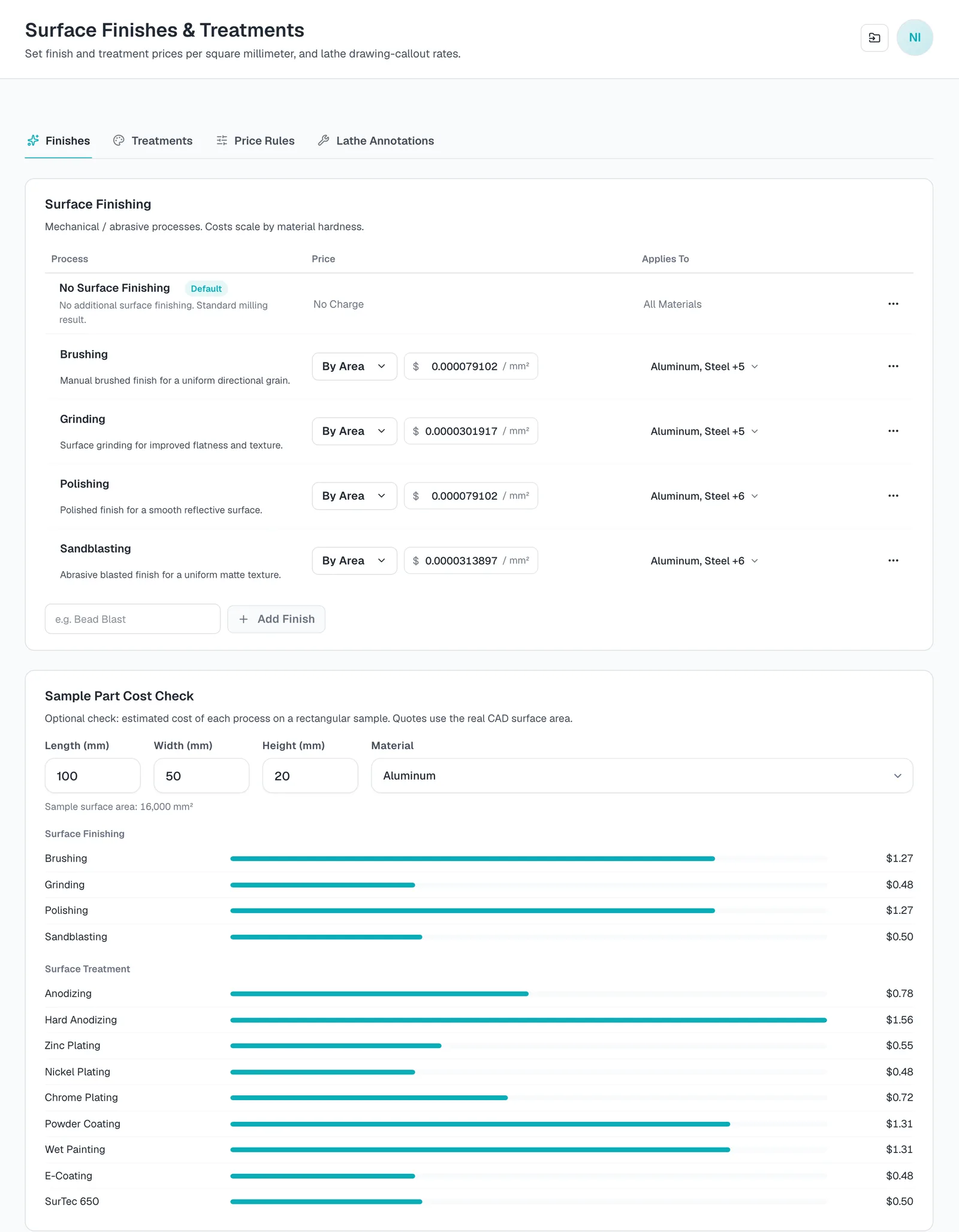
Mechanical and abrasive processes. Costs scale by material hardness. Starting examples: Brushing, Grinding, Polishing, Sandblasting (Bead Blasting), plus the fixed "No Finish" row.
Treatments Tab#
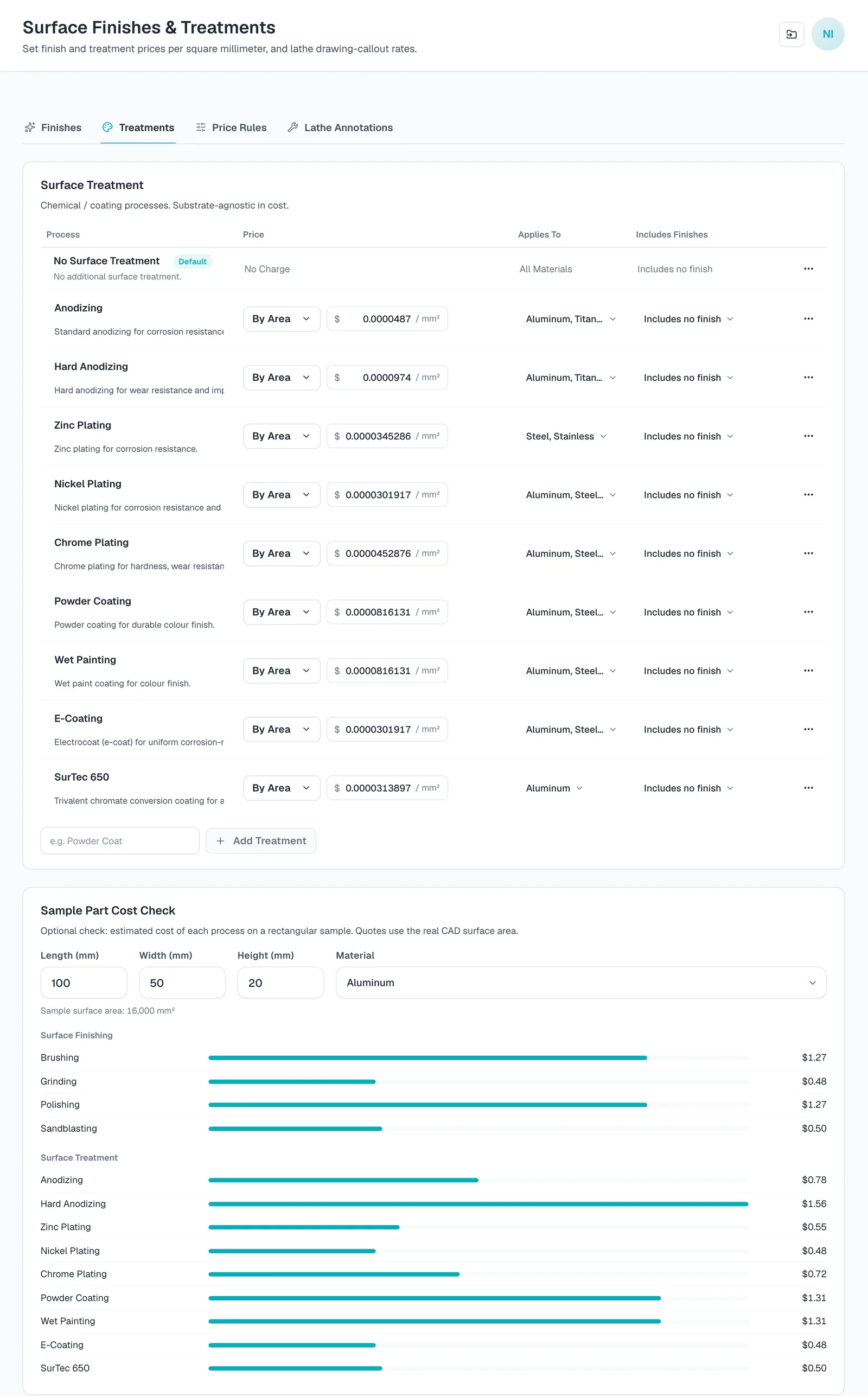
Chemical and coating processes. Cost does not depend on the material. Starting examples: Anodizing, Hard Anodizing, Zinc Plating, Nickel Plating, Chrome Plating, Powder Coating, Wet Painting, E-Coating, SurTec 650, plus the fixed "No Treatment" row.
Both tabs use the same table with the columns Process, Price, Applies To, and (Treatments tab only) Includes Finishes. A narrow last column holds the row menu. When the table is empty you see "Nothing here yet. Add one below."
Name#
Where: Process column, editable text, 1 to 120 characters.
The name shown in the finish or treatment dropdown when quoting. The two "No ..." rows cannot be renamed.
Change it when: use the name your customers know, such as "Clear Anodize Type II", not an internal code.
Watch out: each process has a permanent internal ID that is stored on quotes. Renaming a process does not change it.
Description#
Optional notes for your team. They are not shown on customer quotes. A good place for the supplier, lead time or spec, for example "MIL-A-8625 Type II, outsourced".
Default#
Where: Default badge. Row menu item "Make Default".
Selected automatically on new parts. There is one default per category (one finish, one treatment). The starting default is the "No" row of each.
Change it when: most of your parts really get that process.
Watch out: a default finish silently adds cost to every part.
Pricing Mode#
Default: By Area. Where: the menu in the Price column.
Chooses which price fields appear and how the cost is worked out. See the four modes below.
Price Per mm2#
Unit: your company currency per mm2, 0 or more. Mode: By Area, and the area part of Area With Flat Minimum.
Cost = surface area x this rate (x the material multiplier for finishes). New rows start at the category's baseline rate (Sandblasting for finishes, Zinc Plating for treatments). The rate is rounded to 8 significant digits on save.
Rates are tiny. For example 0.0000487 per mm2. A 100 x 50 x 20 mm block has 16,000 mm2 of surface, so 0.0000487 gives about 0.78. Use the Sample Part Cost Check to sanity check.
Flat Fee Per Part#
Unit: your company currency per part, 0 or more. Starting value: 0.
A fixed amount per part. The area rate is ignored. Best for plating or hard anodize that your supplier bills per piece.
Flat Minimum#
Unit: your company currency, 0 or more. Mode: Area With Flat Minimum.
The cost is the larger of the area cost and this flat fee. Good when the supplier has a per-piece minimum but big parts scale with size.
Price Per kg#
Unit: your company currency per kg, 0 or more. Mode: By Finished Weight.
Cost = finished part weight (volume x material density) x this rate. It costs zero if the weight is unknown. Use it for passivation or heat treatment that suppliers bill per kilogram.
Watch out: the Sample Part Cost Check cannot show a figure for this mode because the sample block has no real weight. It shows "By part weight".
Applies To#
Default: All Materials (empty list).
Limits the process to certain material families. Leave it empty to offer it for any material. A mismatch raises a blocking warning on the quote, though the process still prices.
Change it when: restrict anodizing to aluminum and titanium, and zinc plating to steel and stainless. Leave plastic out of plating.
Watch out: the materials offered in this list come from your Material Multipliers tiles.
Includes Finishes#
Where: Treatments tab only. Default: Includes no finish.
If a quote has this treatment and one of the listed finishes, the finish is billed at zero.
Change it when: your anodize price already includes the blast. It prevents double charging.
Row Menu#
Actions are Make Default and Delete. The two "No ..." rows cannot be deleted. Deleting asks: "Remove "{name}" from your catalog? Existing quotes that selected this process will show zero finishing/treatment cost." If you delete the default, another row is promoted automatically.
Watch out: deleting changes existing quotes that used the process, and they drop to zero cost. Rename or reprice instead if you only want to retire it.
Add Finish and Add Treatment#
Type a name (examples "e.g. Bead Blast" and "e.g. Powder Coat") and press Add Finish or Add Treatment. The name becomes an ID (lowercase letters, digits, underscore). If the ID already exists a number is added. Quote creates a row at the category baseline area rate and moves the cursor to its price field.
Watch out: set the real price straight away. The starting rate is a copy of Sandblasting or Zinc Plating, not your cost.
The Four Pricing Modes#
| Mode | Cost per part | Fields shown | Good for |
|---|---|---|---|
| By Area | Surface area x price per mm2 (x material multiplier for finishes) | Price per mm2 | Blasting, brushing, painting priced by size |
| Flat Fee Per Part | A fixed amount per part | Flat fee | Plating or hard anodize billed per piece |
| Area With Flat Minimum | The larger of the area cost and the flat minimum | Price per mm2 and Flat minimum | Suppliers with a per-piece minimum |
| By Finished Weight | Finished weight x price per kg | Price per kg | Passivation or heat treatment billed per kilogram |
Price Rules Tab#
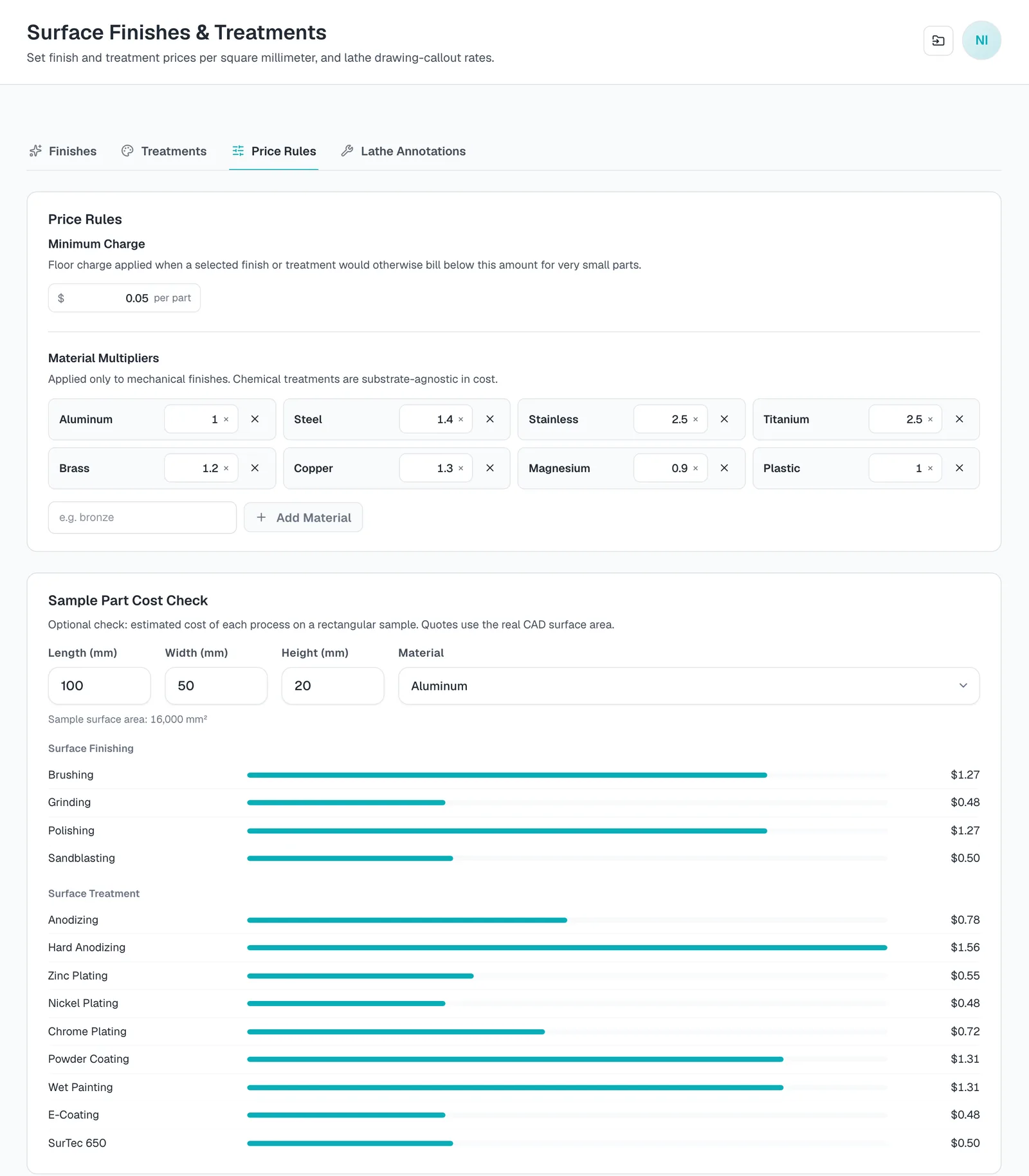
Minimum Charge#
Unit: your company currency per part, 0 or more. Starting value: 0.05.
The floor charge applied when a selected finish or treatment would otherwise bill below this amount for very small parts. It is applied last, after the pricing mode result, to every process that is not No Charge. A part whose finish cost would be 0.02 is billed 0.05 instead.
Change it when: set it to the smallest amount you are happy to bill for a handled part (rack and handling).
Watch out: a flat-fee process higher than the minimum is not affected. A zero-cost result, for example By Area with a rate of 0, stays zero and is not lifted.
Material Multipliers#
Unit: plain number (not currency), 0 or more. Applies only to finishes. A material not listed counts as 1.
Harder metals take longer to finish, so Quote multiplies the finish cost by the multiplier for the part's material family. Each tile shows a number followed by "x" and a remove button.
| Material | Starting value |
|---|---|
| Aluminum | 1 |
| Steel | 1.4 |
| Stainless | 2.5 |
| Titanium | 2.5 |
| Brass | 1.2 |
| Copper | 1.3 |
| Magnesium | 0.9 |
| Plastic | 1 |
Change it when: a material finishes noticeably faster or slower in your shop. For example, set steel to 1.6 if grinding steel takes longer than the starting value allows for.
Add Material adds a new tile (placeholder "e.g. bronze") that starts at 1.
Warning: Quote decides a part's material family by name, not by what you type. It recognizes brass (which also catches bronze), copper, magnesium, aluminum, stainless, titanium (which also catches Inconel, Hastelloy, Monel and other nickel alloys), steel, iron and plastic. A custom tile such as "bronze" never matches a part, because bronze parts are read as brass. Edit the brass tile instead.
Lathe Annotations Tab#
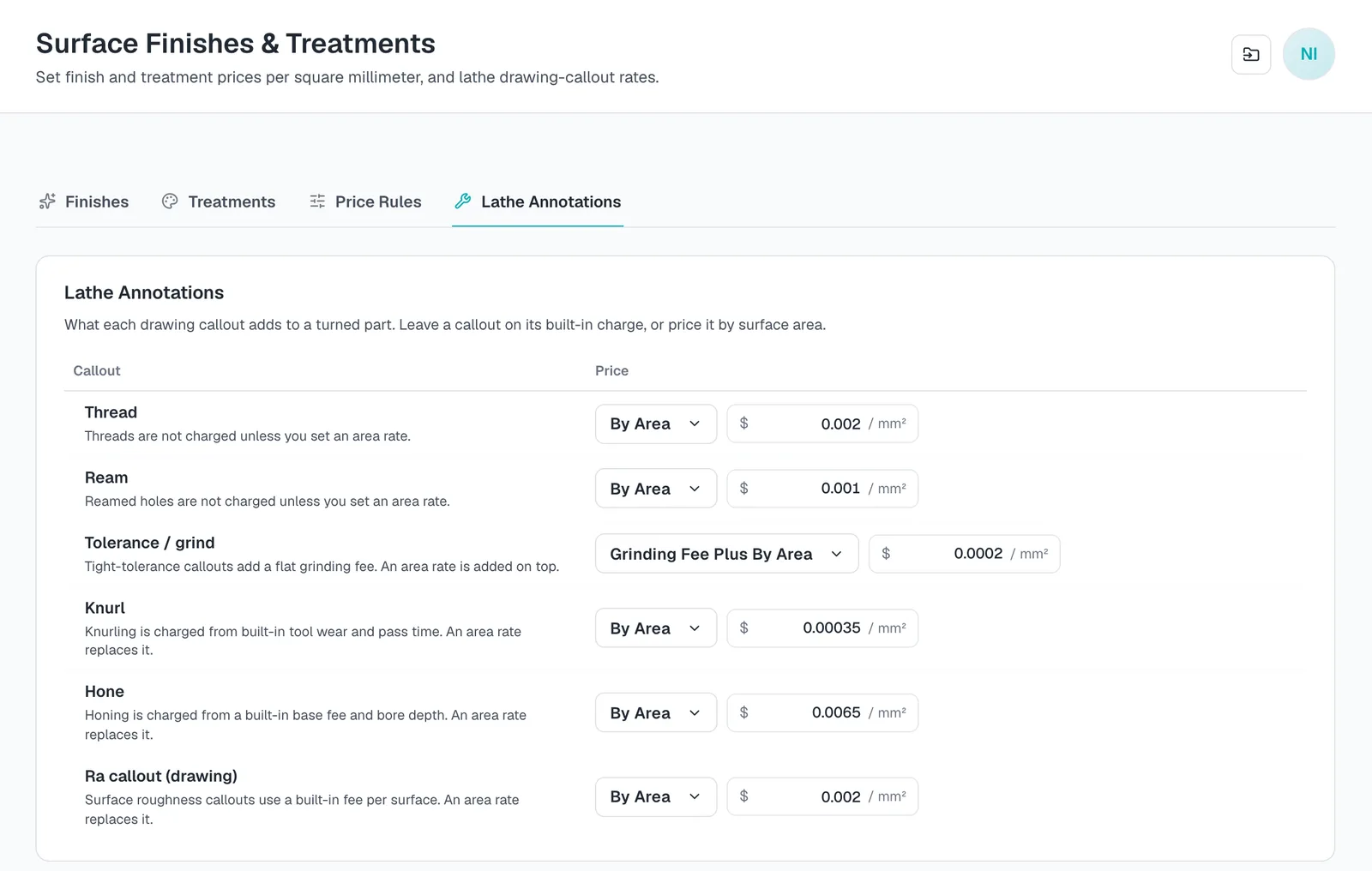
What each drawing callout adds to a turned part. Leave a callout on its built-in charge, or price it by surface area. This applies to turned (lathe) parts where a callout (thread, ream, tolerance, knurl, hone or surface roughness) is detected on a surface.
Each row has a mode menu and, when area pricing is on, a rate field (your company currency per mm2). "By area" means rate x the area of the specific surface that carries the callout. Switching a row to area mode starts the rate at the current finish baseline rate (Sandblasting). Switching back to the built-in mode clears the rate.
| Callout | Mode choices | Built-in charge when no rate is set | Area rate suggested start | What an area rate does |
|---|---|---|---|---|
| Thread | No Extra Charge, By Area | Nothing | 0.002 | Adds rate x thread surface area |
| Ream | No Extra Charge, By Area | Nothing | 0.001 | Adds rate x reamed surface area |
| Tolerance / grind | Built-In Grinding Fee, Grinding Fee Plus By Area | A flat grinding fee (built-in 35.00) per surface that needs grinding (tight fits such as h6/H6 and tighter) | 0.0002 | Added on top of the grinding fee, not instead of it |
| Knurl | Built-In Flat Fee, By Area | Tool wear 0.15 plus pass cost 0.20 (doubled for a diamond pattern) per knurl | 0.00035 | Replaces the built-in fee |
| Hone | Built-In Flat Fee, By Area | Base 5.00 plus 1.50 per 10 mm of an assumed default bore depth | 0.0065 | Replaces the built-in fee |
| Ra callout (drawing) | Built-In Flat Fee, By Area | By requested roughness: Ra 0.2 or finer 5.00; up to 0.4 2.00; up to 0.8 1.00; coarser than 0.8 nothing | 0.002 | Replaces the built-in fee |
The "Area rate suggested start" values are starting values for a new shop.
Change it when:
- You want to charge for threads or reams. They cost nothing unless you switch those rows to By Area.
- You outsource honing or grinding. Check the built-in amounts against your supplier price.
Watch out:
- The Ra callout is a drawing requirement on a turned surface. It is separate from catalog finishes such as anodizing. See Surface Roughness.
- Built-in knurl, hone and Ra fees are small flat amounts. They are in your company currency and convert with a currency change.
Sample Part Cost Check#
An optional calculator that estimates each process on a rectangular sample. Quotes use the real CAD surface area.
Fields: Length (mm), Width (mm), Height (mm) (starting values 100, 50, 20) and Material (a dropdown of your multiplier materials). Under them: "Sample surface area: {area} mm2". The table has Process, Type (Finish or Treatment), Est. cost and Relative cost. A cell reads "Minimum" when the minimum charge is being billed.
Sample Part Cost Check Example#
Take the default 100 x 50 x 20 mm block. Surface area = 2 x (100 x 50 + 100 x 20 + 50 x 20) = 2 x 8,000 = 16,000 mm2. For a finish at 0.0000487 per mm2 in aluminum (multiplier 1): 16,000 x 0.0000487 x 1 = about 0.78. In stainless (multiplier 2.5): about 1.95. A treatment at the same rate skips the multiplier, so it stays about 0.78 whatever the material.
The panel changes nothing. Because it uses a plain box, it understates a complex part. The real quote uses actual CAD area, which is usually larger than a box of the same overall size.
Related Pages#
Last updated