
Widget Keys
How Widget Settings works, and how to create, test, protect, limit and delete the embed keys that let your website show instant quotes.
On this page
The Widget lets your customers run instant quotes from your own website, using your machines, materials and pricing. Every website that shows the Widget does it through an embed key. This page covers the Widget Settings screen as a whole and its Setup tab, where you create keys, control which sites may use them and set limits.
Open it from the Quote sidebar, Widget.
How the Page Works#
Each embed key has its own complete set of Widget settings. Pick the key in the Embed Key selector bar at the top. Keys are grouped under Live and Test. Add Key creates another.
The tabs, in order, are Setup, Visitor Flow, Appearance, Content, Quote Document and Notifications.
- A dot on a tab means that tab has unsaved edits.
- A bar at the bottom shows "You have unsaved changes" and the Save Changes button. It shows "Enter a valid value to save" when a required number is blank or below 1.
- Leaving with unsaved edits asks "Leave Widget Settings?". Switching to another key or creating one asks you to discard your edits.
- Two things save the moment you change them, without Save Changes: the notification email lists and Example Parts.
- Show Preview opens a Live Preview panel that reflects your unsaved edits for the selected key. Drag its left edge to resize it, or use the presets Mobile, Tablet and Default. The preview uses sample data and is only for look and feel.
- Users without permission to manage the Widget see the page read-only: fields are disabled and there is no save bar.
Note: Unsaved edits in the preview never affect real embeds. A live website reads your saved settings when its page loads, so visitors may need to refresh, and their browser may keep an older copy of the Widget for a short while.
Setup Tab#
Test Key Notice#
Test keys show this notice: "For development and staging only. Do not embed this key on a public production website. Use a live key for production." The notice includes the Go Live button (see Go Live).
Key Details#
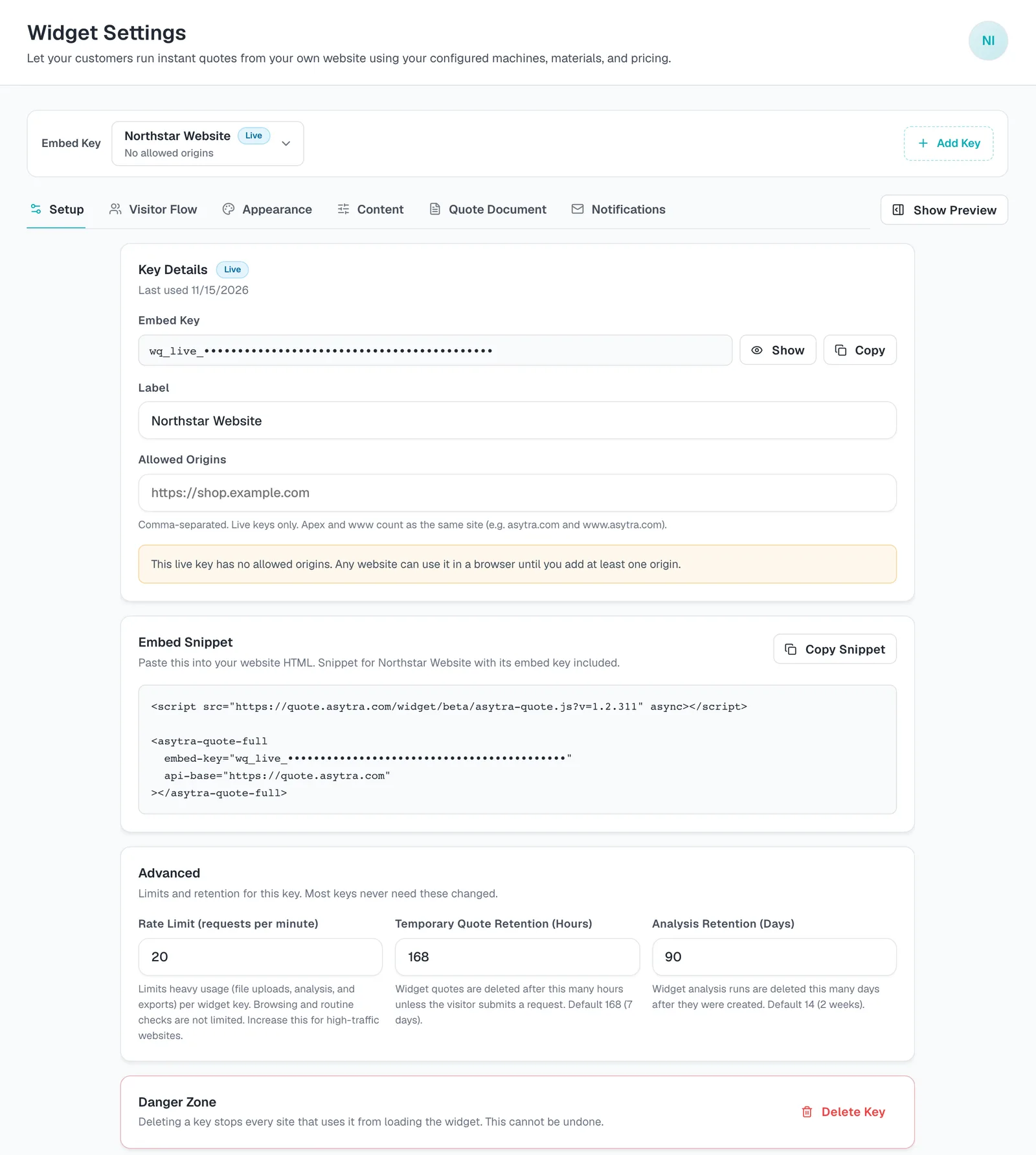
This card shows a Live or Test badge and "Last used" with a date, or "Not used yet".
Embed Key. A read-only secret, masked by default, with Show, Hide and Copy buttons. Live keys start with wq_live_ and test keys with wq_test_. The key is meant to appear in your page source, so it is not a password. It is protected by the allowed origins list, the rate limits, and the fact that the Widget can never reach your admin settings.
Note: Very old keys cannot show their full secret. You will see "The full embed key is unavailable for this legacy key". Delete that key and create a new one if you need a copyable key.
Label#
Where: Setup, Key Details.
Free text that tells your keys apart in the admin and in notification emails and history. Example: "Marketing Site" or "Distributor Site".
Change it when: you run more than one key. Name it after the site that uses it.
Allowed Origins#
Where: Setup, Key Details. Live keys only.
The Widget only works when the request comes from a website on this list. Separate entries with commas. The apex and www versions of a domain count as the same site, so listing asytra.com also covers www.asytra.com.
You can enter:
| Style | Example | Behavior |
|---|---|---|
| Full address | https://shop.example.com |
That site |
| Bare domain | shop.example.com |
That site |
| Wildcard subdomain | *.example.com |
Every subdomain, and example.com itself |
| Localhost | localhost |
Local testing |
| Host with a port | shop.example.com:8080 |
The visitor's site must use that port. Without a port, any port matches. |
Allowed origins are required for live keys. Quote will not create or save a live key without at least one, and a live key without an origin is refused for visitors. The screen warns "This live key has no allowed origins" when the list is empty. Treat that as a missing required setting, not a choice.
Change it when: you add a new domain that hosts the Widget. List every one: your main site, a staging copy you want live, and any separate shop subdomain.
Watch out: a wrong or missing origin is the most common reason the Widget shows an error on your site. A very broad wildcard lets other sites embed your priced Widget and use up your allowance.
Test keys ignore origins and work from any site. They also ignore subscription state, which is why the in-app preview works.
Test Keys and Live Keys#
| Test key | Live key | |
|---|---|---|
| Use for | Local preview, staging, styling | Your public website |
| Allowed origins | Ignored, works from any site | Required |
| Subscription needed | No | Yes, an active Quote Widget plan |
| Billing | None | One live key is included in your plan |
Live keys need an active Quote Widget plan. If the Widget is read-only (for example a trial ended unpaid), visitors see "Instant quoting is currently unavailable" with your contact link. No billing wording is shown to visitors. Cardless trials also have a daily visitor allowance. When it is used up, visitors see the same neutral message. Test keys are not affected.
Go Live#
Where: Setup, on a test key.
Go Live creates a new live key with the same Widget settings as the test key. Your test key stays available for staging. The modal asks for:
- Production Key Label. Starts as "Production".
- Allowed Origins. Required. Apex and www count as the same site.
Click Create Production Key. The result, "Production Key Ready", shows the new live key and snippet. Copy both and update your production website.
Change it when: your styling and testing are finished on a test key.
Watch out: Go Live copies your saved settings, so the modal tells you to save your Widget settings first. Only test keys can be cloned this way.
Tip: Do all styling and testing on a test key, then Go Live, then swap the key in your site.
Embed Snippet#
Where: Setup, Embed Snippet card.
This card says "Paste this into your website HTML" and shows the snippet for the selected key with its embed key already included. Copy Snippet copies it and the button changes to Copied. Paste it into the page where you want the Widget.
The snippet loads the Widget script and places the Widget on the page. The script address carries a version number so visitors' browsers fetch the newest Widget after an update. Some facts worth knowing:
- The Widget adds its own styles. You do not need a separate stylesheet link. If you have an old one, remove it, because page optimizers such as WP Rocket can strip it.
- A WordPress plugin, a React package and a custom-layout mode that places individual cards are available.
- If your site uses a content security policy, allow the Quote address for scripts, styles, connections and images. If you chose a Google font, allow the Google font hosts too.
- A separate marketing-page version starts as an upload area with a 3D viewer, then expands to the full quote.
Advanced#
Where: Setup, Advanced card. "Limits and retention for this key. Most keys never need these changed."
All three values are whole numbers of at least 1. A blank value blocks Save.
Rate Limit (Requests Per Minute)#
Unit: requests per minute. Starting value: 20.
Caps heavy usage per key: file uploads, analysis, and exports. Browsing and routine checks are not limited. The count is shared by all visitors of that key. When it is exceeded, visitors see a "too many requests" message and must wait a minute.
A second limit applies per visitor and cannot be edited: 15 heavy actions per minute per visitor internet address, per key. Visitors behind one office or campus network share that allowance. It is checked first, so one noisy visitor cannot use up the key's budget.
Change it when: raise it for trade shows, ad campaigns or schools where many people use the Widget at once. Lower it to protect your allowance from abuse. 20 per minute is plenty for a typical shop site.
Watch out: lowering it too far blocks real customers.
Temporary Quote Retention (Hours)#
Unit: hours. Starting value: 168 (7 days).
Quotes built in the multi-part workspace are deleted after this many hours unless the visitor submits a request. The expiry is stamped when each quote is created, so changing the value only affects new quotes. When a visitor submits a quote request, that quote is kept permanently and appears in your Quotes list. Quotes that were never submitted never reach your list as requests.
Change it when: shorten it to keep things tidy, or lengthen it so visitors can come back to a half-built quote.
Analysis Retention (Days)#
Unit: days. Starting value: 14 (2 weeks).
Widget analysis runs are permanently deleted this many days after they were created. That includes the stored STEP file, the preview and the results. Clean-up uses the current setting, so lowering it can remove existing older runs.
Change it when: keep it long enough to follow up with leads, since these runs hold customer contact details when the Customer Gate is on. Shorten it if you want less stored customer data.
Watch out: download the STEP file first if you need it.
Note: CAD files that visitors upload expire after 48 hours by default and are never added to your Quotes list. That period is not editable here.
Create Key Flow#
Where: Add Key in the selector bar, then Create Key.
The Create Embed Key panel says "Each key has its own widget settings. Use a test key for local preview and a live key for production sites." It asks for:
- Label.
- Environment. Live or Test.
- Allowed Origins. Only shown for live keys. Example:
https://shop.example.com, https://*.example.com. Enforced for live keys only.
For non-legacy keys, the secret stays copyable from Key Details after creation.
Billing for Extra Keys#
Your plan includes one live key. Additional live keys may incur a monthly fee. Creating or deleting a live key updates your billing automatically, so deleting a live key may reduce your extra-key charges. Free cardless trials limit the number of live keys and the number of allowed sites. Going over shows a trial limit message.
Only a submitted quote request counts toward your billable Widget quotes. Analyses and price estimates alone are not metered.
Danger Zone#
Where: Setup, Danger Zone card. Shown only to users who can manage the Widget.
Delete Key stops every site that uses the key from loading the Widget. The card says "This cannot be undone", and the confirmation asks "Delete this key?" with the warning "Any website using this key will stop working immediately."
Change it when: a site is retired, or a key was shared somewhere it should not be.
Watch out: swap the key on your website before you delete the old one, or the Widget disappears from your site at once.
Related Pages#
Last updated