
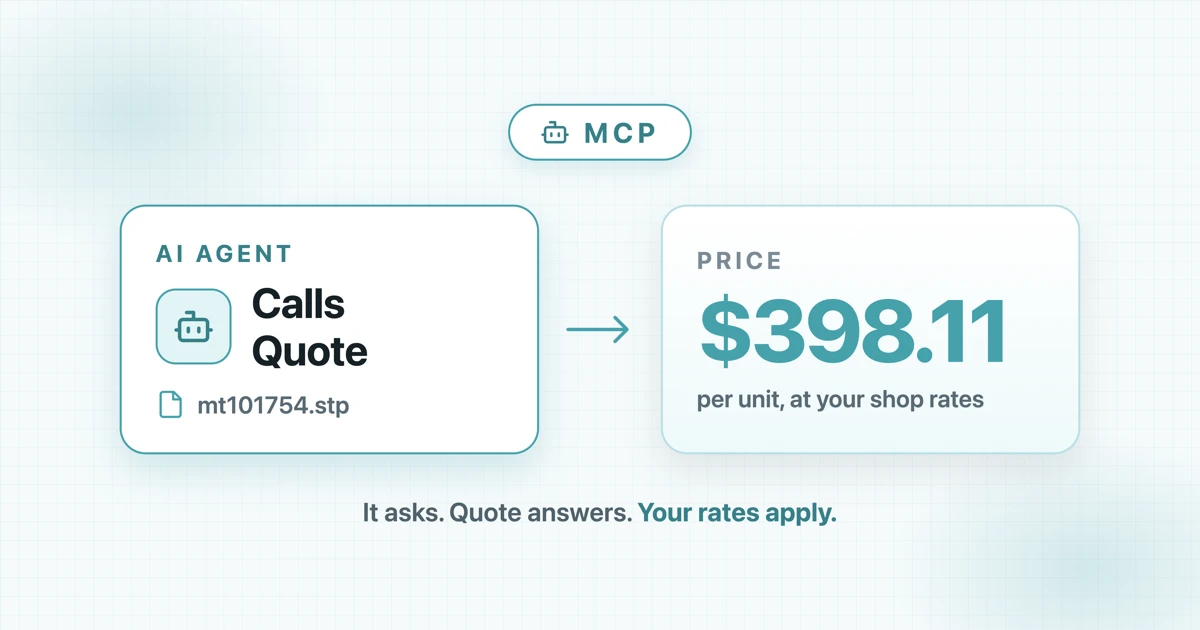
What MCP actually is
MCP stands for Model Context Protocol. It is an open standard that lets AI tools call other software, so an assistant can use a real application instead of guessing. Your agent does not have to guess at machining costs, because it can ask the quoting system you already configured.
MCP is the same idea as the widget code you might have embedded on your website, except it is aimed at AI tools rather than browsers. If you use a tool that supports MCP today, you can point it at your own shop's quoting engine.
The problem with asking an AI assistant to price a part
Ask a general assistant "what would this aluminium bracket cost to machine?" and you will get a confident number with no audit trail. It has no idea what your 3-axis mill actually runs at an hour, which fixture you would use, whether you have that stock on hand, or what your margin is on a 25-piece order.
For a customer-facing website, indicative numbers are fine. For a real quote you send to a customer who will hold you to it, a guess is worse than nothing. Most shops solve this by refusing to automate quoting at all.
Connecting the agent to your actual quoting engine sidesteps the problem. The agent never invents a number. It calls Quote, Quote applies your materials, machines, tool library, rates, and margins, and the agent gets back exactly what your estimator would have seen.
What an agent can do today
Two actions are available through MCP, plus file upload:
- price_part: uploads a
.stpor.stepfile and starts an estimate, returning a job reference straight away - get_quote_status: checks on a running estimate and returns the result once it finishes
A typical run uploads a part, starts the estimate, waits for it to complete, and returns the price along with the recommended process route and analysis results. Because analysis takes longer than a chat reply, the tools are built as start-then-poll rather than one blocking call.
The important point is what the agent is not doing. It is not estimating machining. It is not guessing cycle times. It is asking Quote, which does what it already does for the Dashboard and the Widget.
What an agent cannot do
It is worth being blunt about the limits, because "AI that quotes for me" oversells it.
- It cannot send a quote to a customer. Quote returns a priced result to your agent. A human still reviews and confirms anything that goes out.
- It cannot know your commercial terms. Lead times, payment terms, freight, and relationship pricing still come from your team. The analysis covers geometry and cost.
- It will not improve a vague part. The DFM notes it returns may still need an engineer's judgement.
- It cannot price through someone else's shop. Keys are scoped to your company.
MCP removes the clicking. It does not remove the judgement. Shops that get value from it are the ones treating it as a first-pass filter, not an autonomous salesperson.
MCP is not a replacement for your quoting widget
This is the distinction that trips people up, so it is worth stating plainly.
MCP is for your own people and your own agents. Estimators, internal copilots, and RFQ scripts running inside your business. Keys are scoped to your company, and a third party cannot use one to price through your shop.
The widget is for your public website. Visitors upload their own parts, see indicative pricing under your branding, and submit requests to your team. That is the customer-facing path.
If your goal is to let customers price themselves, you want the widget. If your goal is to let your own assistant handle inbound RFQs, you want MCP. Shops often end up running both.
Good first uses
If you are evaluating this, these are the cases where it tends to pay off quickly:
- Inbound RFQ triage. Drop a part in, get a price back, route the straightforward ones and flag the rest for an estimator.
- Batch quoting. Price a folder of files without opening the Dashboard for each one.
- Live customer calls. Give a quoting assistant a way to answer "roughly what would this cost?" while you are on the phone.
- Sanity checks. Confirm a part prices where you expect before a formal quote goes out.
Start narrow. One file type, one folder, one agent. Widen the job once results match your expectations.
How to set it up
Setup is short, because all the configuration already exists in your Quote account. Your materials, machines, tools, and pricing are what the agent will use.
- Make sure your shop settings are right. This matters more than anything else you do here. The agent returns exactly what the Dashboard returns, so an unvalidated feed rate shows up in agent results too. Run a few known parts through Get Price first.
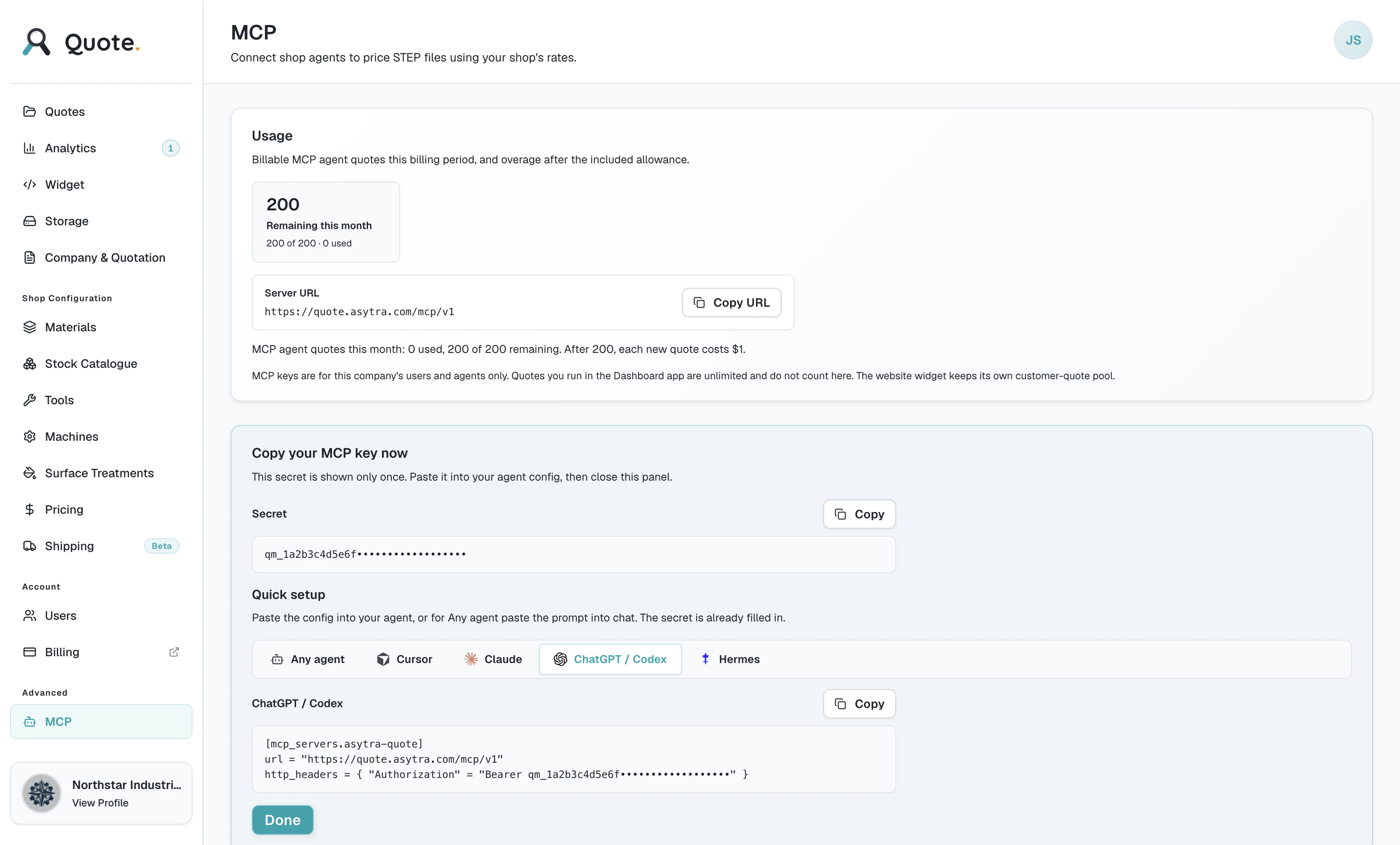
- Create a key. In the Quote Dashboard, open Advanced, then MCP. Give the key a label naming the agent or script it belongs to, for example "Estimating assistant". Labels are required, and they are how you identify a key later.
- Copy the key. It is shown once. If you lose it, create a replacement.
- Paste the setup for your tool. The MCP page provides ready-made configuration for Cursor, Claude (Claude Desktop and Claude Code share one configuration), ChatGPT and Codex, and Hermes. Copy it into your tool's MCP settings along with the key.
- Test it on a known part. Ask the agent to price something you have already quoted. This confirms the connection and shows you whether it is passing the right options.
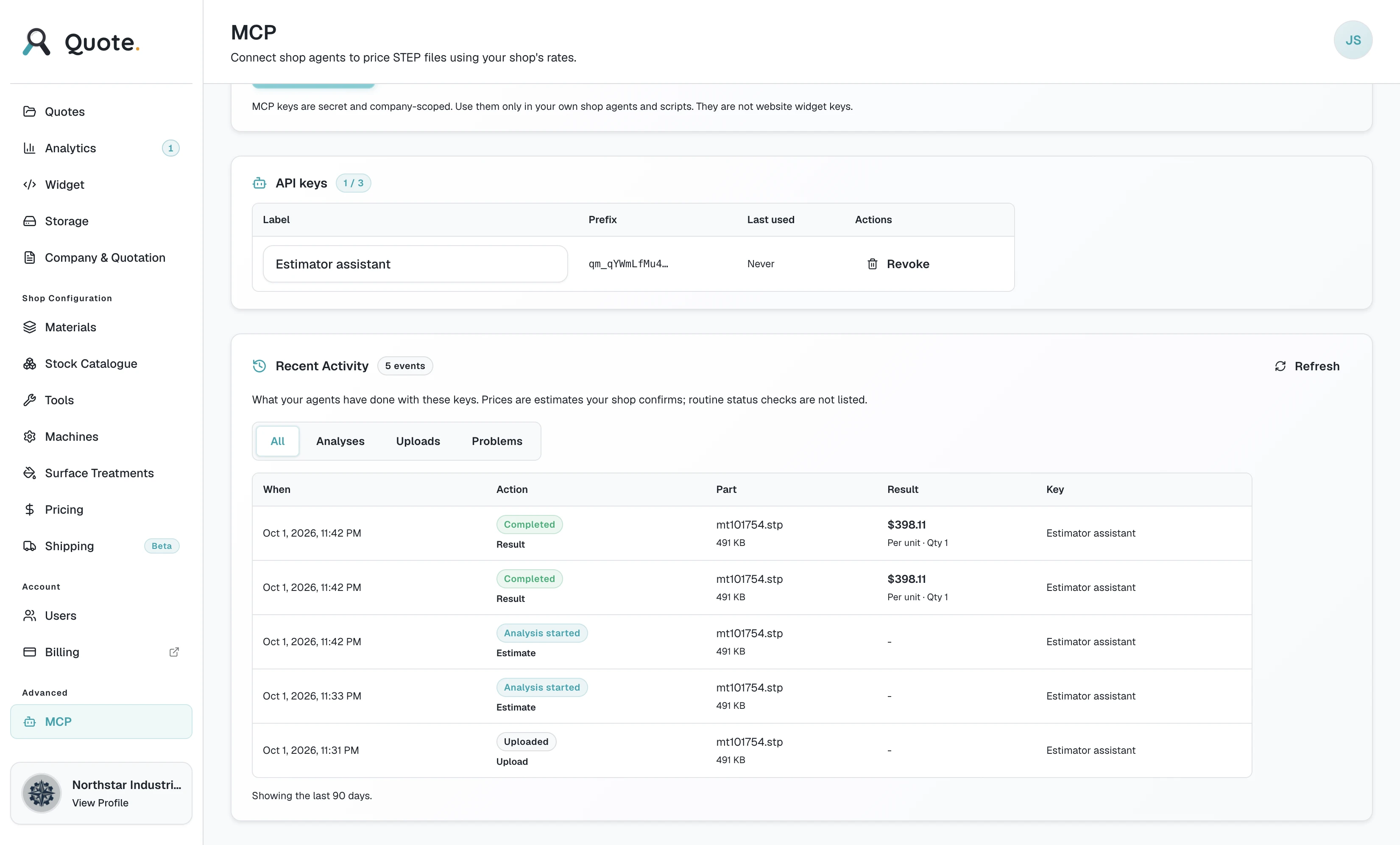
- Check Recent Activity. Every call your agent makes appears under the keys table, with the file, the outcome, and the resulting price.
Give each agent its own key. When one starts behaving oddly, or you retire a tool, you revoke that single key without disturbing the others. The label tells you which agent ran what.
Usage and practical limits
Quotes produced through MCP are counted monthly against an allowance shown at the top of the MCP page. File uploads and status checks do not use it, so an agent polling while an estimate runs is not burning through your allowance.
There are also per-key rate limits that stop a misconfigured agent from flooding your account in a runaway loop. If you hit one, the fix is usually to tighten your agent's behaviour rather than raise your allowance.
Recent Activity is kept for 90 days. Entries for keys you have removed are still shown, labelled Removed key, which is useful when auditing older work.
What to expect
In practice, this is not an autonomous quoting machine. It is a faster path through the mechanical part of quoting: opening the file, running the analysis, and returning a number your team can check.
For a shop doing twenty RFQs a week where most are similar, that is real estimator time back. For a shop where every part is genuinely bespoke, the value is smaller, but the consistency of the analysis is still worth something.
The other thing worth noticing is what it does to your data. Every automated price lands in the same system, with the same shop configuration behind it, and shows up in one activity feed. Pricing stays in your hands, and your estimator sees the same thing either way.
Asytra Quote MCP
MCP access is included with both the Quote Dashboard and the Quote Widget. There is nothing extra to switch on: open Advanced, MCP in your Dashboard, create a key, and connect your agent. Because MCP is an open standard, tools beyond the ones we provide setup for can connect the same way.
Read the MCP setup guide, learn more about Asytra Quote, or start a 7-day Quote trial.
Related articles
- CNC Cost Calculation: How to Estimate Machining Cost from a 3D Model
- How to Add an Instant CNC Quoting System to Your Website
- How to View a STEP File Online for Free
- CNC Milling vs Turning Cost Calculation
Frequently asked questions
MCP stands for Model Context Protocol. It is an open standard that lets AI tools call other software, so an assistant can use a real application rather than guessing at answers. Asytra Quote supports MCP, which lets your agents request CNC prices using your shop rates.
The agent does not learn to estimate machining costs. It calls Quote, which applies your materials, machines, tools, rates, and margins, and returns the same price your estimators see in the Dashboard. Your team still reviews and confirms final pricing before production.
Quote provides ready-made setup for Cursor, Claude (Claude Desktop and Claude Code share the same configuration), ChatGPT and Codex, and Hermes. Because MCP is an open standard, other compatible tools can connect using the same key and setup.
No. MCP keys are scoped to your company's own users and agents, so a third party cannot price through your shop. To let website visitors price their own parts, use the Asytra Quote Widget instead.
Yes. Either an active Quote Dashboard or Quote Widget subscription is enough. MCP access is included with both plans, and quotes run through MCP are counted monthly against an allowance shown in your Dashboard.
Create a key under Advanced, MCP in the Quote Dashboard, then paste the configuration for your AI tool into that tool's settings along with the key. Test it by asking the agent to price a part you already know the price for, and confirm the result under Recent Activity.
Yes, provided the agent passes the same material, machine, and finish options. Both paths use the same shop settings. If an agent omits those options it will return a different number, so configure it to pass your defaults explicitly.