
Documentation
The complete guide to Asytra Quote: set up your shop, analyze parts in the Dashboard, configure the Widget for your website, handle incoming quote requests, connect your AI agents through MCP, and resolve common issues.
Getting Started
What is Asytra Quote?
Asytra Quote delivers instant online CNC quotes from STEP and IGES files for machining shops. Upload a part, choose material and finishing options, and Quote analyzes the geometry to estimate cycle time, material usage, and price. You can work on multiple parts in one session, bundle them into a single quote, set quantities per line, and export customer-ready PDF or Excel documents.
Quote recognizes machinable features from your CAD geometry (holes, pockets, profiles, chamfers, and related features), recommends a process route (milling, turning, or combined), and applies your shop rates to produce an estimate. The same engine powers both the internal Dashboard and the customer-facing Widget on your website.
Prices shown online, especially in the Widget, are estimates. Your team always reviews and confirms final pricing before production.
Dashboard vs Widget
Quote is available in two forms:
- Quote Dashboard (for your team): Log in at quote.asytra.com to upload parts, configure shop rates, build quotes, review widget requests, and export documents.
- Quote Widget (for your website): A quoting tool embedded on your site under your branding. Visitors upload STEP files and get instant indicative pricing without an account. When Quote Workspace is enabled, they can submit formal quote requests to your team.
Both use the same analysis engine and shop settings (materials, machines, tools, pricing). The Dashboard and Widget are separate subscriptions. A company admin manages plans and per-user access at billing.asytra.com.
Quote can also be called by the AI tools your team already uses, through MCP Setup. That path is for your own people and your own agents. The Widget remains the right choice for your public website.
First-Time Setup Checklist
If you are setting up Quote for the first time, work through this order:
- Sign in at quote.asytra.com and confirm your company has an active Quote Dashboard subscription.
- Configure shop settings under Manage (materials, machines, tools, pricing, quoting settings). See Shop Settings below.
- Upload a known part and run Get Price to validate your configuration.
- If you use the Widget, activate the Widget subscription, grant users Widget access, create a key, and configure branding and notifications. See Widget Setup.
- Test the Widget on your site with a test key before switching to live.
Sign In and Access
Quote uses your Asytra account (the same login as other Asytra products). After sign-in, you land on the Dashboard home page.
Access is controlled at two levels:
- Company subscription: Your company must have an active Quote Dashboard and/or Quote Widget plan.
- Per-user access: A company admin assigns each person access to the Dashboard, Widget settings, or both.
If you see No Quote Dashboard Subscription or Quote Dashboard Access Required, contact your admin or manage billing at billing.asytra.com.
MCP, Dashboard, Widget: Which One Do I Need?
- Dashboard: Your team prices parts interactively and sends formal quotes.
- Widget: Your website visitors price their own parts and send you requests.
- MCP: Your own internal agents and scripts price parts without a person clicking through the Dashboard.
Key Terms
- Analysis / Get Price: Running the geometry and costing pipeline on an uploaded STEP file.
- Priced quote: A completed analysis with unit prices attached to a part.
- Stale: Settings changed after the last price run; you must re-analyze before export or request.
- Company quote: A quote your team created in the Dashboard.
- Widget request: A quote a website visitor submitted through the Widget.
- Pending review: A submitted widget request waiting for your team.
- Finalized: Your team sent the confirmed final quote to the customer.
- Instant Quote: Single-part Widget mode (price only, no formal request flow).
- Quote Workspace: Multi-part Widget mode with Create Quote, Finalize, and Request Quote.
- MCP: A standard way for AI tools to call Quote. Lets an agent request a price using your shop settings.
- MCP key: A company-scoped credential that lets one agent or script call Quote. Created under Advanced, MCP.
Typical Workflows
Internal quoting (Dashboard):
- Click Analyze New Part.
- Upload one or more .stp, .step, .igs, or .iges files and get prices.
- Click Create Quote, then Finalize Quote.
- Enter customer details and quantities, then download PDF or Excel.
Website visitors (Widget with Quote Workspace):
- Visitor uploads STEP files and clicks Get Price for each part.
- Visitor clicks Create Quote, then Finalize Quote.
- Visitor enters contact details and clicks Request Quote.
- Your team receives an email, reviews in the Dashboard, and submits a final quote.
- Visitor tracks status and downloads files from their link.
Dashboard Guide
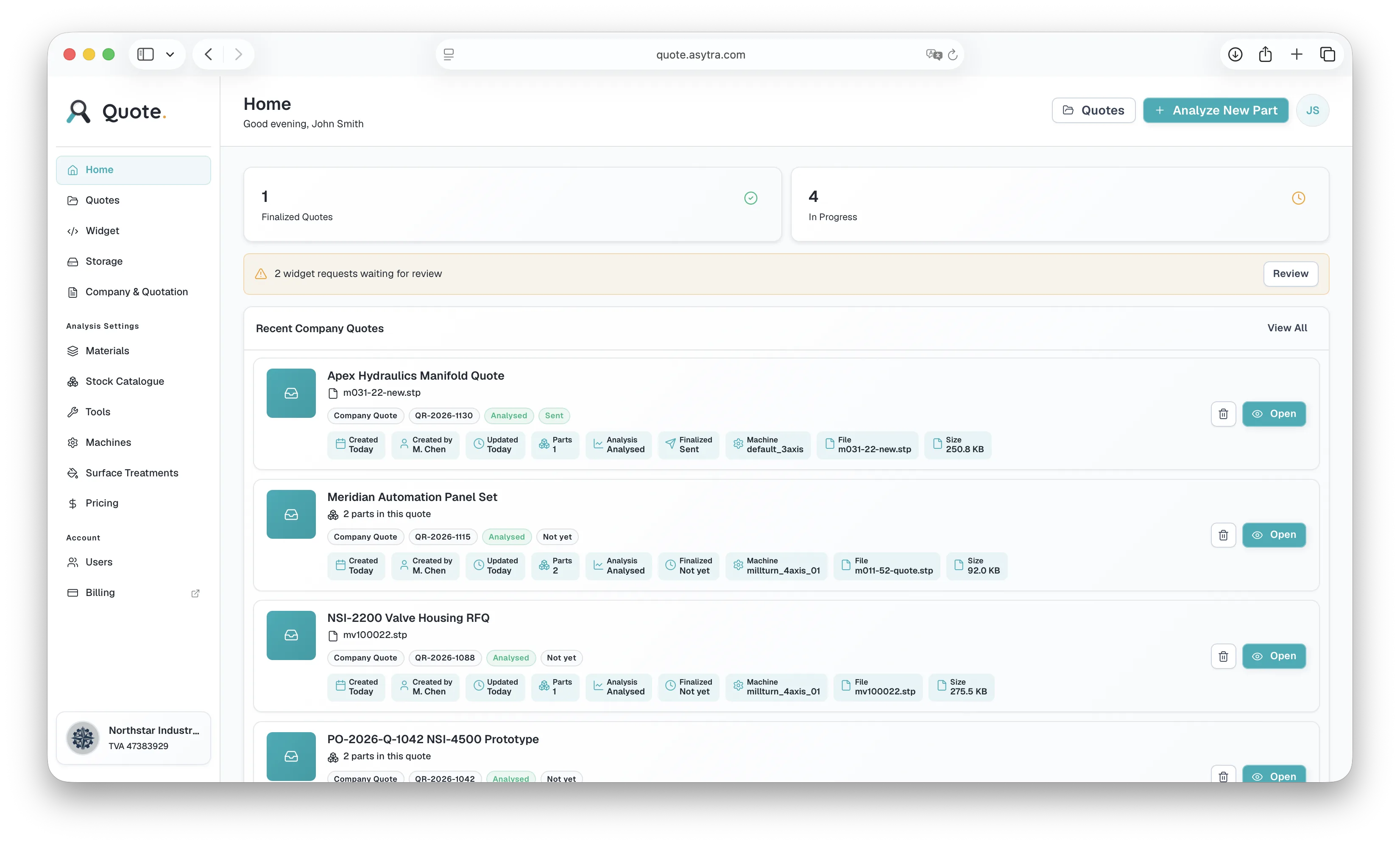
Dashboard Overview
The sidebar is your main navigation:
- Dashboard: Summary stats and recent widget activity.
- Quotes: All quotes (company quotes and widget requests).
- Manage: Materials, machines, tools, pricing, and other shop configuration.
- Widget: Widget keys and settings (requires Widget subscription and access).
The home page shows counts for company quotes, widget activity, pending reviews, and priced quotes, plus a short list of recent widget requests and analysis runs.
Analyze a New Part
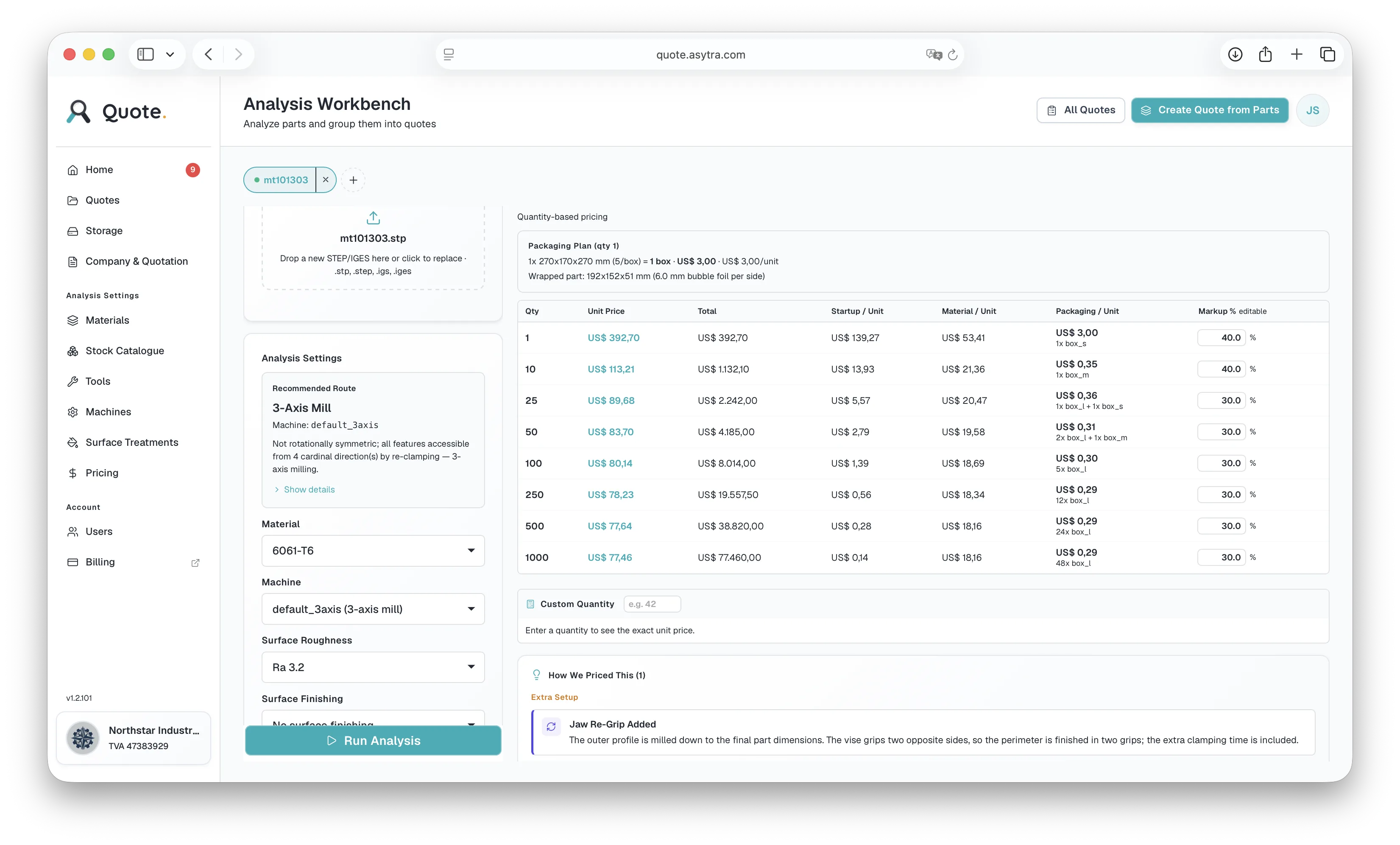
Click Analyze New Part from the Dashboard or Quotes page. You enter the analysis workbench with one part tab open.

Step 1: Upload a STEP or IGES file
- Drag and drop or browse for a .stp, .step, .igs, or .iges file.
- Wait for upload to complete. An interactive 3D preview appears in the viewer.
- You can replace the file by uploading again on the same tab.
Step 2: Set analysis options
- Material: Choose from your configured material list.
- Machine: Shown when relevant; Quote also recommends a route from geometry.
- Surface roughness, finishing, treatment: Optional add-ons that affect price.
- Raw material stock: After pricing, see which stock shape Quote selected.
Step 3: Get Price
- Click Get Price once upload and routing are ready.
- Analysis runs in the background. You can cancel while it is running.
- When complete, result cards appear next to the viewer.
Step 4: Review results
Depending on your workflow, you may see some or all of these result sections:
- Quantity-based pricing: Unit price at standard quantity breaks.
- Custom quantity: Enter a specific quantity to see that unit price.
- Process route: Recommended milling, turning, or combined steps.
- Planner insights: Notes from the analysis pipeline.
- Manufacturability (DFM): Design feedback that may affect machining.
- Warnings: Items that may need manual review.
- Time and cost breakdown: Where cycle time and cost come from.
- Packaging plan: How the part would be packed for shipping estimates.
- Part info, tools used, turning details: Technical detail for estimators.
Multi-Part Sessions
Before creating a formal quote, you can price several parts in one workbench session:
- Click Add Part (or the plus tab) to open a new part tab.
- Upload and price each part independently.
- Each tab shows a status indicator: idle, uploading, analyzing, done, stale, or error.
- Remove a tab with the close button. Quote asks for confirmation if the part has data.
Important: If you change material or other settings after pricing, the part becomes stale. Re-run Get Price before including it in a quote or exporting.
Create a Quote
When at least one part is fully priced (not stale):
- Click Create Quote in the header.
- In the modal, select the parts to include. Only fully priced parts can be selected.
- Optionally enter a quote name.
- Click Create Quote to save the bundle.
To add more priced parts later, use Add to Quote from the same modal.
Finalize a Quote
Click Finalize Quote to prepare the quote for export or (for widget-origin quotes) customer submission.
Summary strip
At the top you see part count, priced count, total quantity, and quote total. If any parts need analysis, use Analyze All or re-run per part.
Parts table
- Set quantity per line. Prices update based on quantity tiers.
- Edit part details by returning to the workbench (Edit Part).
- Attach an optional PDF drawing per part (helpful for tolerances and notes).
- Re-run analysis for individual parts if settings changed.
Customer section
Enter:
- Company name, contact name, email, phone
- Address and TVA/VAT number (if applicable)
- Quote notes (special instructions, delivery requirements)
Fields save automatically as you type.
Export
When every part is priced and not stale:
- Download PDF: Customer-ready quotation document with your company branding from Quoting Settings.
- Download Excel: Spreadsheet format for internal use or customer delivery.
Manage Quotes List
Open Quotes from the sidebar.
Company Quotes tab:
- Lists quotes your team created in the Dashboard.
- Search by name, customer, or filename.
- Open a quote to continue editing parts or return to Finalize.
- Delete quotes you no longer need.
See Quote Requests for the Widget Requests tab.
Opening an Existing Quote
From the Quotes list, click a quote to reopen the workbench with all parts loaded. You can:
- Add new parts and add them to the quote.
- Change analysis settings and re-price.
- Go to Finalize for export or request handling.
Shop Settings
Everything under Manage in the sidebar configures how Quote estimates time and cost. These settings apply to both the Dashboard and the Widget. Website visitors never see hourly rates, margins, or internal formulas.
Recommended order: Materials and machines first, then tools and stock catalogue, then surface treatments and pricing, then quoting settings for exports.
Materials
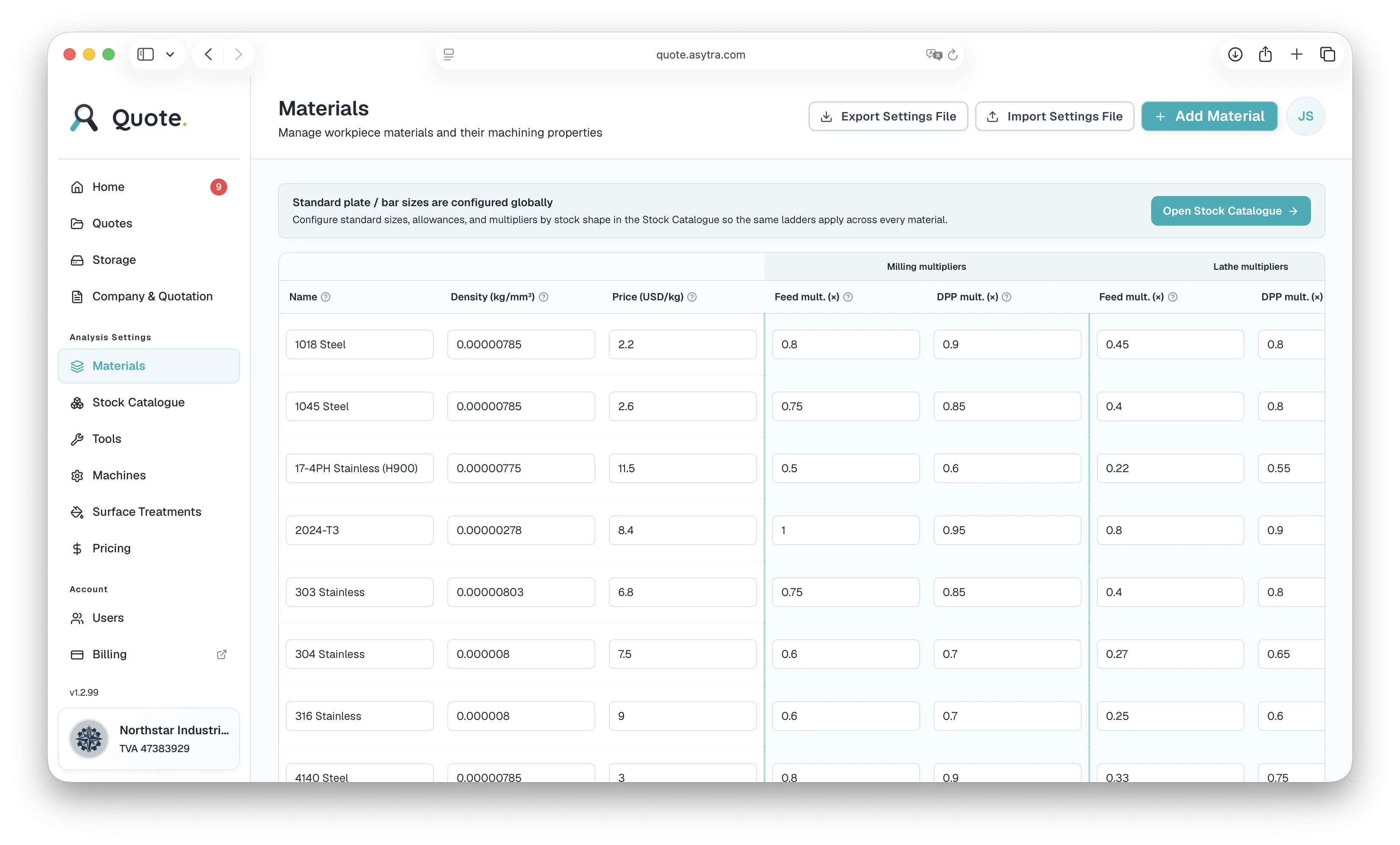
Define every material you quote (for example 6061 aluminum, 316 stainless, POM). Each material affects:
- Machining time (cutting speed and tool wear behavior)
- Material cost (density and price per kilogram)
- Stock waste factor for rough stock sizing
Only materials you add here appear in the analysis dropdown for your team and (unless restricted) Widget visitors.
Machines
Configure each machine in your shop:
- Spindle speed and feed limits
- Hourly rate for machining time conversion
- Machine type (milling, turning, mill-turn) for routing
Quote compares routes and picks appropriate machines based on part geometry. More machines give better routing for mixed part types.
Tools
Define cutting tools (end mills, etc.) with diameter, flutes, and feed parameters. The analysis engine uses these when estimating operation times. Keep tool libraries aligned with what you actually run on the floor for accurate times.
Stock Catalogue
List standard raw stock shapes and sizes you buy (plate, bar, rod, etc.). Quote selects appropriate stock when estimating material volume and cost. Update this when you change preferred stock sizes or suppliers.
Surface Treatments
Configure surface finishes and treatments (for example anodize, passivate, paint). These appear as optional selections during analysis and add cost when selected.
Pricing
Set the business rules that convert machining time into a sell price:
- Margin or markup percentages
- Setup and programming costs
- Minimum order charges
- Packaging rules and oversize handling
- Quantity break behavior
Changes here affect all new analyses. Re-run Get Price on open quotes if you change pricing mid-stream.
Quoting Settings
Configure how exported quote documents look:
- Company display name, legal name, and address
- Logo (appears on PDF exports)
- Terms and conditions, payment terms, bank details
- Authorized signatory and signature city
- Company currency (unit of account for all stored amounts)
Changing currency: Quote supports changing company currency with a conversion preview. This is a significant operation; review the preview carefully before confirming.
Company Data
Supplementary company fields used across Asytra products. Keep this aligned with quoting settings for consistent customer-facing documents.
Storage
View file storage usage for Quote. Files are categorized by source (internal app vs widget). Monitor usage against your plan limits and remove unneeded uploads when appropriate.
Widget Setup
The Widget item in the sidebar opens Widget settings. You need an active Widget subscription and per-user Widget access. Work through each settings tab and use the live preview on the right to see changes before saving.
Creating and Managing Keys
Each Widget key connects one embedded Widget on a website to your Quote account.
- Click Create Key and give it a label (for example "Main website" or "Staging").
- Choose live for production sites or test for development.
- Copy the key when shown. It is displayed only once at creation.
- For live keys, set allowed origins to the website domains that may use the key (for example yourshop.com).
- Adjust rate limit if you expect high traffic (default is suitable for most shops).
- Regenerate a compromised key or revoke keys you no longer use.
Your web developer uses the key to embed the Widget on your site. Contact them or Asytra support if you need help placing the Widget on your page.
General: Instant Quote vs Quote Workspace
This is the most important Widget decision:
- Instant Quote (workspace off): Visitors upload one STEP, get a price, and view results. Best for quick ballpark pricing on your site. No formal Request Quote flow. You may add a call-to-action button linking to your contact form.
- Quote Workspace (workspace on): Full multi-part quoting. Visitors add parts, create a quote, finalize with contact info, and click Request Quote. Requests land in your Dashboard. Required if you want customers to submit formal quote requests online.
Requests Tab
- Notification Email: Required for Request Quote. Receives an email with a link to review each submission. Use a shared inbox your sales team monitors.
- Temporary Quote Retention (hours): How long unrequested widget quotes are kept (default 7 days). Submitted requests are kept permanently.
Note: Without a notification email saved, visitors cannot submit Request Quote even if everything else is configured.
Appearance Tab
- Accent color: Buttons and highlights in the Widget.
- Font: Match your brand (Google Fonts supported).
- Logo: Upload or pick from company storage. Shown at the top of the Widget.
- Disclaimer: Default text explains that pricing is indicative. Customize for your legal or sales needs.
- Call-to-action button: Optional link (for example "Contact us for a formal quote") shown after results.
- Powered by Asytra Quote: Footer attribution (can be toggled).
- Reduce animations: Accessibility option for visitors who prefer less motion.
Click Save Changes in Appearance for branding to apply on your live embed.
Defaults Tab
- Default material / machine: Pre-select values visitors start with.
- Display currency: Override company currency for Widget display (optional). Useful when quoting visitors in a different currency.
- Locked fields: Prevent visitors from changing specific settings (material, roughness, finish, treatment). Machine cannot be locked; routing chooses the best fit.
Visibility Tab
Toggle each card on or off to control how much detail visitors see:
Input cards: STEP upload, 3D viewer, analysis settings, raw material stock.
Analysis fields: Material, machine, surface roughness, finishing, treatment (individual toggles inside the settings card).
Result cards: Pricing table, custom quantity, packaging plan, time breakdown, cost breakdown, process route, planner insights, manufacturability, warnings, part info, clamping orientations, tools used, turning details.
For a simpler customer experience, show upload, viewer, settings, and pricing table only. Hide cost and tool detail cards.
Regional Pricing Tab
Apply percentage adjustments to Widget prices based on visitor country (detected automatically):
- Default adjustment: Used when country cannot be detected (VPN, local testing).
- Per-country rules: Add rows for specific countries (for example +10% for certain regions).
Regional pricing affects Widget display only, not your internal Dashboard quotes.
Quoting Tab
Optionally override company document fields (name, terms, bank details) for exports from this specific key. Use when one Widget serves a different brand or division. Leave inherited to use company-wide Quoting Settings.
History Tab
Review past activity per key:
- Quote requests: Submitted quotes with parts, customer info, and totals.
- Analysis runs: Every price run even if the visitor never submitted a request.
Open an analysis record to see full results (material, machine, country, pricing) as the visitor saw them.
Live Preview
The preview panel on the Widget settings page shows how your Widget looks with current settings. Resize the preview to test narrow layouts (mobile-width embeds). Unsaved appearance changes show in preview only; click Save for live embeds to update.
Quote Requests
When Quote Workspace is enabled and a visitor clicks Request Quote, both parties receive emails and the quote appears in your Dashboard.
What Happens Automatically
- Visitor contact details and priced lines are frozen in the quote.
- A reference number is assigned.
- Your notification email receives a message with a link to Finalize Quote in the Dashboard.
- The visitor receives a link to track their quote (no login required).
- The quote status becomes Pending Review.
Finding Requests
Go to Quotes, then the Widget Requests tab.
Quote Requests sub-tab:
- All submitted widget quotes.
- Search by customer, reference, filename, or material.
- Status: Pending Review or Finalized.
Analysis Runs sub-tab:
- Every Widget price run, including visitors who did not submit.
- Search by filename, material, widget key label, or country.
- Useful for sales follow-up ("someone priced a part but did not request").
The Dashboard home page also lists recent widget activity with quick links.
Reviewing a Pending Request
- Open the quote from the list or the email link.
- On Finalize Quote, review the summary strip (parts, priced count, total).
- Check each line: quantity, unit price, part name, attached PDF drawing.
- Verify customer details (company, email, phone, address, notes).
- If you change shop settings or part options, re-run analysis for affected parts.
- Download PDF or Excel internally if needed before responding.
Quote Request Panel
For widget requests, the Quote Request panel appears on Finalize:
- Status badge: Pending Review or Finalized.
- Customer link: Copy or open the visitor tracking URL.
- Overall Adjustment (%): Apply a surcharge (+) or discount (-) to the entire quote.
- Message to Customer: Optional note (lead time, payment terms, exclusions) shown when you finalize.
- Submit Final Quote to Customer: Sends the confirmed quote. Use Resend Final Quote after updates.
If the quote was priced in a different currency than your current company currency, Quote may prompt you to convert before finalizing.
Customer Tracking Page
Visitors open their link to see:
- Reference number and request date
- Status: under review or finalized
- Part list with previews, quantities, unit and line prices
- Attached drawings (download)
- Subtotal and total
- Your message (after finalize)
- Download PDF and Excel
They do not need an Asytra account. Keep the link private; it acts as their access token.
Request Lifecycle Summary
- Draft (widget): Visitor building a quote; may expire if never submitted.
- Pending review: Submitted; waiting for your team.
- Finalized: You sent the confirmed quote; customer sees final total and message.
MCP Setup
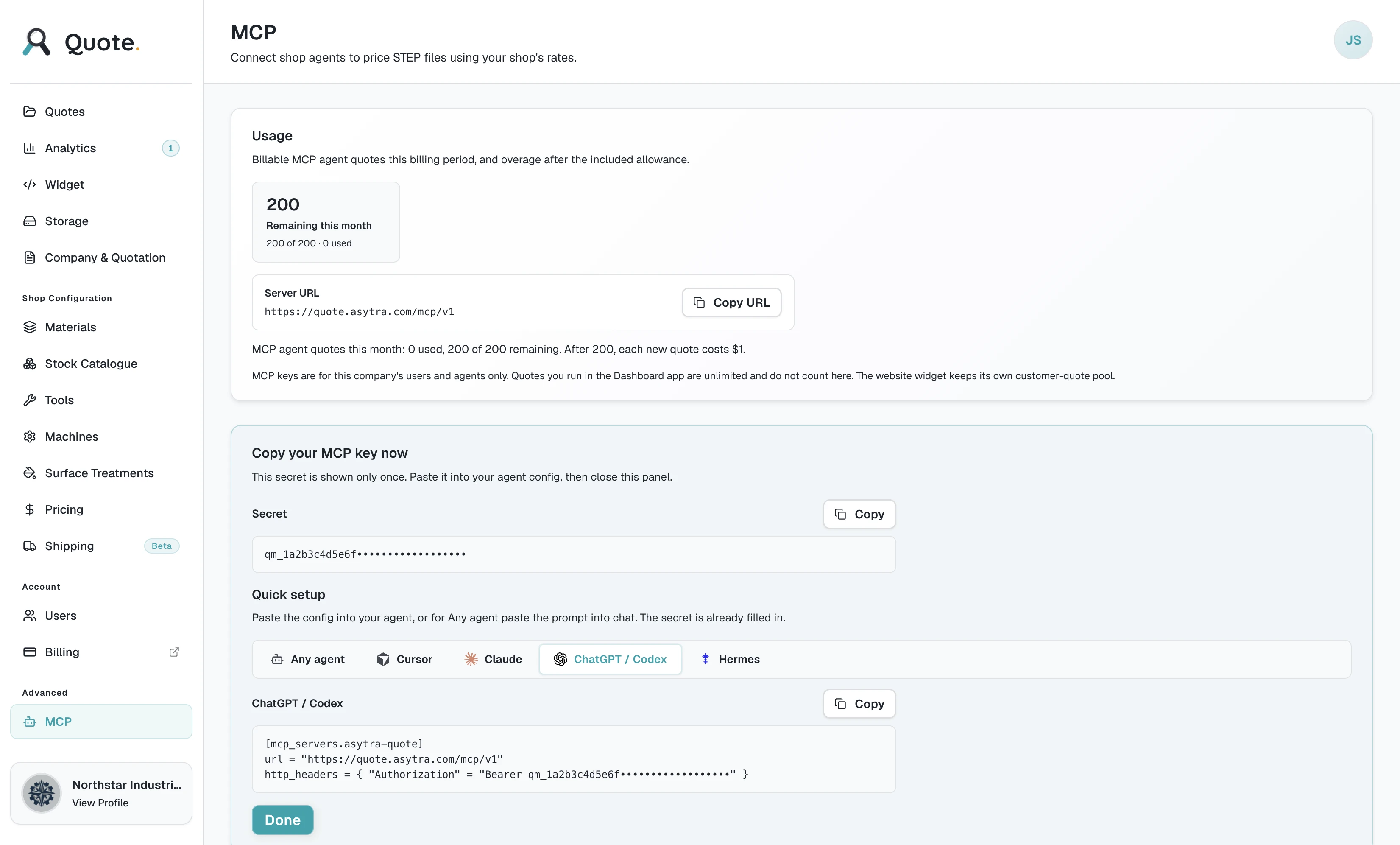
MCP (Model Context Protocol) lets the AI tools your team already uses call Quote directly. Instead of asking an assistant to guess at machining costs, the assistant asks Quote, and Quote prices the part with your rates, machines, tools, materials, and margins.
The agent does not learn to estimate machining. It learns to ask. Your rates and shop rules stay the single source of truth, and your team sees every call in the Dashboard.
Who MCP Is For
MCP is for your own people and your own agents: shop estimators working alongside an assistant, internal copilots, and RFQ scripts that run inside your business. Keys are scoped to your company.
To give your customers instant prices on your public website, use the Quote Widget instead. The Widget is the customer-facing path. MCP is the internal one, and a key cannot be used to let outside parties price through your shop.
What Your Agent Can Do
Two tools are available today:
- price_part: Uploads a .stp or .step file and starts an estimate. Returns a job reference immediately.
- get_quote_status: Checks on a running estimate and returns the result once it finishes.
A typical run uploads a part, starts the estimate, waits for it to complete, and returns the price together with the process route and analysis results your estimators would see. Uploads and status checks are not counted against your allowance; only estimates that produce a price are.
Anything the agent returns is still an estimate. Your team reviews and confirms final pricing before production, exactly as with any other Quote.
Creating a Key
- Sign in at quote.asytra.com. Your company needs an active Quote Dashboard or Quote Widget subscription.
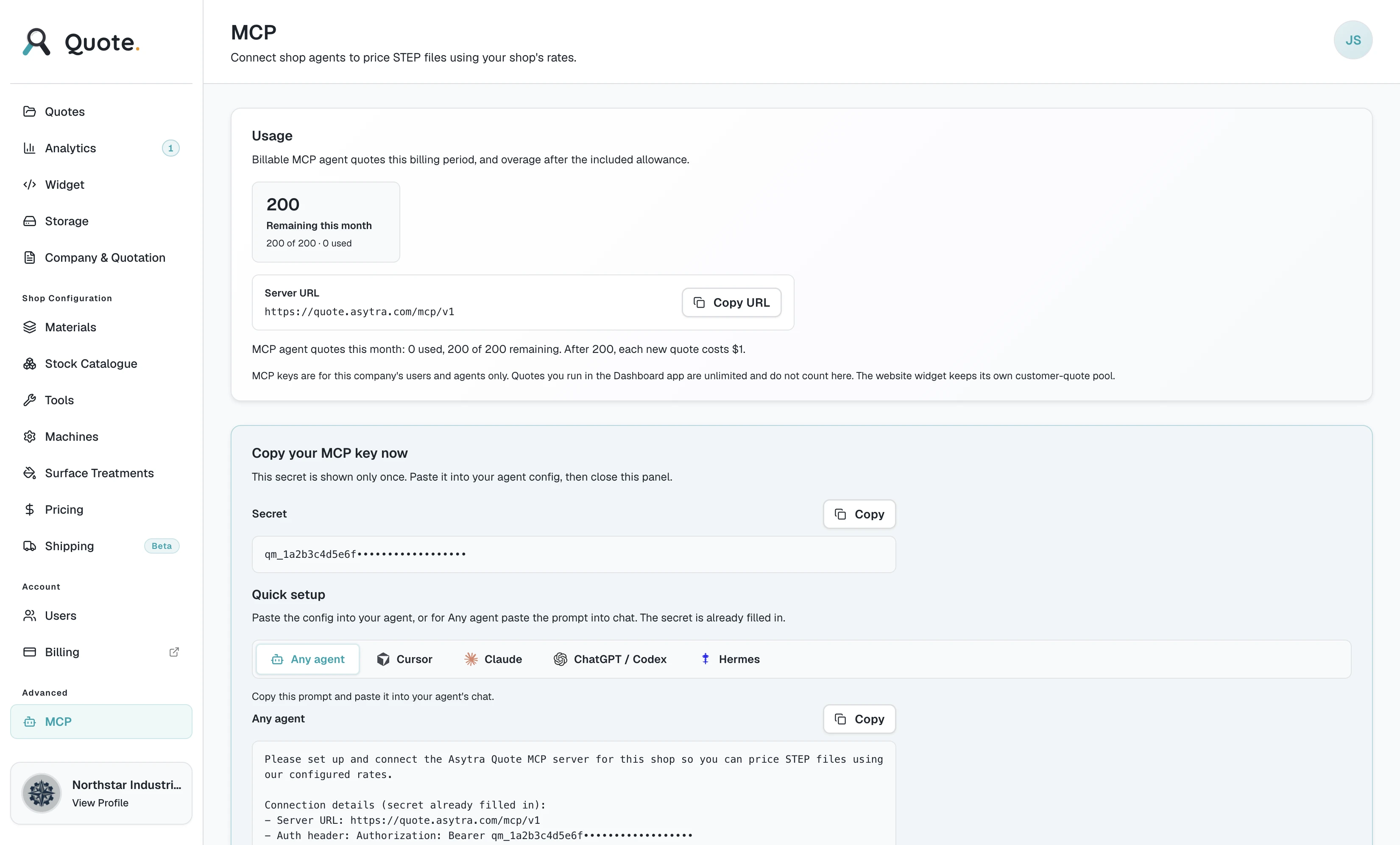
- Open Advanced, then MCP in the sidebar.
- Enter a label describing what the key is for, such as "Estimating assistant".
- Click Create Key. The key is shown once, so copy it immediately. If you lose it, create a replacement.
Give every agent its own key. The label appears in the keys table and in Recent Activity, so you can tell at a glance which assistant ran a given price and revoke that one key without disturbing the rest.
Connecting an Agent
The MCP page in your Dashboard provides ready-made setup for Cursor, Claude (Claude Desktop and Claude Code share the same configuration), ChatGPT and Codex, and Hermes. Copy the configuration for the tool you use and paste it into that tool's MCP settings along with your key.
The ChatGPT and Codex tab uses the same settings file for both, so a key works in the ChatGPT desktop app and in Codex from the CLI or IDE.
Then test it by asking your agent to price a part you already know the price for. Confirm the result in Recent Activity.
Recent Activity
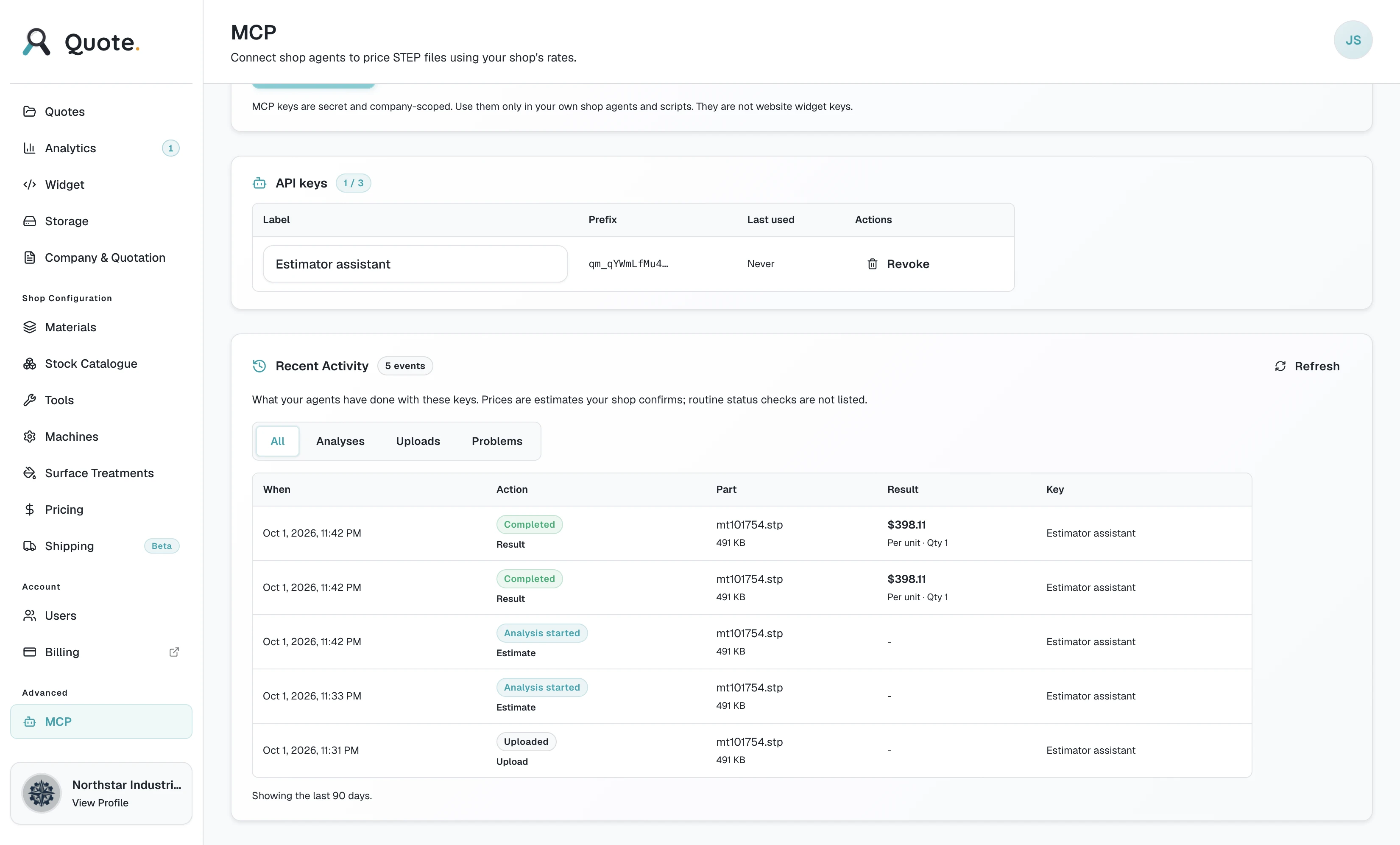
The Recent Activity card under the keys table answers the question usage counters cannot: what did my agent actually price? Each entry shows the file, the outcome, and the resulting price.
- Filter by analysis, upload, or status.
- Only completed entries carry a price. An estimate still running shows no price yet.
- An entry for a key you have since removed is still shown, labelled Removed key.
- Activity is kept for 90 days. Very old entries show that a call happened without the filename or price.
Allowance and Limits
Quotes produced through MCP are counted monthly against an allowance shown at the top of the MCP page. Uploads and status checks do not use it.
Two practical limits keep a misconfigured agent from flooding your account:
- Roughly 10 new estimates per minute per key, and 10 uploads per minute.
- Around 60 status checks per minute per key. Agents poll while an estimate runs, so this is generous on purpose.
If a company runs out of allowance, further estimates pause with a message asking you to upgrade. Raise it from billing.asytra.com.
Good Uses to Start With
- Triage inbound RFQs: drop a part in, get a price back, route the easy ones and flag the rest.
- Price a batch from a folder of files without opening the Dashboard for each one.
- Give a quoting assistant a way to answer "roughly what would this part cost?" during a customer call.
- Sanity-check a part against your rates before a formal quote goes out.
Keep a person in the loop for the final number. MCP removes the clicking, not the judgement.
Best Practices
Shop Configuration
- Validate materials and machines against a few known parts before going live.
- Keep tool libraries realistic; inflated feeds produce unrealistically low prices.
- Review pricing margins periodically as your costs change.
- Complete Quoting Settings before sending customer PDFs (logo, terms, bank details).
Internal Quoting
- Use consistent default materials per part type to reduce stale re-runs.
- Attach PDF drawings on finalize for anything with tight tolerances.
- Re-analyze if you change settings; never export stale lines.
- Use quote notes for exceptions the geometry model cannot capture.
Widget Configuration
- Start with a test key on a staging page before production.
- Enable Quote Workspace if you want formal online requests, not just indicative pricing.
- Set a monitored notification email (shared sales inbox).
- Write a clear disclaimer that online prices are estimates.
- Hide technical result cards for public visitors; keep pricing table and viewer.
- Lock material if you only want visitors quoting specific alloys you stock.
- Use regional pricing only when you have a deliberate commercial reason.
Handling Requests
- Respond to pending requests promptly; visitors expect confirmation.
- Check analysis runs for high-intent leads who did not submit.
- Use overall adjustment for freight, rush fees, or commercial rounding.
- Put lead time and validity in the message to customer field.
Agent Automation
- Configure shop settings first. MCP returns exactly what your Dashboard returns, so an unvalidated rate shows up in agent results too.
- Give each agent its own key so you can trace and revoke independently.
- Start with a narrow job (one file type, one folder) and widen once results match your expectations.
- Check Recent Activity regularly. It is the fastest way to confirm an agent is pricing sensibly.
- Treat agent output as a first estimate. Keep human review before anything reaches a customer.
Troubleshooting
Get Price Is Disabled or Greyed Out
- Wait for the STEP file to finish uploading (progress indicator on upload).
- Wait for the recommended process route to appear after upload.
- Confirm the file extension is .stp, .step, .igs, or .iges.
- Try a smaller file if upload hangs on slow connections.
A Part Shows as Stale
- You changed material, finish, treatment, roughness, or machine after the last price.
- Click Get Price again on that part.
- In Finalize, stale parts block PDF, Excel, and Request Quote until re-analyzed.
Request Quote Is Disabled in the Widget
- Enable Quote Workspace (Instant Quote alone has no Request Quote).
- Set and save a Notification Email under Widget, Requests.
- Every part must be analyzed and priced (no empty or stale parts).
- Visitor must complete Finalize with valid contact info.
Cannot See MCP in the Sidebar
- Company needs an active Quote Dashboard or Quote Widget subscription.
- Your user needs Dashboard access assigned by an admin.
- MCP sits under Advanced in the sidebar. Scroll down if the sidebar is short.
Agent Cannot Connect
- Confirm the key was copied in full and is still valid. Keys are shown once at creation.
- Confirm you pasted the configuration into the correct tool. Claude Desktop and Claude Code share one configuration; ChatGPT and Codex share another.
- Restart the agent tool after editing its settings; most read configuration only at launch.
- Check Recent Activity. A request that never appears did not reach Quote.
- Ask the agent to price a small known part first, rather than a large file.
Agent Prices Differ From The Dashboard
- Both use the same shop settings, so compare material, machine, and finish options used for each run.
- An agent that omits material or finish options will return a different number. Have it pass your defaults explicitly.
- If you changed shop settings recently, re-run a known part in the Dashboard and with the agent to compare.
Agent Says It Is Out Of Allowance
- Check usage at the top of the MCP page and in Recent Activity.
- A runaway loop is the usual cause. Raise the rate limit in your agent configuration rather than raising your allowance.
- Raise the allowance from billing.asytra.com.
Analysis Failed
- Re-upload the STEP file.
- Open the file in your CAD system to confirm it is valid geometry.
- Try exporting a fresh STEP from CAD (some exports produce bad solids).
- Contact Asytra support with the filename if one part always fails.
Part Shows Oversized or Manual Quote Needed
- Very large parts may exceed automatic packaging or tier pricing limits.
- Pricing table may show a manual quote message instead of tiers.
- Visitor can still submit a request with notes; you finalize manually in the Dashboard.
Export Buttons Disabled in Finalize
- One or more parts are unpriced or stale. Run analysis on all lines first.
- Quote must have at least one part.
Test Mode Banner on the Widget
- Shown when using a test key. Prices are not treated as production.
- Replace with a live key on your public website when ready.
Widget Not Loading on Your Website
- Confirm your developer embedded the Widget with the correct live key.
- For live keys, verify your site origin is in the key allowed origins list.
- Test keys work from any origin for development.
- Clear browser cache after Widget updates (versioned script URLs help).
- Contact your web developer or Asytra support for embed issues.
Request or Notification Email Not Received
- Check spam and junk folders.
- Confirm notification email is saved in Widget settings (Requests tab).
- Visitor must enter a valid email in Finalize for their tracking link.
- Company notification is required; visitor confirmation email is best-effort.
Cannot See Widget in the Sidebar
- Company needs an active Quote Widget subscription.
- Your user account needs Widget access from a company admin.
Cannot Access Quote Dashboard
- Company needs an active Quote Dashboard subscription.
- Your user needs Dashboard access assigned by an admin.
- Sign in at quote.asytra.com with the correct Asytra account.
Prices Look Wrong After Settings Change
- Re-run Get Price on open parts; old prices do not auto-update.
- Check material, machine, and pricing settings for recent edits.
- Compare time breakdown to see if machining or material drove the change.
Customer Link Does Not Work
- Links include a security token. Use the full URL from the email or Quote Request panel.
- If a link was regenerated after a resubmit, older links may no longer work.
- Copy a fresh link from Finalize and resend to the customer.
Quantity Change Did Not Change Unit Price
- Unit price depends on quantity tiers in your pricing configuration.
- Some quantities fall in the same tier; try a larger jump to see a change.
- Re-blur quantity field in Finalize to ensure the value saved.