
Why people search for an online STEP viewer
STEP (.stp / .step) is the default exchange format for CNC machining handoffs. Estimators, buyers, and sales engineers open dozens of them every week. Desktop CAD is accurate, but it is slow to launch and expensive if all you need is a quick look.
A free online STEP viewer solves a narrow job: upload the file, rotate the solid, confirm the overall geometry, and move on. For shops that also quote from STEP, the same upload can feed feature detection and pricing instead of starting over in another tool.
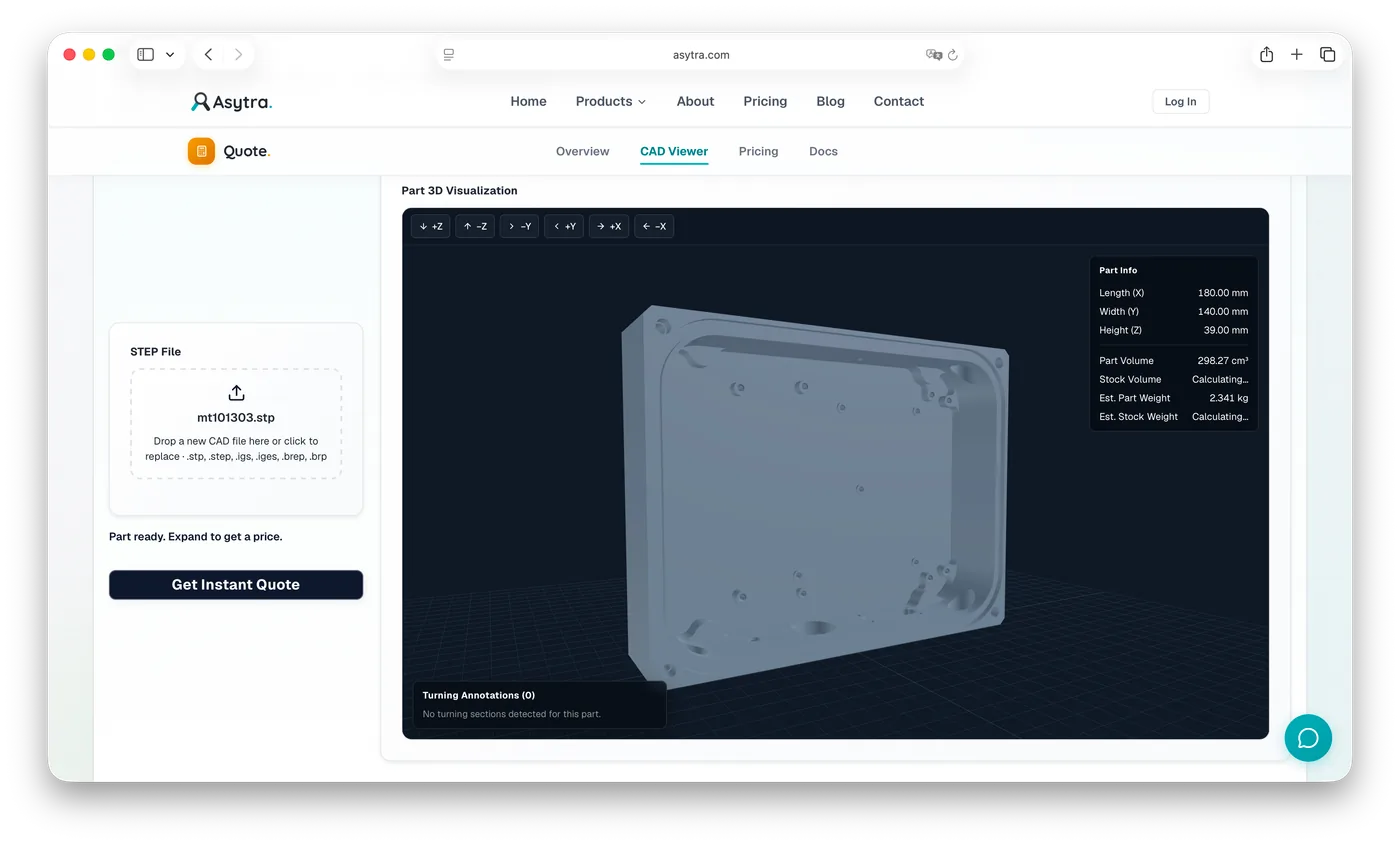
How to open a STEP file in your browser
- Export or save a clean solid. Prefer a single machined part over a full multi-body assembly when you only need to inspect or quote one item.
- Use a free STEP viewer page. Open Asytra's free CAD viewer (also accepts IGES and BREP).
- Upload the file. Drop
.stpor.stepinto the upload area. No account is required for viewing. - Inspect the 3D preview. Rotate, pan, and zoom. Confirm envelope size, obvious features, and orientation.
- Review detected holes. Asytra highlights automatic hole detection so bore features are easier to spot without desktop CAD.
If the model fails to load, re-export from your CAD system as AP214 or AP242 STEP, remove unused construction bodies, and try again with a single solid.
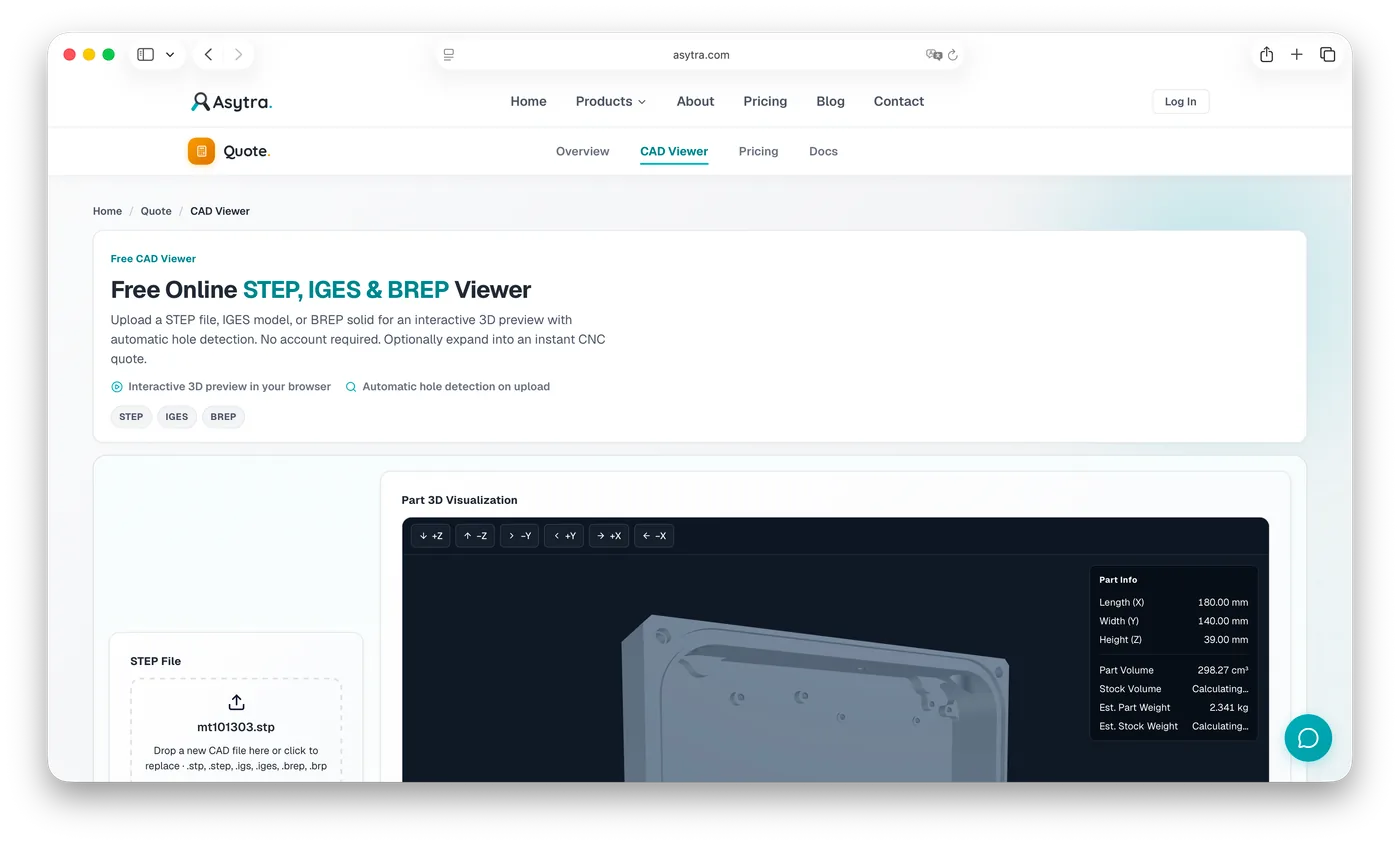
What a good STEP preview should show you
Viewing is not the same as measuring for inspection, but a solid preview should still answer practical questions:
- Is this the part you expected (overall shape, bosses, pockets, flanges)?
- Are holes present where drawings or emails claimed they would be?
- Does the solid look manufacturable at a glance, or does it look like a sheet-metal flat, mesh, or broken export?
- Is the file a single part or an assembly that needs splitting before quoting?
For dimensional inspection from drawings, you still need a drawing-based workflow. For quick geometry checks and quoting intake, the STEP viewer is usually enough to start.
STEP vs IGES vs BREP when you only need to look
Most RFQs arrive as STEP. Some partners still send IGES. Engineering tools based on Open CASCADE sometimes exchange BREP. If your viewer only accepts one format, you waste time converting. Asytra's viewer accepts all three so you can open the file you were sent. For a deeper comparison, read STEP vs IGES vs BREP: which format should you upload?
From free STEP viewing to an indicative CNC quote
A viewer answers "what is this part?" Quoting answers "what would it cost to machine?" Those used to be separate tools. On the Asytra viewer page you can stay in preview mode, or expand into indicative pricing based on demo shop rules (not a binding quote).
That path matters for machining websites and intake desks: one upload, one 3D context, then either a quick visual review or a price request. If you want the full customer-facing flow on your own domain, see how to add an instant CNC quoting system to your website.
Practical tips for cleaner uploads
- Send millimetres-consistent solids when your shop quotes in metric.
- Avoid password-protected ZIPs when testing a public viewer; upload the STEP itself.
- Keep file names descriptive (
bracket-al6061-revC.step) so quote history stays readable. - Do not upload confidential production files to a public demo if company policy forbids it.
Try it now
Open the free online STEP, IGES, and BREP viewer. Upload a file, inspect the 3D preview and hole highlights, then optionally expand into a CNC quote. For shop-configured pricing and an embeddable widget, learn about Asytra Quote or start a Quote trial.
Related articles
- STEP vs IGES vs BREP: Which Format Should You Upload?
- CNC Cost Calculation from a 3D Model
- Free CNC Cost Calculator
- How to Add an Instant CNC Quoting System to Your Website
Frequently asked questions
Yes. A free online STEP viewer opens .stp and .step files in your browser. You get an interactive 3D preview without installing desktop CAD software.
Most online STEP viewers accept .stp and .step. Many also accept related exchange formats such as IGES (.igs, .iges) and BREP (.brep, .brp). Asytra's viewer supports all three.
Public demos process uploads on provider infrastructure. Follow your company policy: do not upload confidential production files to a public demo if policy forbids it. Use a production tenant under your company account for customer work.
Some tools combine viewing with quoting. Asytra lets you preview a STEP file online, then optionally expand into an indicative CNC quote based on demo or shop pricing rules. Demo prices are not binding.